180
Input Monitoring
Being able to hear plug-in audio effects applied to a live signal is an exciting
feature of SONAR. However, there are two issues that users commonly stumble
upon when using the input monitoring feature. The first is that the monitored
signal seems to have an echo associated with it. The second is that live input
monitoring can lead to nasty feedback problems, particularly if you have an
outboard audio mixer, or you record from a different sound card from the one you
are playing back with.
SONAR has several buttons to control input monitoring:
• Per-track Input Echo button —each audio track has an Input Echo button
that turn’s that track’s input monitoring on or off.
• Global Input Monitor button—the Playback State toolbar (to display, use the
View-Toolbars-Playback State command) has the Input Monitor button on
the right end, which turns input monitoring on or off on all audio tracks with
one click.
• Audio Engine button —clicking this button so that it’s in its up position
turns all audio activity in SONAR off, which includes input monitoring.
Note: When you use input monitoring, make sure that the track you’re playing
through uses the same audio interface (sound card) for both input and output.
Using different audio interfaces for a track’s input and output can produce
distortion during input monitoring.
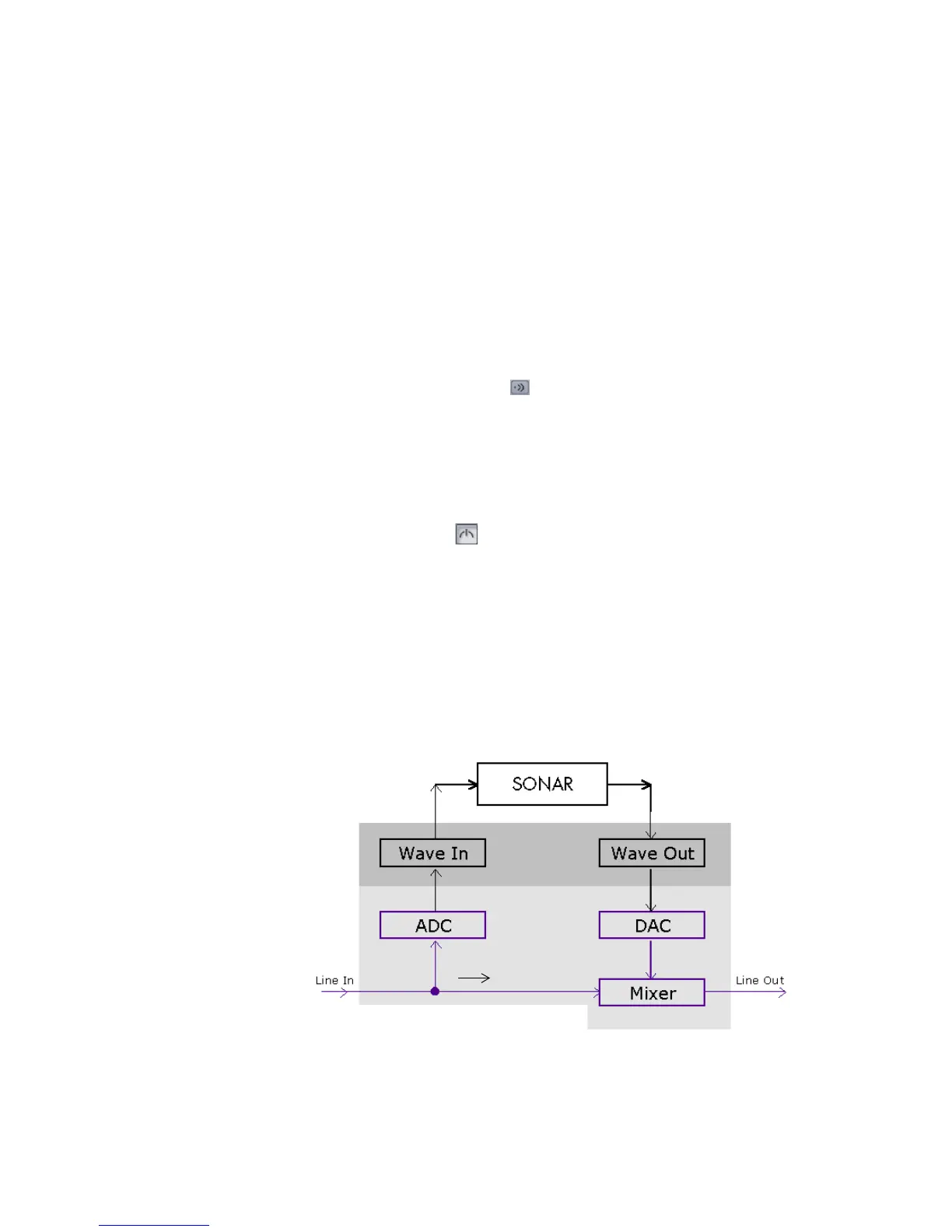
To understand the echo and feedback problems, let’s look at how audio signals
travel through your sound card, the drivers, and SONAR. The following diagram
depicts a simplified version of this signal flow.



 To Next Page