83
Slip Editing a Clip
Solo the two guitar tracks and listen to the project. We are going to combine these
two tracks and create an automatic crossfade between them. Before we do, we have
to hide the beginning of the second guitar part so it doesn’t affect the crossfade.
We’ll do this using slip editing.
1. Click the Snap to Grid button to turn off Snap to Grid. The Snap to Grid
settings control slip editing as well as drag and drop.
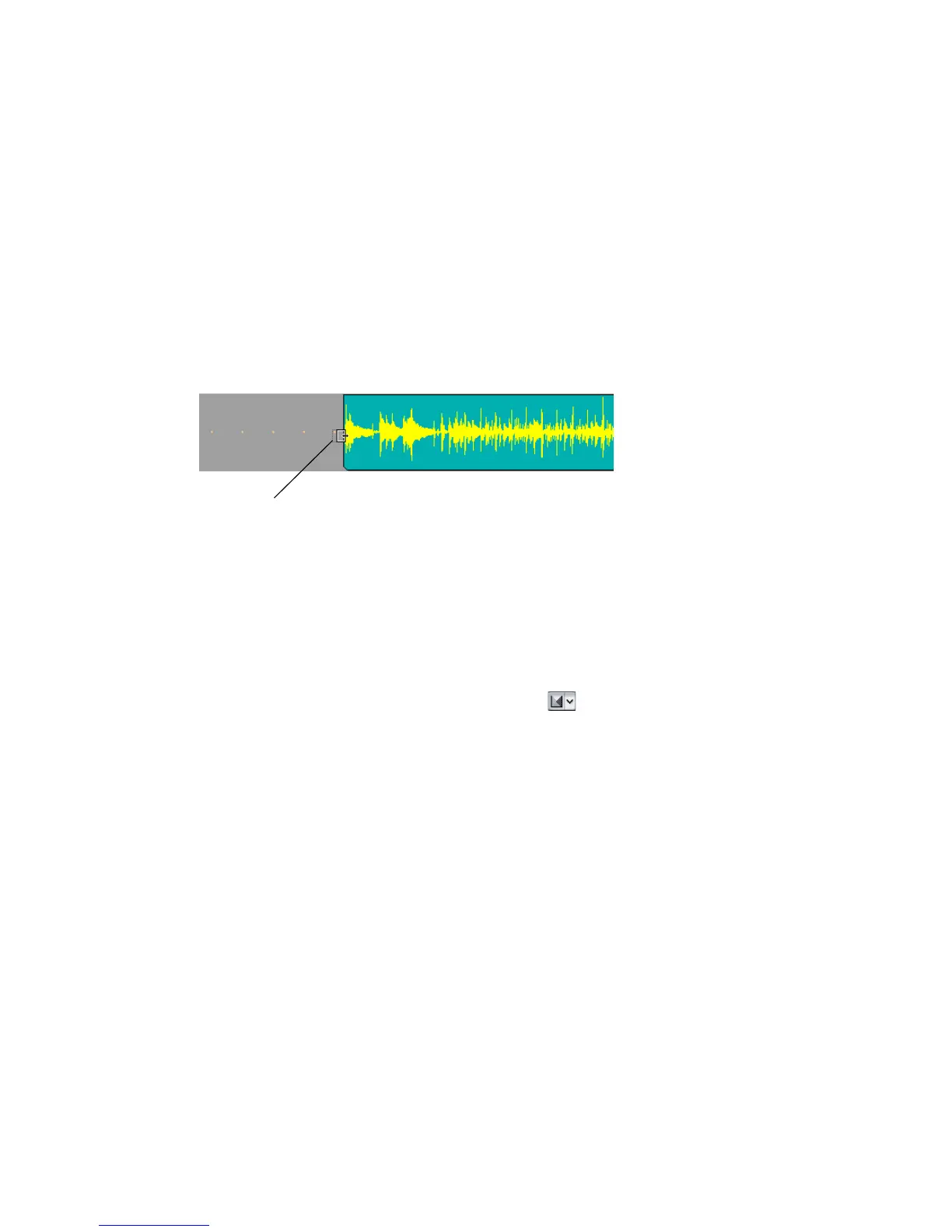
2. Move the cursor over the beginning of the second guitar clip.
3. When the cursor turns into a rectangle, click and drag the beginning of the
clip until you have reached the beginning of the waveform.
The beginning of the clip is now hidden. The data is not lost, as you will see if
you drag the beginning to where it was originally. Slip-edited data is still in
the project, but it is not seen or heard.
Automatic Crossfades
Let’s combine these two tracks and create a crossfade.
1. Enable automatic crossfades by clicking (depressing) the
Enable/Disable Automatic Crossfades combo button located next to the
Snap to Grid button on the Track view toolbar.
2. Click the down arrow on the Enable/Disable Automatic Crossfades combo
button, select Default Crossfade Curves and select a crossfade curve.
3. Make sure no clips are currently selected by clicking in the Clips pane outside
of any clips.
4. Hold down the Shift key and drag the second guitar clip on top of the first
guitar track and drop it there; make sure that Blend Old and New is selected
in the Drag and Drop dialog box before you click OK. Shift-dragging ensures
that a clip can only move vertically and not horizontally, so you don’t need to
enable the Snap to Grid button to keep the same exact rhythmic placement of
a dragged clip.
The two clips appear on the same track with a crossfade marker on the
overlapping data. The first guitar track fades out as the second guitar fades in. For
more information about crossfades, see “Using Fades and Crossfades in Real Time”
on page 380.
Drag to here



 To Next Page