127
Changing Tracks’ Mono/Stereo Status
SONAR has a mono/stereo button in each track module in the Track and Console
views. The buttons in the track modules force each track to play in either stereo or
mono, but preserve the tracks’ pan positions in the stereo mix.
The Mono/Stereo button in each track forces the track’s audio signal to enter any
patched plug-ins as either mono or stereo, whether or not the tracks are mono or
stereo. This allows you to use either mono effects on a stereo track or stereo effects
on a mono track.
Note: You may lose important stereo data by using mono effects with stereo tracks
because your stereo tracks are summed to mono in order to pass through the effect.
If you never want your stereo data to be summed to mono, select stereo.
To Use a Track’s Stereo/Mono Button
1. Display the Track view or Console view.
2. In the track you want to force to either mono or stereo for processing effects,
click the Stereo/Mono button to the desired position:
• Speaker icon pointing left—This choice means that you manually selected
mono for this track.
• Speaker icon pointing left and right (as pictured above)—This choice
means that you manually selected stereo for this track.
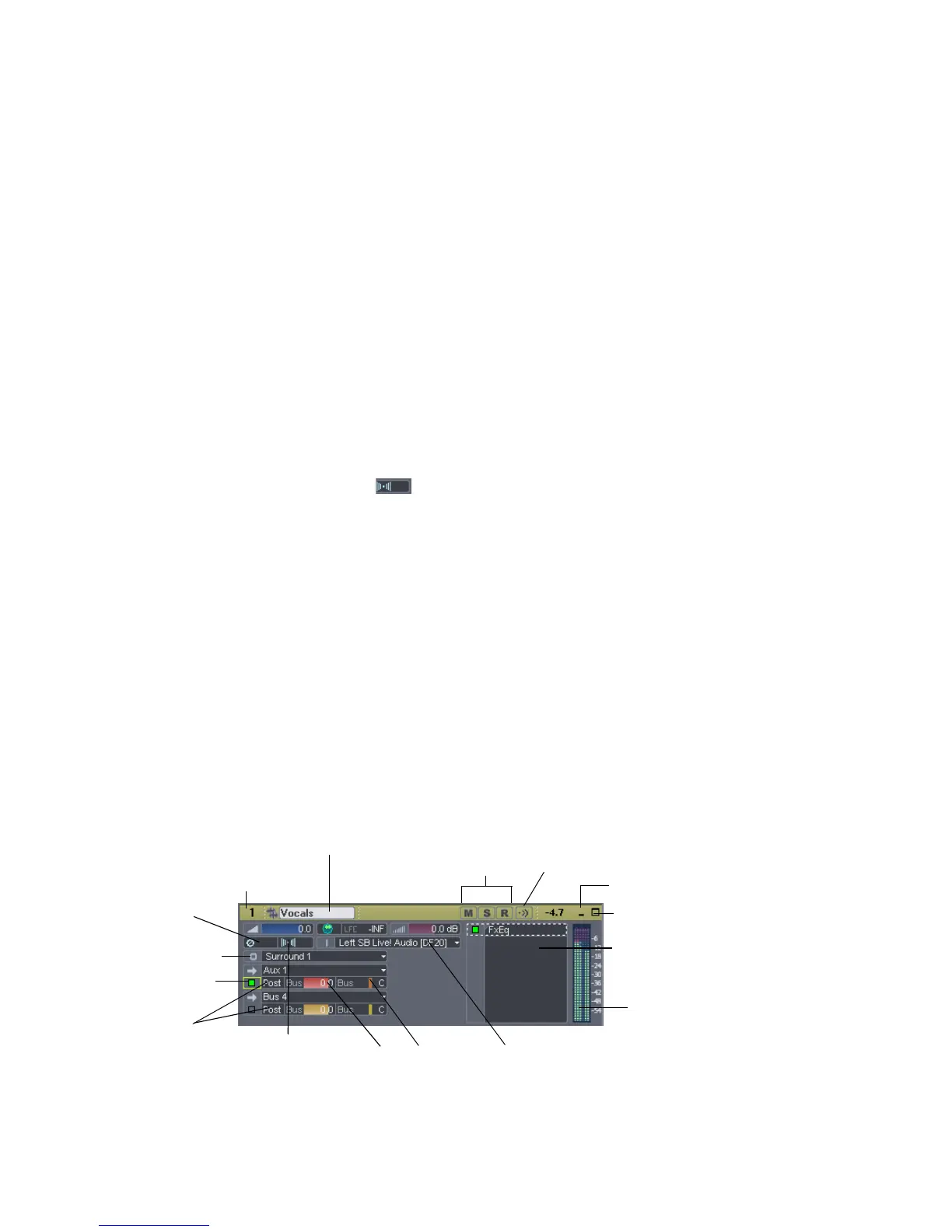
Changing Track Settings
Each track in a project contains MIDI or audio information and has a variety of
settings that determine how the track sounds. By changing these settings, you can
change the sound of your project. For audio tracks, you control the volume, the
stereo panning, and the output device that is used to produce the sound. For MIDI
tracks, you control many additional settings, including the type of instrument
sound that is used to play the notes stored in the track.
Mute, Solo and Arm buttons
Minimize track
Maximize track
Output
Phase invert
button
Track name (or if new, the track #)
Track number
Input (from audio device)
Track Effects bin
Stereo/Mono/Auto button
Pre/Post fader
buttons
Bus send enable
Bus send level, pan
Meter
Audio Track
Parameters
Input Echo button



 To Next Page