209
Arranging Clips
The Track view provides many ways for you to rearrange, copy, and paste clips to
arrange your music the way you want. The easiest is to select the clips or portions
of clips you want to arrange and then drag and drop them wherever you want. You
can drag and drop clips in the Track view even while playback is in progress. You
can also arrange clips via the clipboard using the Edit-Cut, Edit-Copy, and Edit-
Paste commands, which work like those in almost all Windows programs.
The Snap Grid enables you to move clips to or by an exact amount of time, such as
a quarter note or whole measure. See “To Change the Snap Options” on page 223.
Displaying Clips
Clips are displayed as rectangles in the Clips pane. Their position and length show
you at a glance their starting times and lengths. You can control four aspects of
their appearance:
• Color—By default, each track’s clips are drawn in a different color. The clip
colors restart at the tenth track. You can customize the default colors of clips
in the Colors dialog or change the color of any individual clip in the Clip
Properties dialog.
Note: In audio clips, the waveform changes color, unless no clip contents are
displayed. In MIDI clips, the clip background changes color.
• Name—You can also assign each clip a descriptive name, which is displayed in
the upper-left corner of the clip.
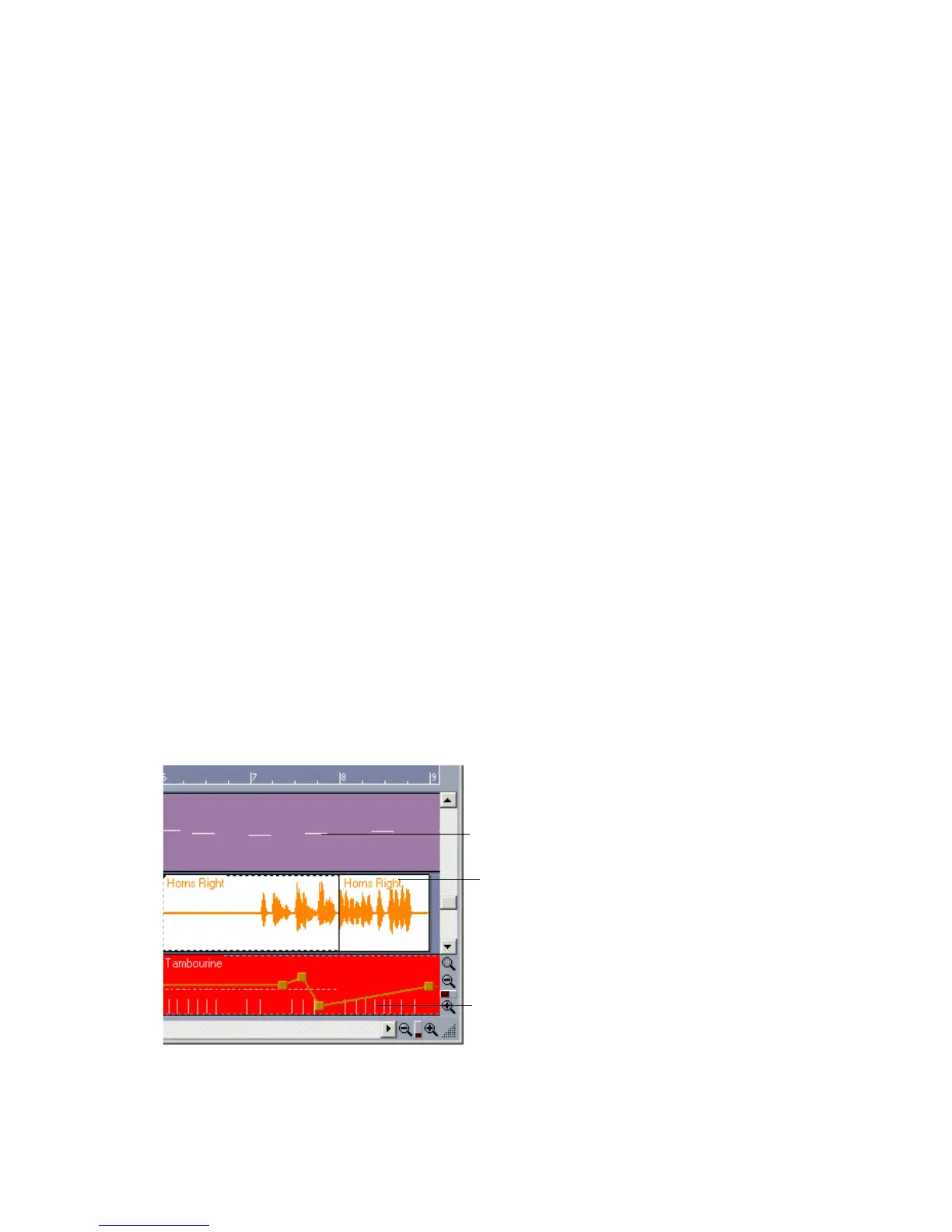
• Contents—At your option, clips can be displayed with a graphical
representation of the events in the clip. The effect is slightly different for
MIDI and audio information as shown below:
A MIDI clip shows each
event; by looking at the clips,
you can “see” the notes that
are being played
Controller or automation
data are also displayed
An audio clip shows
the actual waveform



 To Next Page