324
To Play Events Step by Step
1. Using the keyboard, hold the Shift key and press the Spacebar to play the
currently highlighted event. If the event is a note event, it plays until you
release the Spacebar.
2. When you release the Spacebar, the highlight moves to the next event.
3. Continue pressing the Spacebar to play events one by one.
4. To edit the last event you heard, release the Shift key.
The highlight moves back to the last event you heard, so you can make changes.
You can also audition a single event using the mouse. Ctrl-click on an event to play
the event. If the event is a note or Wave event, it plays until you release the mouse
button.
Additional Event Information
Note Events—There are three values parameters for note events:
• A pitch, which represents the MIDI key number as a note and an octave.
• A velocity (0–127), which is how fast the key is struck. Some keyboards don’t
transmit or receive velocity messages.
• A duration, which is how long the note lasts. This amount is shown in
beats:ticks format. (If the note lasts less then one beat, then only the number
of ticks is shown.)
Note names may also represent percussion instruments, and lists of such note
names are sometimes associated with a particular percussion patch. The note C3,
for example, may really be “kick drum.” If a patch is associated with a percussion
note name list, the name of the percussion instrument appears in Event List view
rather than a note and an octave from the piano keyboard.
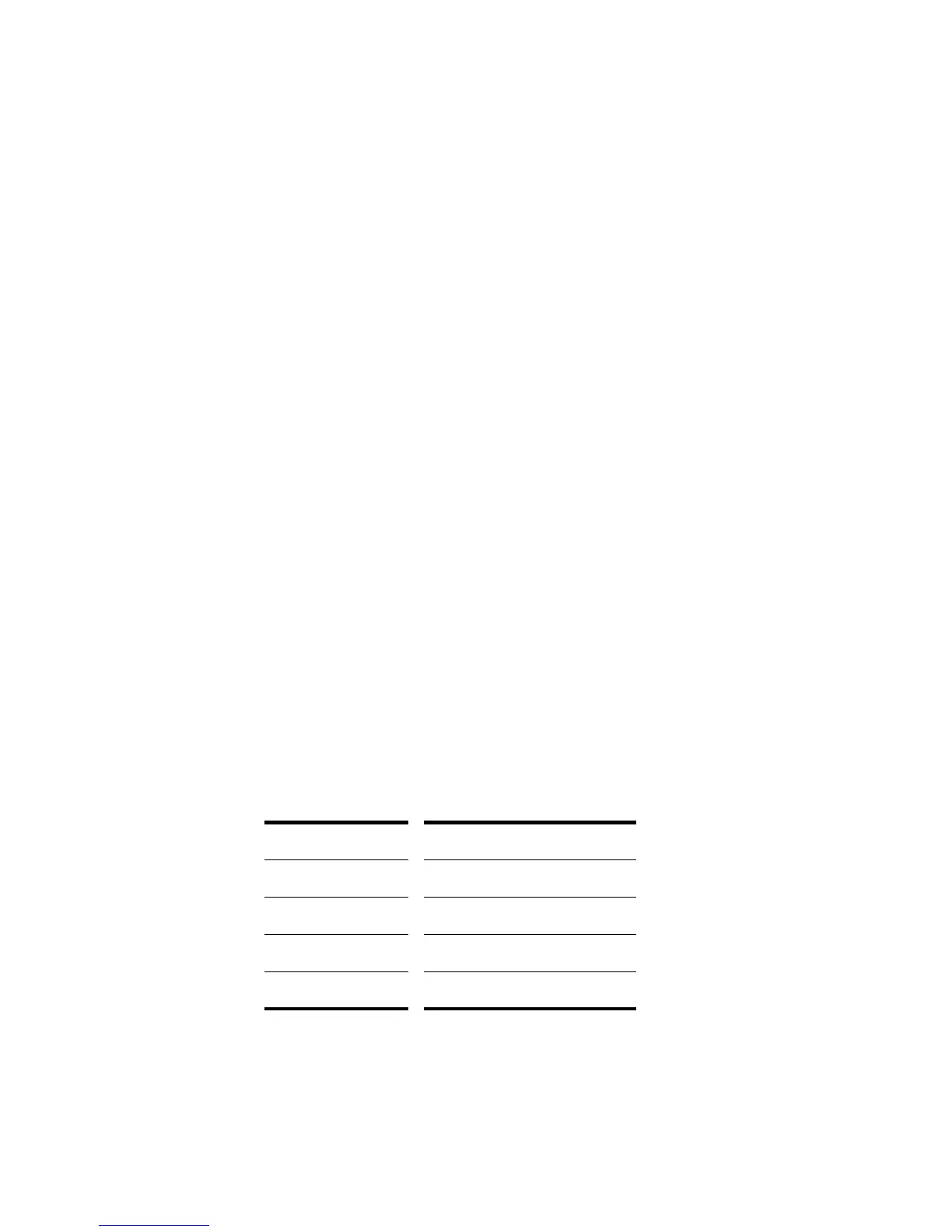
SONAR uses the following notation to display flats and sharps in this and other
views:
Character... Meaning...
bflat
# sharp
" double flat
x double sharp



 To Next Page