44
Floating Views
When a view is float enabled, you can move it outside of the confines of SONAR.
This is particularly useful if you take advantage of SONAR’s dual monitor support.
Using dual monitor support, you can keep the Track or Console view on one
monitor and “float” other views to the other monitor by dragging them to the
second screen.
For more information, see “Floating Views and Dual Monitor Support” on page
517.
Layouts
You may spend a lot of time making sure that all the views are laid out on the
screen just the way you want. When you save your work, you can save the screen
layout along with it. You can also save the layout by itself and then use the layout
with other projects. See “Layouts” on page 514
Working on a Project
Much of your time in SONAR is spent recording and listening to your project as it
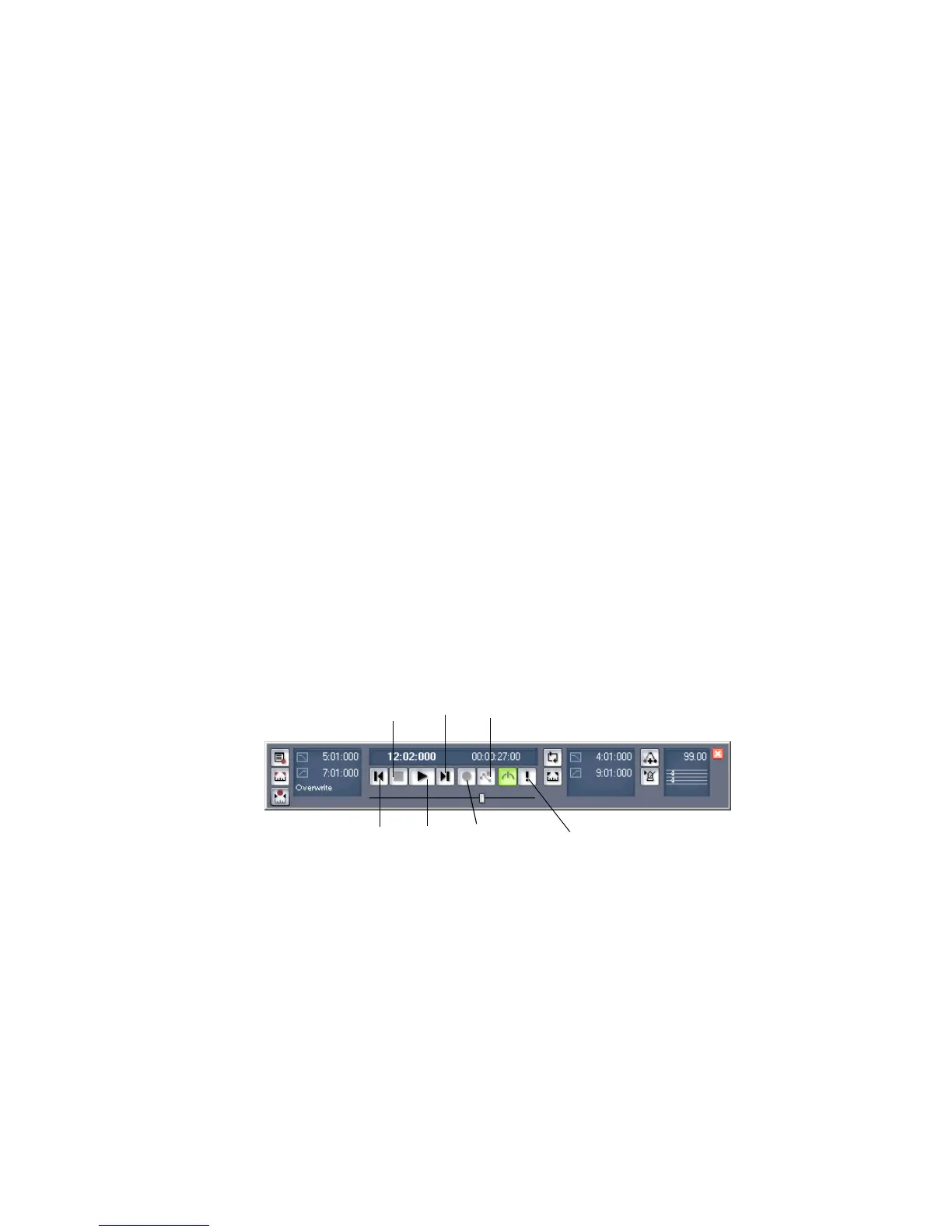
develops. The Transport toolbar, shown below, contains the most important tools
and other pieces of information you’ll need to record and play back your project.
Every project has a current time, known as the Now time. As you record or play
back a project, the Now time shows your current location in the project. When you
create a project, the Now time is set to the beginning of the project. The current
Now time is saved with your project.
You control recording and playback using tools on the Transport toolbar, which
work a lot like the ones on your tape deck or CD player:
As you work with a project, you can use SONAR’s mute and solo features to choose
which tracks are played, or you can create loops to play a particular section over
and over again. You can also create markers, which are named time points you
add to your project to make it easy to jump to a particular location.
Go to End
Stop
Play
Record
Go to Beginning
Reset
Record automation



 To Next Page