153
option is used to recalculate the video display size whenever you resize the Video
view.
To Set the Background Color
• Right-click in the Video view and choose a color option from the Background
Color menu.
To Set the Start and Trim Times
1. Right-click in the Video view and choose Video Properties.
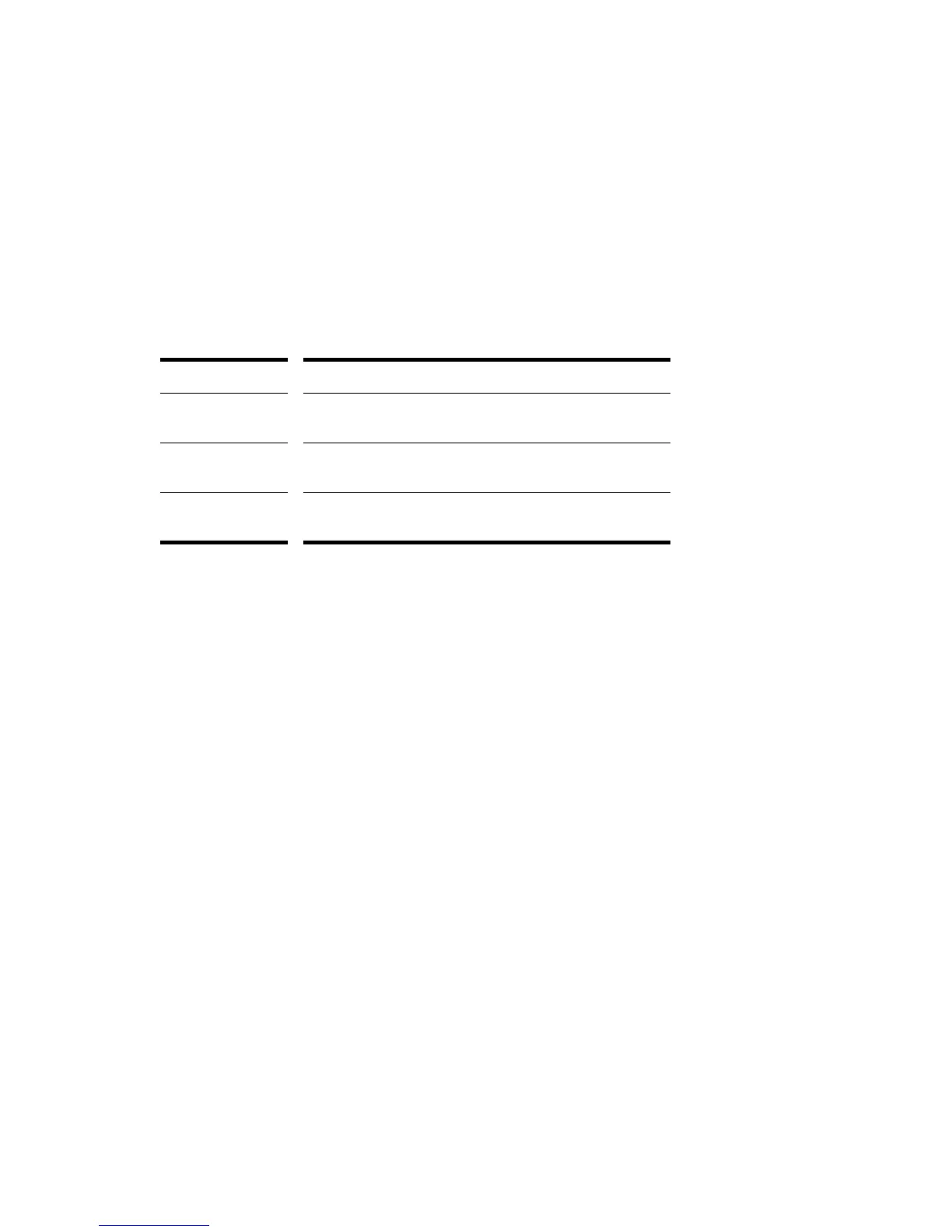
2. Set options as described in the table:
SONAR synchronizes the video to the project according to the specified Start
and Trim times.
Exporting Video
After you’ve mixed your audio tracks the way you want them, you can export the
inserted video file together with your audio tracks to create a new video file.
When you export a video, any changes you’ve made to the Start, Trim-In, or Trim-
Out times determine how long your new exported video is compared to the original
video that you inserted into your SONAR project.
To Export a Video
1. Make sure your audio tracks are completely mixed, and your video Start time,
Trim-In time, and Trim-Out time are set the way you want them.
2. Use the File-Export Video command.
The Export Video dialog appears.
3. In the File Name field, type a name for your new video.
4. In the Files of Type field, choose the kind of video file you want the exported
file to be.
5. Click the Encoding Options button to open a dialog of encoding options for the
kind of file you’re creating. Click the Help button in the dialog for help
choosing options.
Option… What it means…
Start Time The time in your SONAR project at which you want the
video file to start playing
Trim-in Time The time in the video file at which you want video playback
to start
Trim-out Time The time in the video file at which you want video playback
to stop



 To Next Page