566
To Add Lyrics to a Track
1. Click the Draw tool .
2. Select the Lyrics tool .
3. Position the pointer below the staff, under the first note to be assigned lyrics.
(The pointer changes to a pencil when you are in a legal position.)
4. Click to open an insertion box.
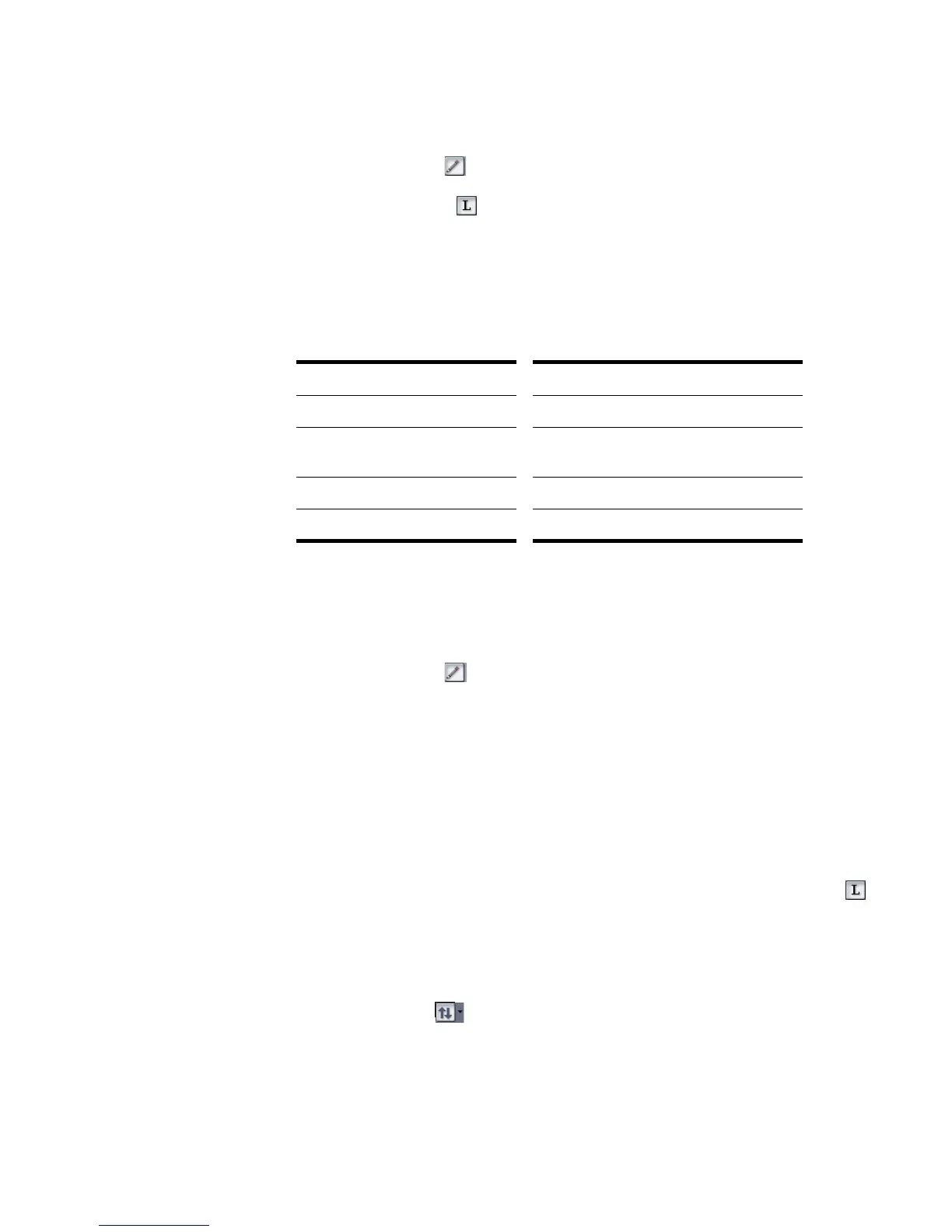
5. Follow the instructions in the table:
6. Press Enter when you are done.
SONAR displays the new lyrics below the staff.
To Edit Lyrics
1. Click the Draw tool .
2. Click the word you want to change.
3. Edit the word as desired.
4. Press Enter.
SONAR replaces the old word with the new one.
Opening the Lyrics View
There are three ways to open the Lyrics view:
• In the Track view, select the track whose lyrics you want to see, then click
• In the Track view, select the track whose lyrics you want to see, then choose
View-Lyrics
• Right-click a clip in the Clips pane and choose Lyrics from the menu
The Pick Track button opens a dialog box where you can select the track
whose lyrics you want to see. Select the desired track, then click OK.
To do this… Do this…
Enter a word or syllable Type it in the insertion box
End the word or syllable and
move to the next note
Type a space, tab, or hyphen
Skip over a note Type a space or hyphen
Move back to the previous note Press Shift-Tab



 To Next Page