54
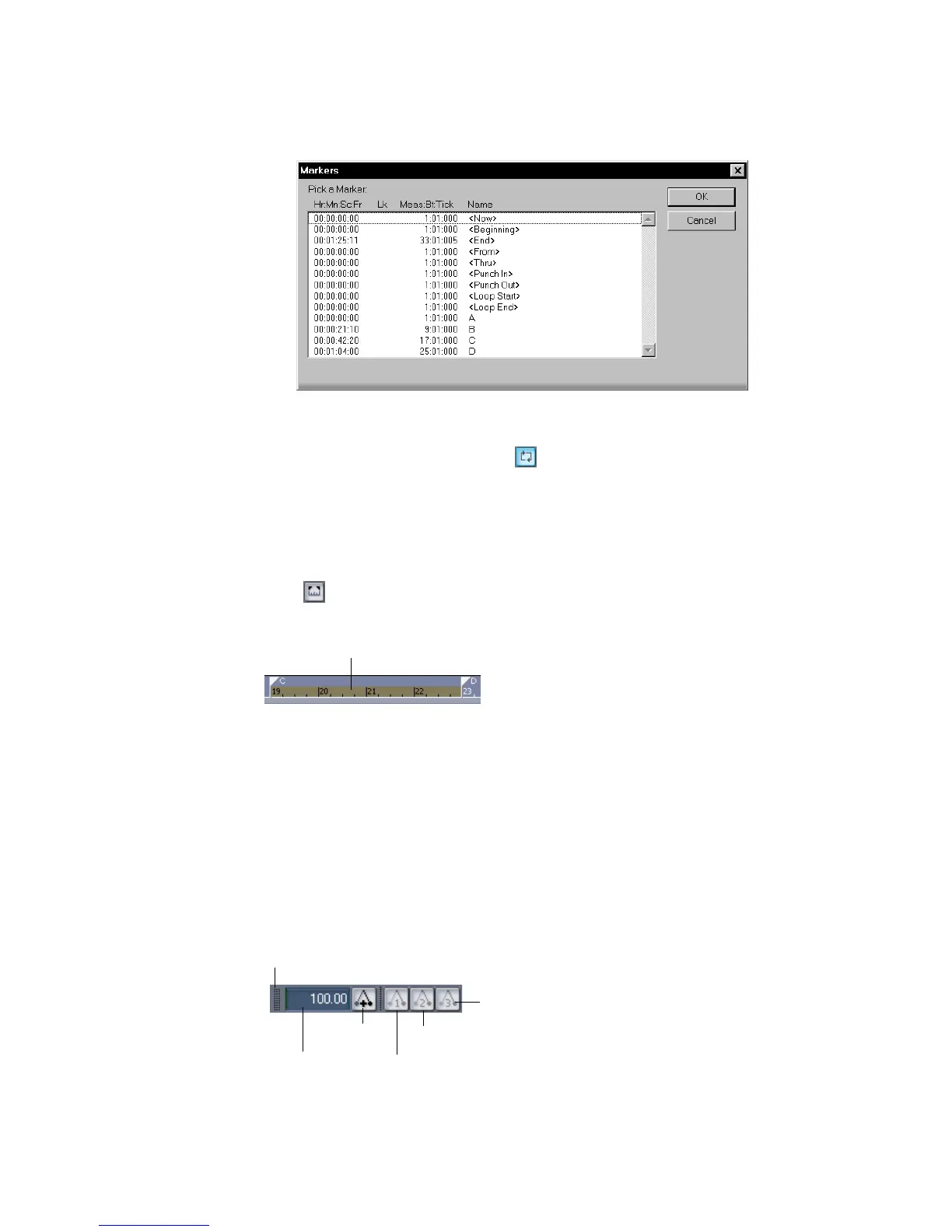
5. Press F5 to open the Markers dialog box.
6. In the Markers dialog box, select marker D and click OK.
7. Click the Loop On/Off button to enable looping.
8. Click Rewind. The project rewinds to the Loop Start time.
9. Click Play.
A quicker way of selecting the loop times in the preceding example would be to
simply click in the area between the markers at the top of the Clips pane, then
click to copy the selection start and end times to the Loop/Auto Shuttle toolbar.
Changing the Tempo
If the project is having trouble keeping up with you (or if you're having trouble
keeping up with the project!), you can easily speed up or slow down the project,
since it contains only MIDI data. There are two ways to do this: you can change the
tempo, or you can change the tempo ratio, which determines the tempo by
multiplying it by a user-defined amount. The controls for either method are found
on the Tempo toolbar. If you don’t see this toolbar, choose View-Toolbars and
check Tempo.
Click here to select the portion of the project between markers C and D
Insert tempo
Te mp o
Tempo ratio 1
Tempo ratio 2
Tempo ratio 3
Drag here to move toolbar to new location



 To Next Page