252
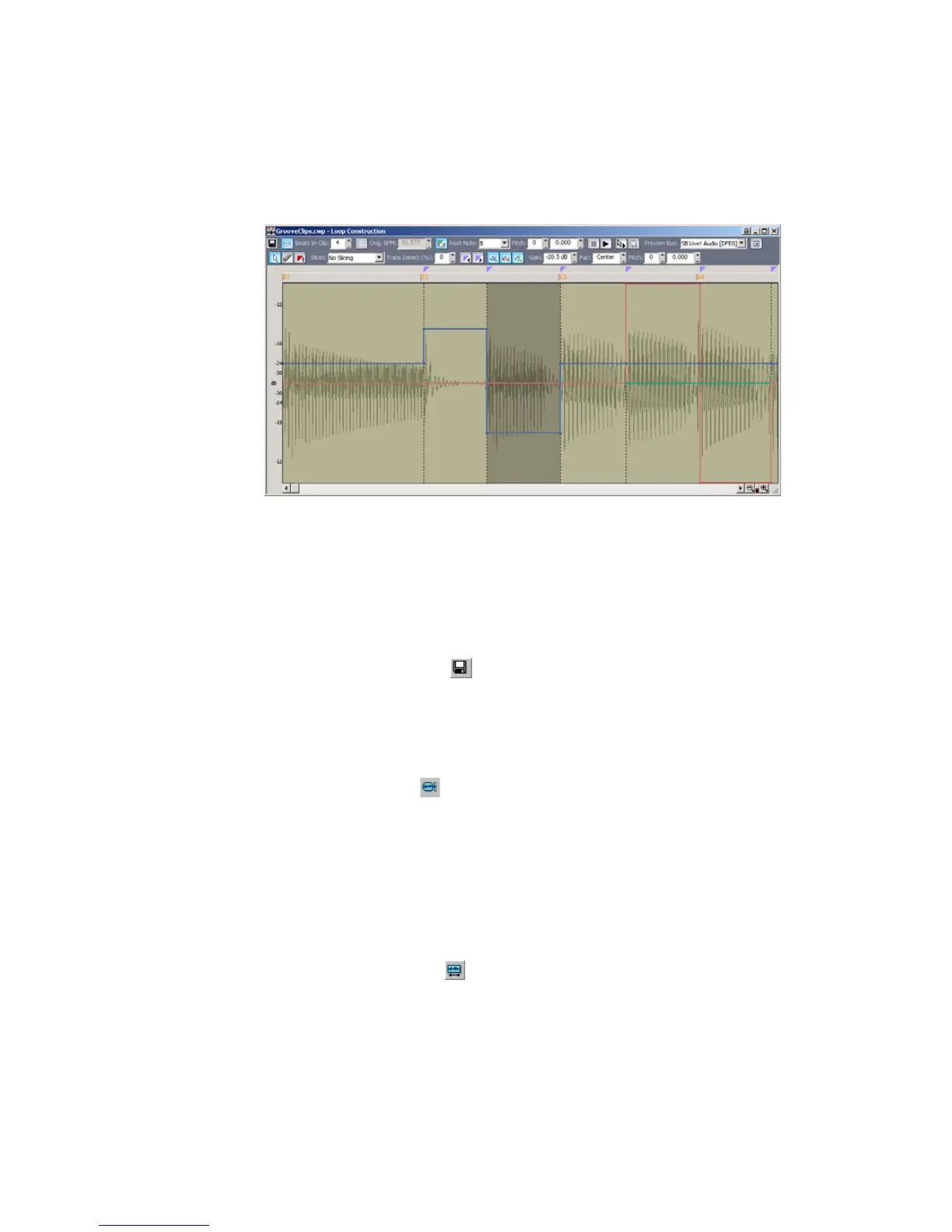
The Loop Construction View
The Loop Construction view is where you create and edit Groove clips.
The Loop Construction view toolbar has tools for editing slicing markers and
controls for previewing loops.
Loop Construction Controls
The following is a list of the tools and controls in the Loop Construction view,
followed by a description:
Save Loop as WAV
This button opens the Save As dialog. The clip in the Loop Construction view is
saved as a Groove Clip/Wave file that has tempo and pitch information stored in it,
and can be opened in SONAR or ACID™. For more information, see “Saving
Groove Clips as Wave Files/ACIDized Wave Files” on page 266.
Enable Looping
The Enable Looping button allows a clip to be looped by dragging in the Track
view. Loop-enabled clips follow changes in the project tempo. Click the Enable
Looping button to loop clips in the Track view by dragging the left or right side of a
clip with your mouse. When you loop-enable a clip it automatically snaps to the
nearest beat boundary (at 1, 2, 4, 8, 16 etc. beats). SONAR calculates the
appropriate beat number. Change the number in the Beats in Clip field if you want
to change the total number of beats in the clip.
Enable Stretching
The Enable Stretching button allows a clip to follow a project’s tempo as it
changes. It instructs SONAR to stretch or shrink the clip to fit the project’s tempo.
SONAR uses the Original BPM parameters to make the change.



 To Next Page