322
Event List Display Filter
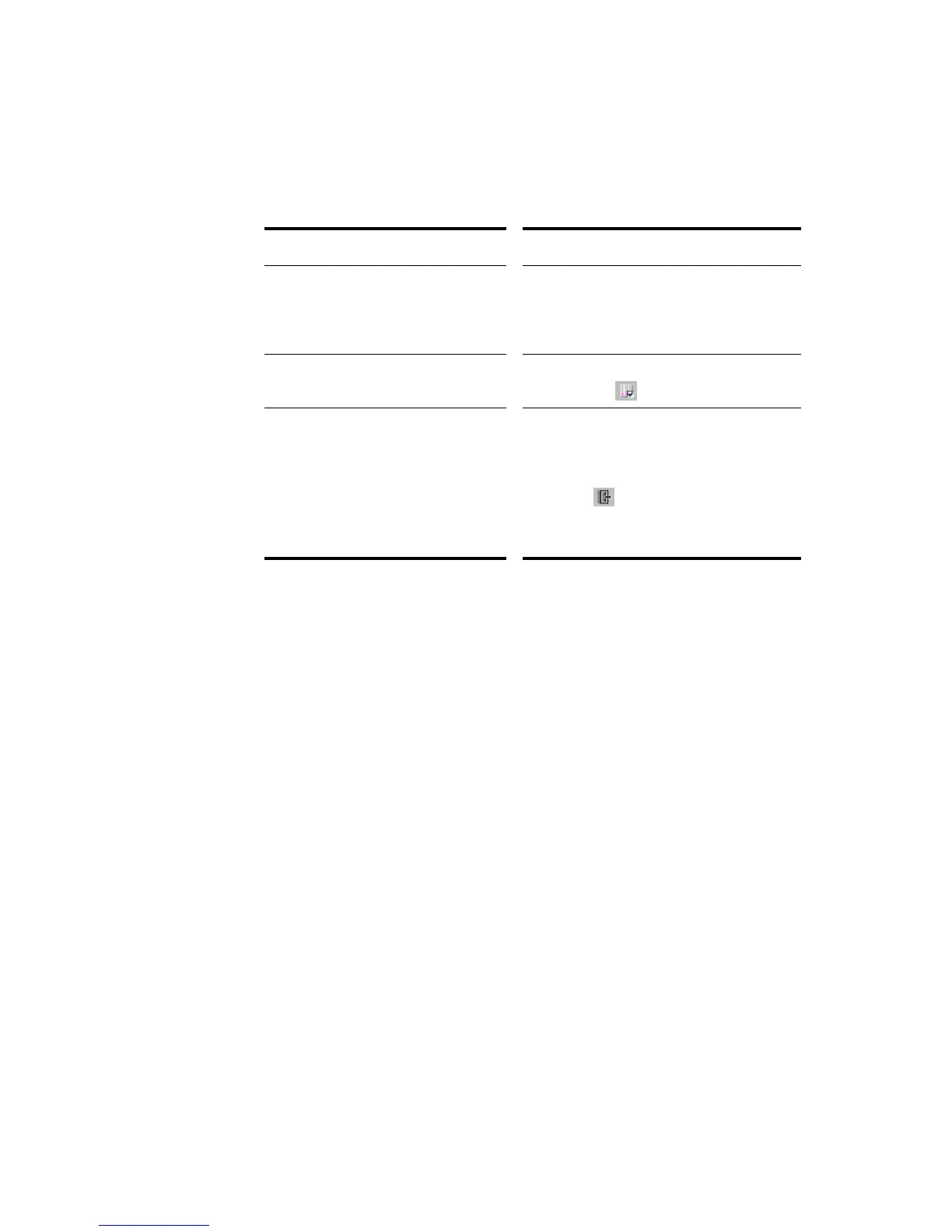
You can configure the Event List view to display different event types, as described
in the following table:
Editing Events and Event Parameters
The Event List view lets you add, delete, or change events one by one. You can also
print the list of events or audition the events one at a time to see how they sound.
You can change the parameters of any event by moving the rectangular highlight
to the cell you want to change and doing one of the following:
• Type a new value and then press Enter
• Press the - and + keys on the numeric keypad to decrease or increase values by
a small amount
• Press the [ and ] keys to decrease or increase values by a larger amount
• Click and hold the mouse button, and then drag the mouse up or down to
change the value by a small amount
• Click and hold both mouse buttons, and then drag the mouse up or down to
change the value by a larger amount
• Double-click a cell, and then enter or choose a new value
If you change the time of an event, it may also change its position in the event list.
The Event List view follows that event to its new location.
To do this... Do this...
Hide events of a certain type Select the event type in the toolbar, in the
Event List view popup menu, or in the Event
Manager. To display a type of event,
deselect it.
Open the Event Manager Choose Event Manager from the popup
menu, or click .
Show or hide slip-edited events As a default, if you slip edit the boundaries
of a clip, all events outside those
boundaries are hidden in the Event List
view. If you want to see these events, click
this button .
Note: You can not edit slip-edited material
in the Event List view.



 To Next Page