122
Looping
Sometimes you want to listen to one portion of a project over and over, either so
you can play along and rehearse or because you want to edit that section of the
project while it is playing and hear the results as you make changes. SONAR has a
playback looping feature that makes this simple.
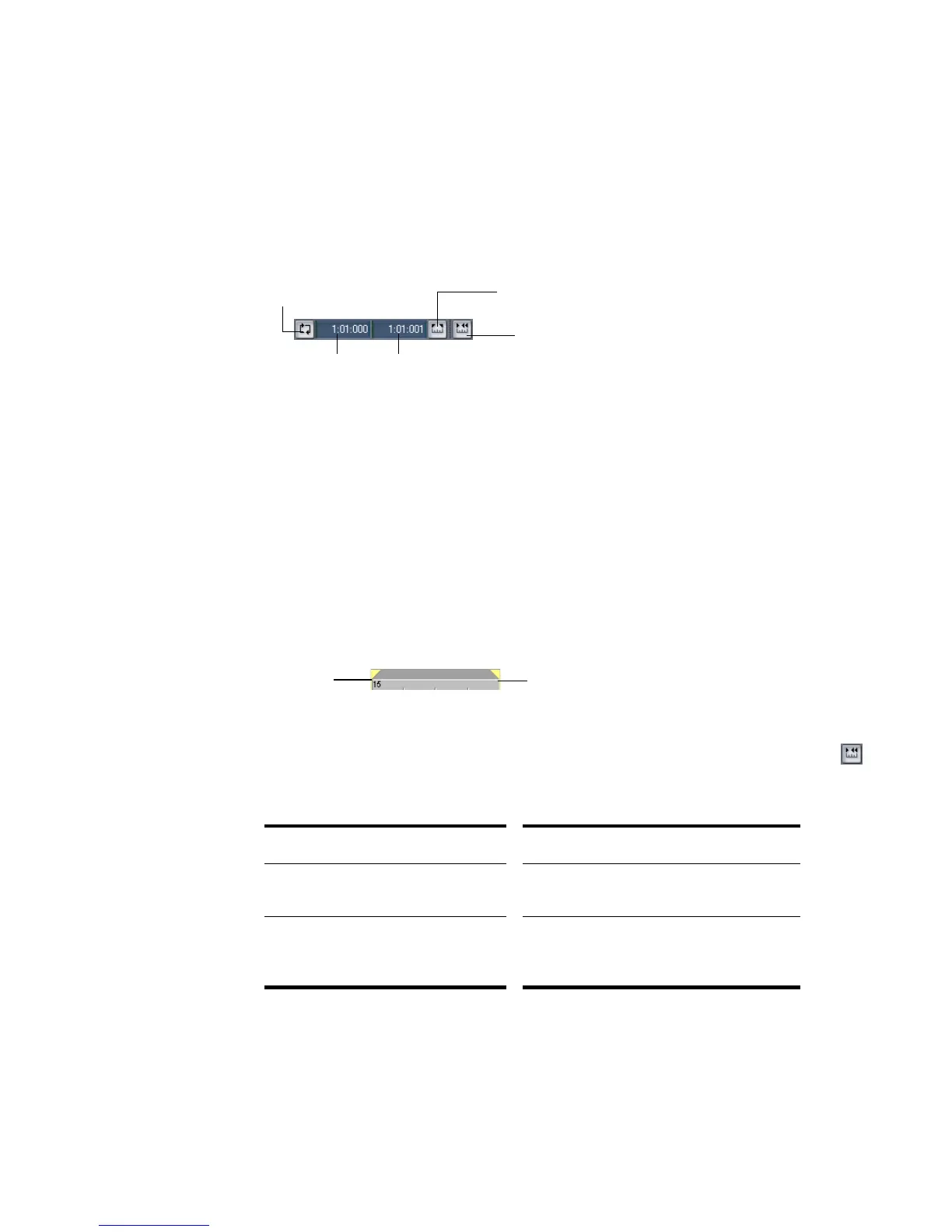
Looping is defined in the Loop/Auto Shuttle toolbar, as shown here:
To set up a loop, you do three things:
• Set the start time of the loop
• Set the end time of the loop
• Enable looping
From then on, SONAR will automatically jump back to the start of the loop when
it reaches the end.
When looping is enabled, the loop times are indicated by special markers in the
Time Ruler.
The Loop/Auto Shuttle dialog box, which appears when you use the Transport-
Loop and Auto Shuttle command or click the Loop and Auto Shuttle button
in the Loop toolbar, contains two additional settings that affect the details of how
looping operates:
With the default option settings, SONAR will play the loop over and over again,
continuously.
Option... How it works...
Stop at the end time Playback does not proceed beyond the end
of the loop
Loop continuously When playback reaches the end of the loop
and rewinds to the start, playback continues
automatically (this option is on by default)
Click to copy the selection
(From and Thru) times
Click to turn looping on or off
Loop End time
Loop Start time
Click to open the Loop/Auto
Shuttle dialog box
Loop From
Loop Thru



 To Next Page