96
Automating an Individual Effect’s Settings
Let’s draw an envelope to automate one of the flanger’s controls:
1. In the Clips pane, right-click in the first guitar track (the track you added the
FxFlange effect to) and choose Envelopes-Create Track Envelope-
FxFlange 1 from the popup menu.
The FxFlange1 dialog box appears.
2. Let’s create only one envelope, even though we could create many: in the
Envelope Exists field, check the Voice 1 Feedback option to create an envelope
that controls the level of feedback on voice 1 of the FxFlange effect.
3. Click OK (you could choose a color for the envelope before you click OK by
clicking the Choose Color button).
A dotted line with a node (rectangular dot) at the beginning appears on top of
the guitar clip. A dotted line means there is no automation data in that area of
a track—only nodes and solid lines represent actual values.
4. Let’s add a node at measure 17 of the guitar track: move the cursor over the
dotted line at measure 17 until a vertical, double-ended arrow appears under
it, and right-click the dotted line.
The Envelope Editing menu appears.
5. Choose Add Node from the menu.
A new node appears on the envelope at measure 17.
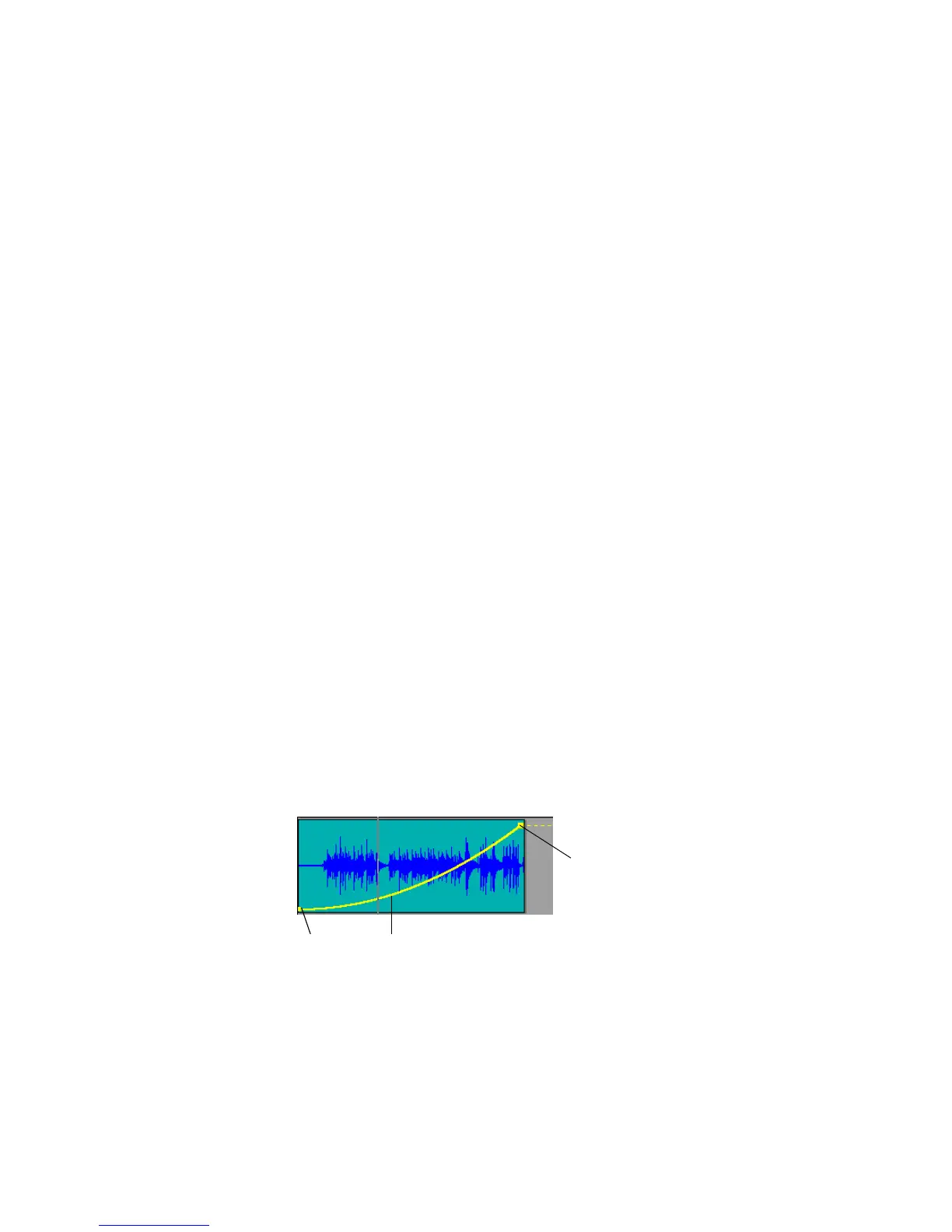
6. Move the cursor over the node until a cross appears under it, and drag the
node up to the top of the track. Now you have a gradual increase in the level of
Voice 1 Feedback. Notice that the line between the two nodes is solid,
indicating that there is automation data everywhere between the two nodes.
7. Change the straight line between the two nodes, which is called a Linear
shape, into a Slow Curve shape, by moving the cursor over the straight line
until the vertical, double-ended arrow appears, then right-clicking the dotted
line, and choosing Slow Curve from the Envelope Editing menu.
Now you have a gradual, but not linear increase in the Voice 1 Feedback level of
your flange effect. You can drag linear and curve shapes vertically, but not
horizontally. To change their horizontal positions, drag the node at either end of a
shape. You can drag a node in any direction.
Slow curve
Node
Node



 To Next Page