244
Using the Tempo Commands
The Insert-Tempo Change and Insert-Series of Tempos commands can be used
to change the existing tempo of a project or to introduce one or more tempo
changes at various points in a project. You can enter tempo values directly,
introduce smooth increase or decreases in tempo, or even use your mouse to tap
out the tempo you want for some portion of a project.
To Insert a Tempo Change
1. Enable Groove clip Looping on any audio clips that you want to follow the
tempo changes. Do this by selecting one or more clips, right-clicking a selected
clip, and choosing Groove-Clip Looping from the popup menu. Each clip that
has Groove clip Looping enabled has beveled edges instead of sharp corners.
The same command disables Groove clip Looping on any selected clip that has
Groove clip Looping enabled.
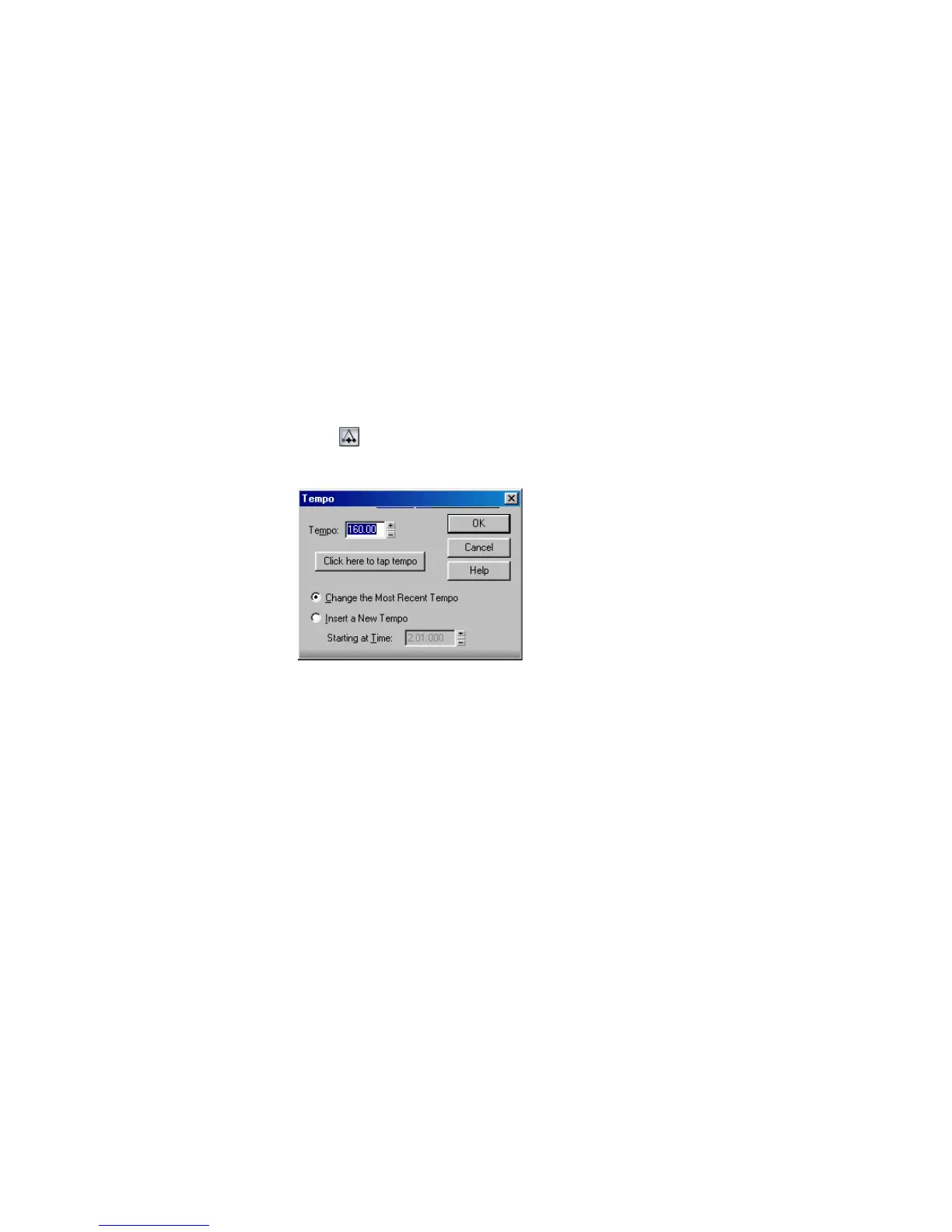
2. Click in the toolbar or choose Insert-Tempo Change to display the Tempo
dialog box.
3. Check the Insert a New Tempo box.
4. Enter a new tempo in one of the following ways:
• Type a value in the Tempo field.
• Click the arrows to change the value.
• Tap a new tempo in the space indicated in the dialog box.
5. Enter a starting time for the new tempo.
6. Click OK.
SONAR inserts a tempo change at the designated time.



 To Next Page