52
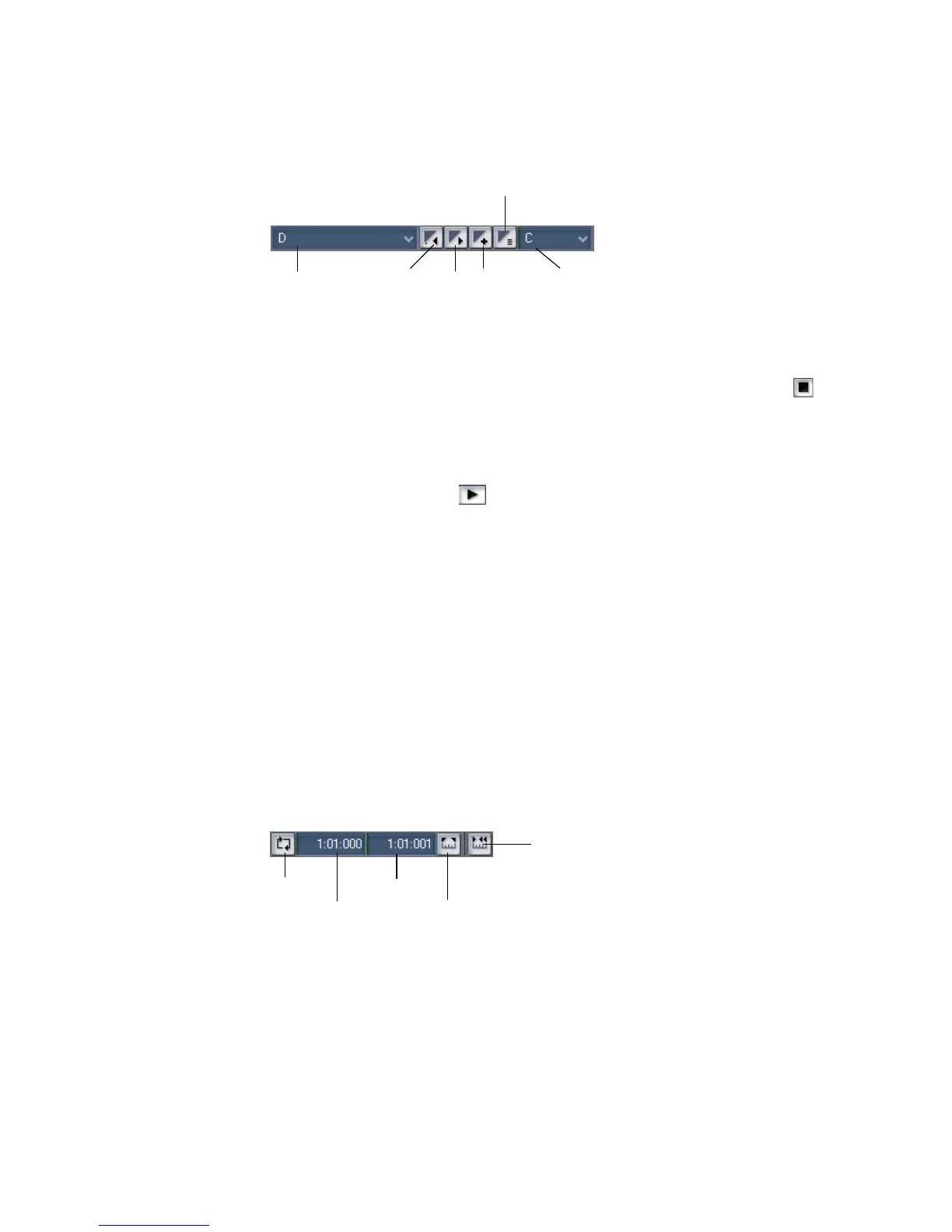
you don’t see the Markers toolbar, then choose View-Toolbars and check
Markers.
The current project contains several markers. Let’s try starting playback from the
marker labeled C:
1. If the project is playing, pause playback by clicking the Stop button .
2. In the Current Marker dropdown menu in the Markers toolbar (the larger
dropdown menu, on the left), select the marker labeled C. The Now time
moves to the start of measure 17.
3. Click the Play button .
You can jump to the next or previous marker by pressing Ctrl+Shift+ Page Down
or Ctrl+Shift+Page Up.
For more information on markers, see “Creating and Using Markers” on page 224.
Restarting the Project Automatically
Wouldn’t it be easier to practice your solo if you didn't have to rewind and restart
the project each time it ended? Rather than manually rewinding and restarting
the project, you can make SONAR automatically jump back to the beginning and
keep playing.
Looping Over the Entire Project
To control looping, use the tools in the Loop/Auto Shuttle toolbar. If you don’t see
this toolbar, choose View-Toolbars and check Loop.
Open Markers view
Markers
list
Previous
marker
Next
marker
Insert
marker
Default Groove clip pitch
Loop properties
Loop On/Off
Loop start time
Loop end time
Set loop to selection time



 To Next Page