53
To loop over the entire project, do the following:
1. In the Loop toolbar, click the Loop Start time. The time display changes to an
edit box with spin controls.
2. To loop over the entire project, the loop must start at 1:01:000. If the Loop
Start time is not already set to 1:01:000, use the keyboard or spin controls to
enter this value. To set it to 1:01:000, click the Loop Start time, enter 1 and
press Enter.
3. In the Loop toolbar, click the Loop End time.
4. Press F5 to open the Markers dialog box.
5. Select the marker named <End> and click OK. The Loop End time is set to the
end of the project.
6. Click the Loop On/Off button to enable looping.
7. Click Play.
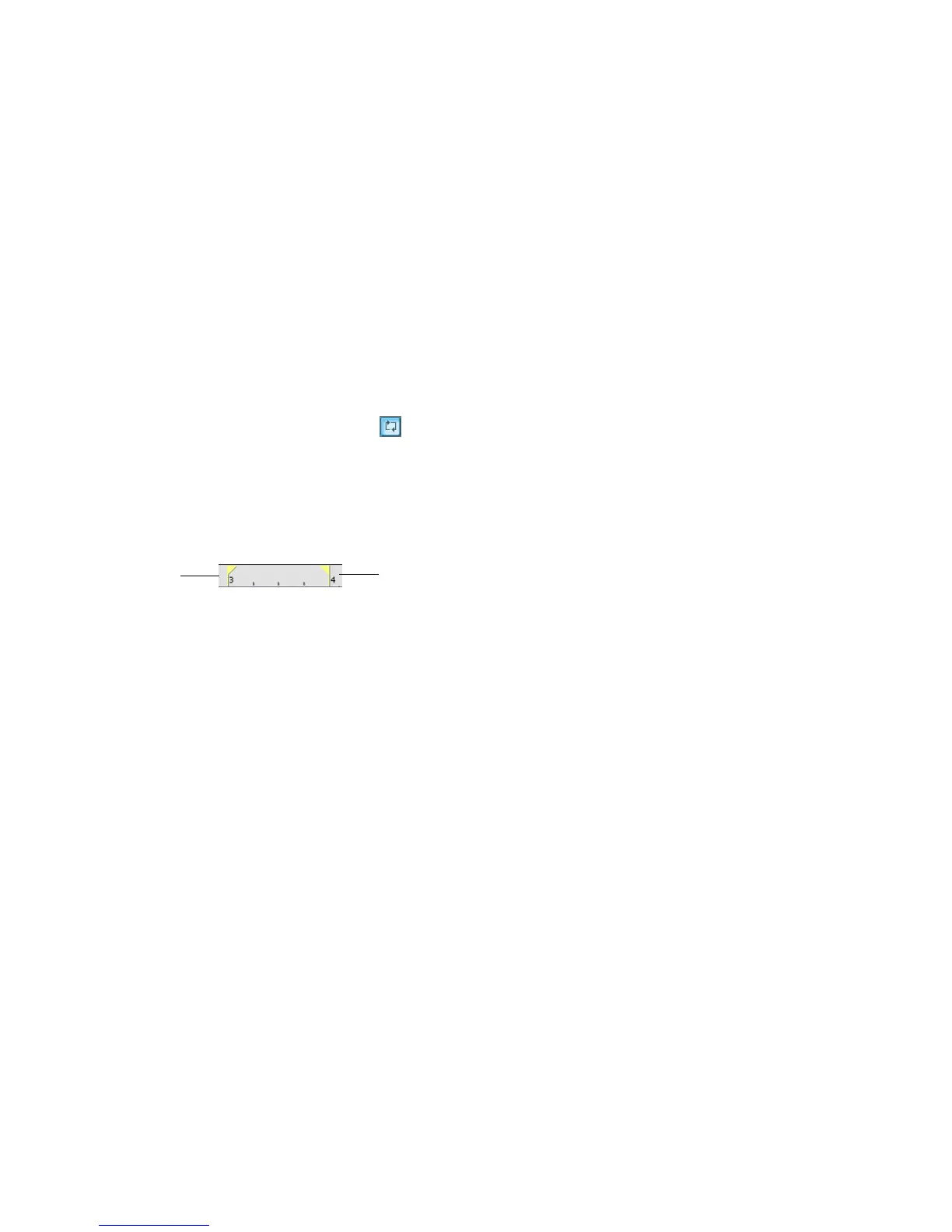
When looping is enabled, the Time Ruler displays special flag markers that
indicate the loop start and end times. You can drag these markers to change the
loop start and end times.
To turn looping off, click the Loop button again.
Looping Over a Section of the Project
Maybe you would like to practice one section of the project over and over. Or,
maybe you'd like one section played repeatedly so you can practice an extended
solo. In either case, you need to set the start and end times of the loop section. Let's
have SONAR loop over the section between markers C and D:
1. In the Loop toolbar, click on the Loop Start time.
2. Press F5 to open the Markers dialog box.
3. In the Markers dialog box, select marker C and click OK. The loop start time
is set to the marker time.
4. In the Loop toolbar, click on the Loop End time.
Loop Start
Loop End



 To Next Page