86
Adding Groove Clips to a Project
There are two ways to add a Groove clip to your project. Let’s use both.
To Import a Groove Clip
1. Select File-New to create a new project.
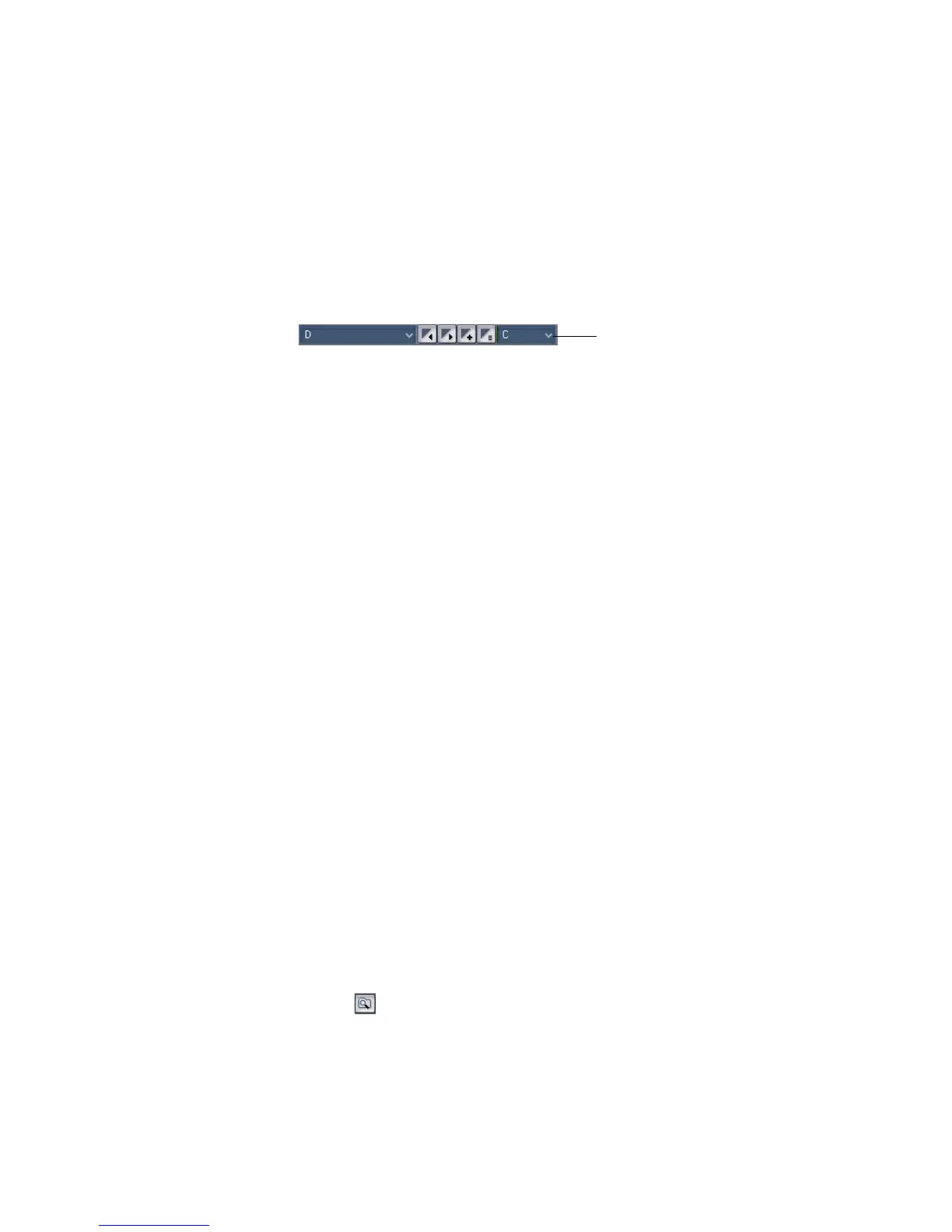
2. Set the default pitch to E by clicking the dropdown arrow in the Markers
toolbar and choosing E (if you don’t see the Markers toolbar, use the View-
Toolbars command and check Markers).
3. Click the Rewind button in the Transport toolbar to move the Now Time to the
beginning of the project.
4. Select track 1 by clicking its track number.
5. Select File-Import-Audio from the menu.
The Open dialog appears.
6. Navigate to the Tutorials folder in the directory where you installed SONAR.
7. Select 100
FX.WAV and click Open.
The clip appears on the track at the beginning of your project—the clip’s corners
are beveled instead of sharp, indicating that it is a Groove clip.
Before we import another loop, let’s give this track a name. In the track titlebar,
double-click on the track name and enter the name Sound Effect and press Enter.
Let’s add some more Groove clips:
To Drag and Drop a Groove Clip into a Project
1. Click the down arrow in the Snap to Grid combo button located in the Track
view toolbar.
The Snap to Grid dialog appears.
2. In the Snap to Grid dialog, select the Musical Time radio button and the
duration Measure.
3. In the mode section, select the Move To radio button.
4. Click OK to close the Snap to Grid dialog.
5. Make sure Snap to Grid is on. When Snap to Grid is on, the buttons depressed.
6. Open the Loop Explorer view by clicking the Loop Explorer icon in the Views
toolbar .
Click here



 To Next Page