517
Floating Views and Dual Monitor Support
SONAR supports dual monitors and allows you to float most of your views to a
second monitor giving you more options when working and increasing the number
of views that you can have open at one time.
Important: Dual monitor support requires that you have a video card that
supports dual monitors. Follow your hardware manufacturers instructions for
using dual monitors.
You can float views in SONAR without having a second monitor. Floating a view
allows you to move it out of SONAR, over the SONAR toolbars and menus for
example, giving you added flexibility when using SONAR with other applications.
All views except the Track view can be floated.
To Float a View
1. Open the view you want to float.
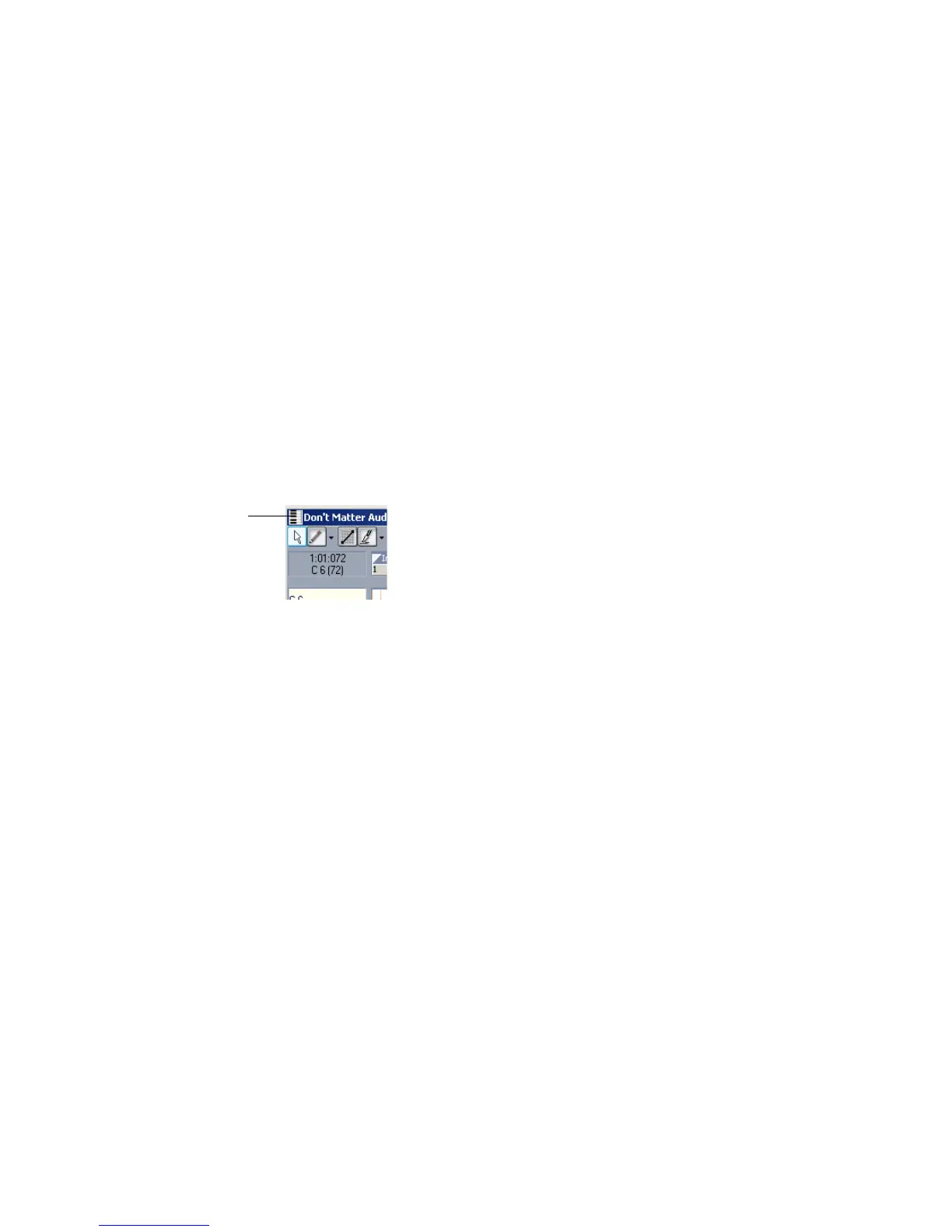
2. Click the view’s icon located in the upper left corner of the view.
3. In the menu that appears, click Enable Floating.
4. Move the view wherever you want.
Templates
Template files make it easy to create new projects with certain predefined settings.
To create a template file, create a new project file and arrange the project settings
the way you want, then save the project as a template file. Template files have a
file extension of .
CWT. When you create a new project, you can use the template as
the basis for the new project. SONAR looks for template files in a particular folder
on your hard disk. By default, this folder is the program folder. To change the
template directory, choose Options-Global and click the Folders tab.
Every time you start SONAR, a new, empty project is displayed. If you want, you
can determine the settings for this default project by creating and saving a special
template file, called
NORMAL.CWT. If you create or update the NORMAL.CWT file,
SONAR will display this template automatically when the program is started.
Piano Roll view icon



 To Next Page