291
You can also edit note velocities in the Controllers pane of the Piano Roll view,
which lets you draw shapes other than straight line changes. For more
information, see “Using the Controllers Pane” on page 313.
To Scale Velocities
1. Select the events whose velocity data you want to change.
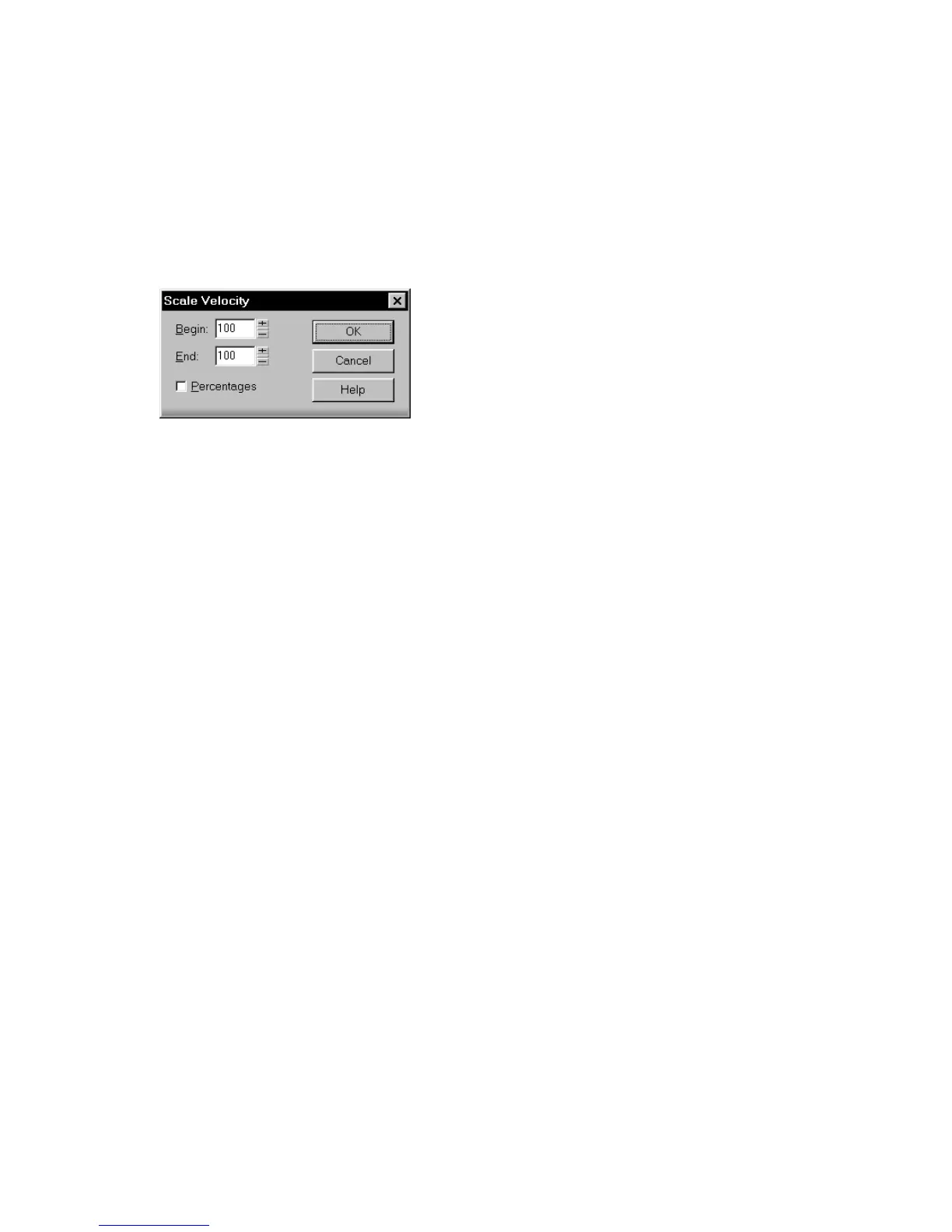
2. Choose Process-Scale Velocity to display the Scale Velocity dialog box.
3. Enter the starting and ending velocity values.
4. Check the Percentages box if the values are percentages.
5. Click OK when you are done.
SONAR alters the velocity of selected events.
Slip Editing MIDI (Non-destructive
Editing)
Slip editing allows you to non-destructively hide or reveal the beginning of a clip,
the end of a clip, or both. The hidden material in a clip is not heard during
playback. All hidden material remains intact and can be restored. All Slip Editing
movements correspond to the current snap to resolution. For more information
about the snap to grid, see “Defining and Using the Snap Grid” on page 222.
Slip Editing Modes
Slip editing has three modes:
Trimming
As a default, when slip editing a clip, the clip’s contents always remains fixed in
time. If the first measure of a clip is hidden using slip editing, the remaining
material does not shift forward in time by a measure. The first measure of the clip
is simply muted during playback. Playback of the clip resumes at the second
measure.
Slide-trimming
If you want the clip’s contents to shift in time, you can move the material in a slip
edited clip by using modifier keys, clicking on the middle of the clip and moving it
either right or left.



 To Next Page