342
To Edit Multiple Note Velocities in the Drum Grid Editor
When you edit multiple notes that have different initial velocities, the velocities
are adjusted on a relative basis, so if you reduce a velocity by 50%, all other
selected notes have their velocities reduced by the same percentage. For example:
you select three notes. The first has a velocity of 100, the second a velocity of 50,
and the third a velocity of 30. You click and drag the velocity of the first note down
to 50. The second note’s velocity changes from 50 to 25 and the third note’s velocity
changes from 30 to 15.
1. Select the notes you want to change the velocity of.
2. Click the Draw tool button .
3. Move your cursor over the velocity tail you want to edit until the cursor
changes to look like this:
4. Click and drag the velocity tail. Drag it up to increase the velocity. Drag it
down to decrease the velocity.
Previewing a Mapped Sound
Use the following procedure to hear the drum sound you have mapped a note to.
To Preview a Mapped Sound
• In the Note Map pane, click on the name of the sound you want to hear.
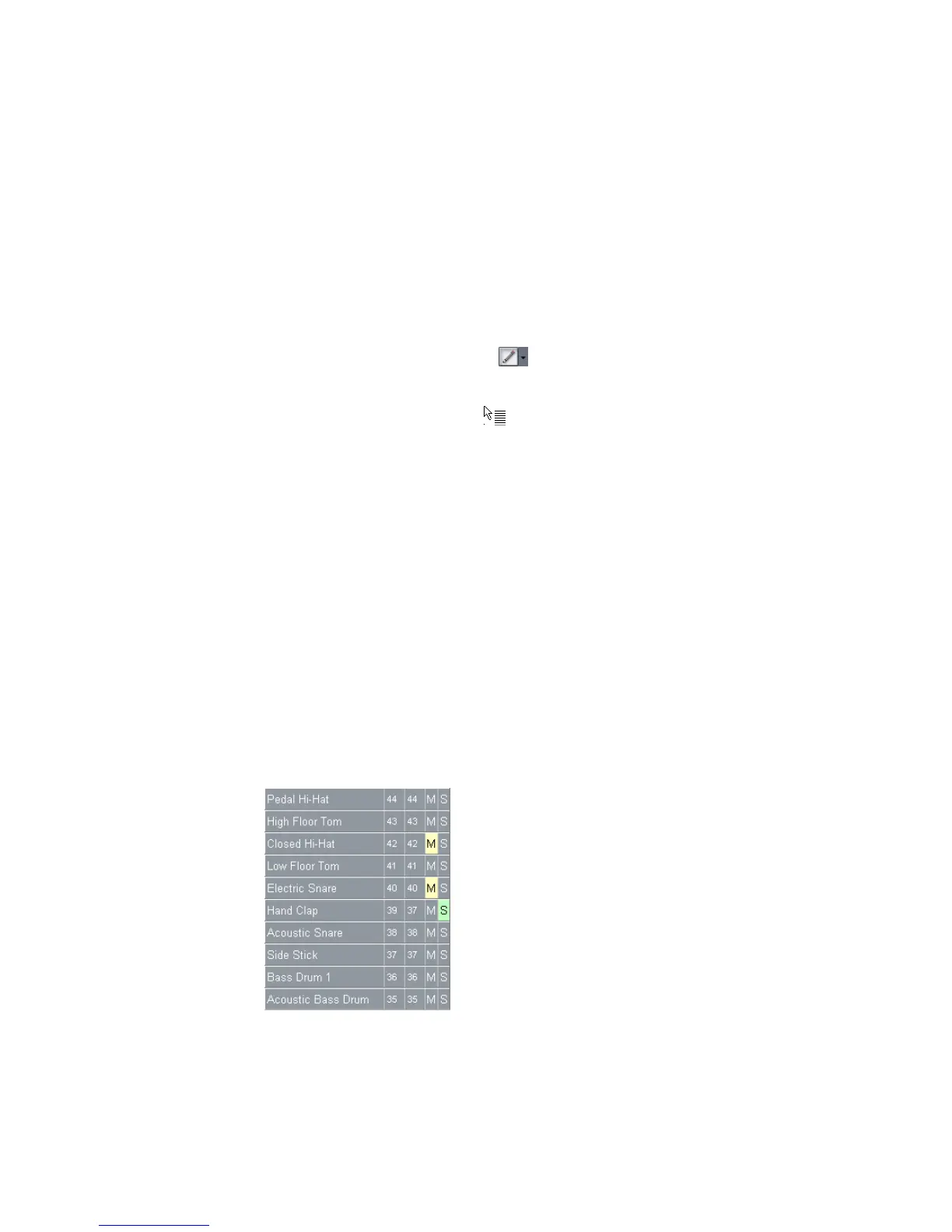
The Note Map Pane
The Note Map pane displays the current drum map. In the Note Map pane each
row represents a pitch. The Note In pitch is the recorded pitch. You map the
recorded pitch to whatever pitch you want using the Note Out pitch setting. You
can also change the name of the mapped note and mute or solo the mapped note.



 To Next Page