235
Clip Muting with the Default Style
When you choose Mute Time Ranges under Click+Drag Behavior in the Mute
tool dropdown menu, you can use the following procedures to mute all or parts of
clips. This is the default behavior.
To Enable or Disable the Mute Tool
• Click the tool or press K on your keyboard. The Mute tool turns blue when it is
enabled.
To Mute a Time Range Using Default Style
1. Make sure that Mute Time Ranges under Click+Drag Behavior in the
Mute tool dropdown menu has a check mark.
2. If you want to mute a precise amount of time, enable the Snap to Grid button
and set its menu to an appropriate value.
3. Using the Mute tool, drag inside the lower half of a clip.
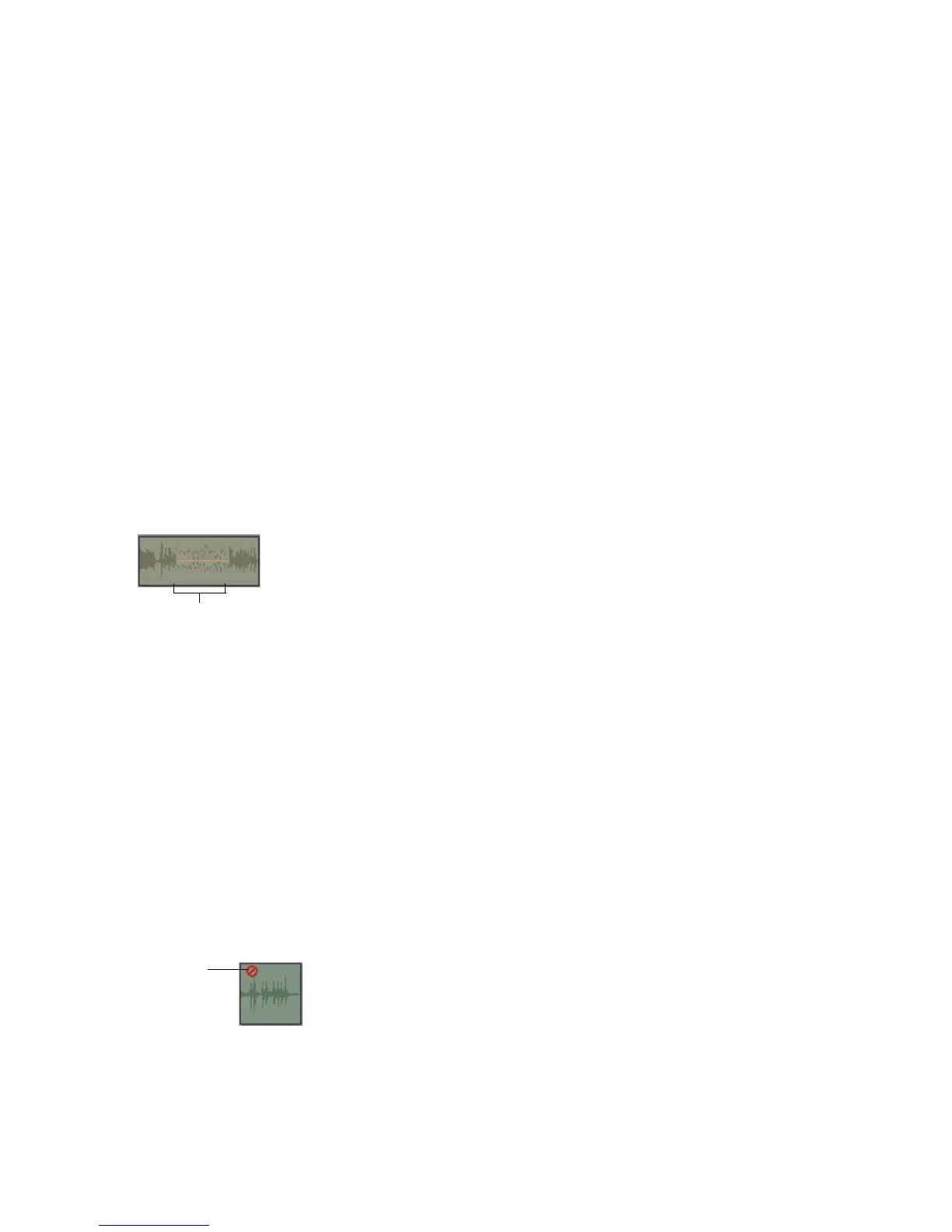
SONAR mutes the area you dragged through and displays the muted waveform or
MIDI data as a dotted line.
To Unmute a Time Range Using Default Style
1. Make sure that Mute Time Ranges under Click+Drag Behavior in the
Mute tool dropdown menu has a check mark.
2. Using the Mute tool, click inside the upper half of a clip in the muted area.
To Mute or Unumute an Entire Clip Using Default Style
1. Make sure that Mute Time Ranges under Click+Drag Behavior in the
Mute tool dropdown menu has a check mark.
2. Using the Mute tool, Alt-click anywhere in the clip (hold down the Alt key
while you click).
When a clip is currently muted, SONAR displays the Mute icon in the upper left
corner of the clip.
Muted area of clip
Mute icon



 To Next Page