277
Selecting and Editing Notes
The Piano Roll view is a very convenient place to select, edit, and copy notes within
a track or tracks. You must make the track you want to edit the current track. The
current track appears with a dotted line around it in the Track List pane. To
display the Track List pane in the Piano Roll view, click the Show/Hide Track List
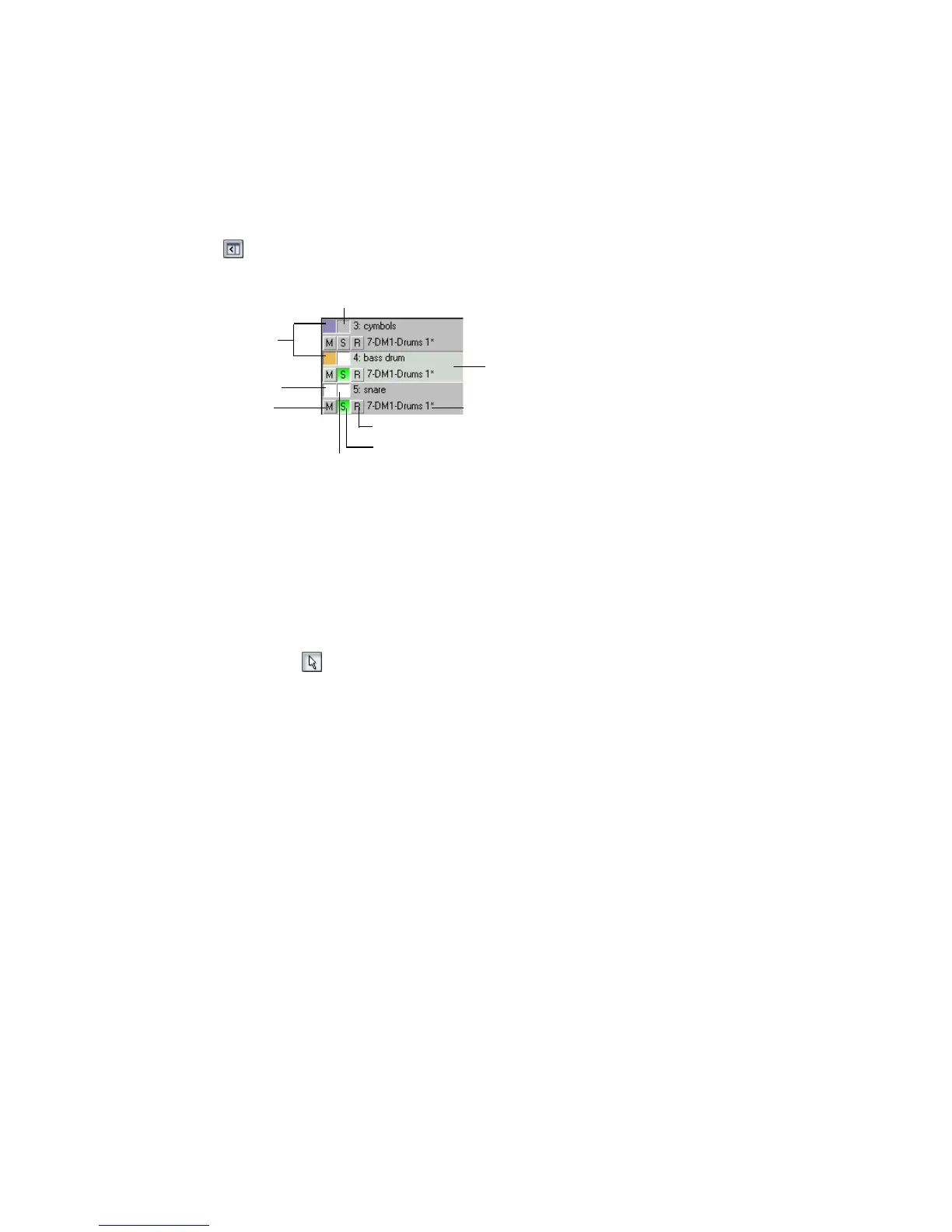
pane button . The following shows three tracks in the Track List pane:
To make the a track the current track in the Track List pane, click on the track.
When a thin dotted line surrounds the track, it is the current track.
There are several ways to select notes in the Piano Roll view:
• Click and drag in the Time Ruler to select notes (and other MIDI events) that
start playing within the time range
• Use the Select tool to select notes
• Click or drag the piano keys to the left of the Note pane or the drum map rows
in Note Map pane to select all notes of the given pitch(es)
You can use Shift-click to add notes to the selection and Ctrl-click to toggle
between adding to or removing from the selection.
You can add notes to a clip simply by clicking in the Note pane or Drum Grid pane
with the pencil tool. You can use the Resolution buttons to set the duration for new
notes you enter. You can edit notes freely, using the mouse to change the start
time, pitch, or duration. You can also right-click any note to edit the start time,
pitch, duration, velocity, and channel of that note. You can move and copy notes
beyond the boundary of the clip in which they are located. When you move the
notes, the clip will be extended as needed, unless the notes are moved to a section
that includes a slip-edited clip, in which case a new clip may be created.
The Piano Roll view also lets you scrub the tracks that are currently displayed.
The Scrub command lets you drag a vertical bar over the view so that you can hear
the notes in the track(s). You can scrub forward or backward at any speed.
Scrubbing can be handy when you want to locate a bad note or listen to the effects
of changes you have made without playing back at normal speed.
Mute
Solo
Track’s data shown in
Note pane
Current track
Track’s data hidden in Note pane
Arm
Track disabled for track editing
Track enabled for track editing
Output



 To Next Page