256
Audio Scaling
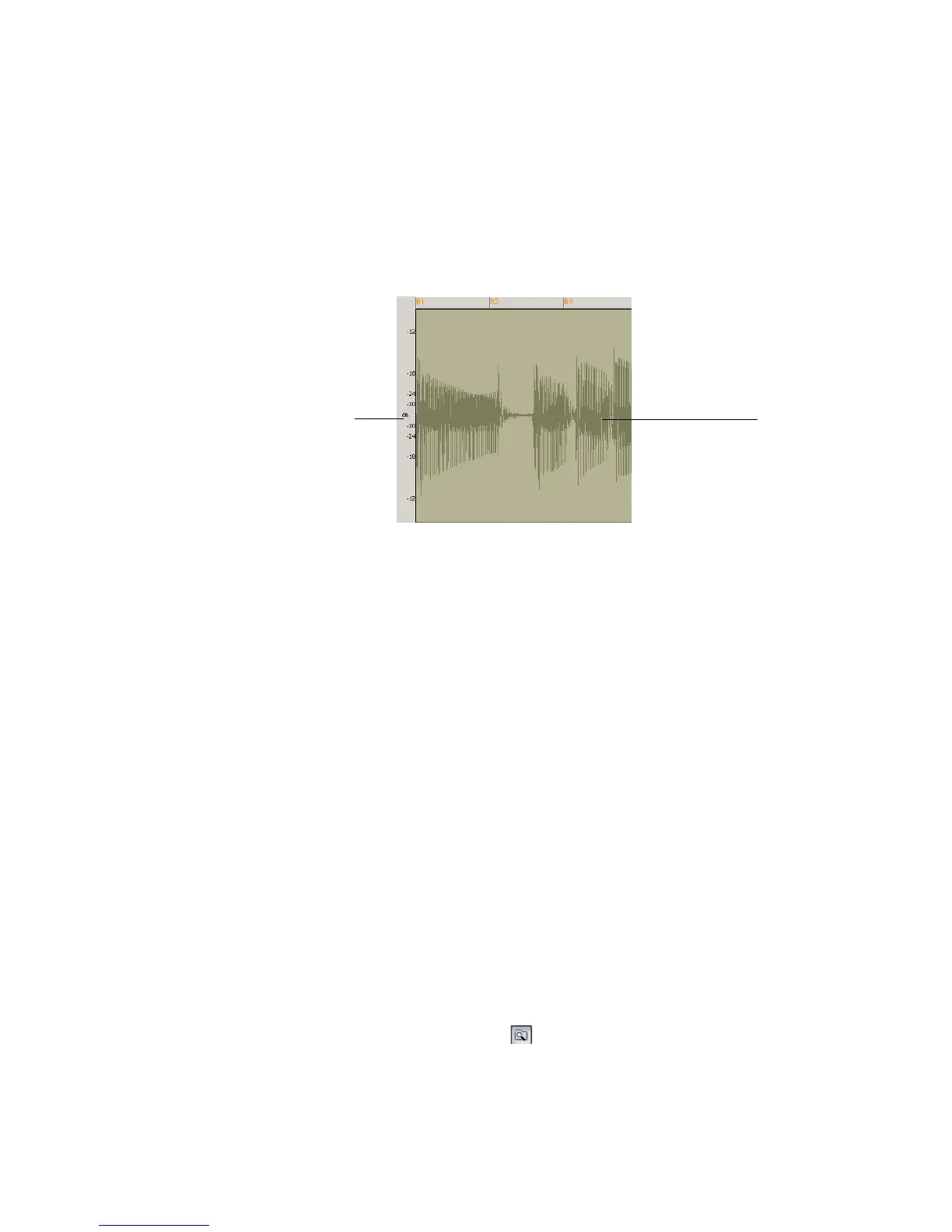
Audio scaling is the increase or decrease in the size (scale) of the waveform in clip.
Audio scaling allows you to make detailed edits by zooming in on the parts of the
waveform closest to the zero crossing (silence) while preserving the track size. By
showing just the quietest parts of a clip, you can make very precise edits.
The Audio Scale Ruler is located on the far left of the Loop Construction view.
There are three display options in the Audio Scale Ruler:
• Percentage—shows audio scaling by percentage. For example, if the highest
percentage in the Audio Scale Ruler reads 2.0%, then only the parts of the
waveform which are within 2% of the zero crossing appear in the clip.
• dB—shows audio scaling by dB. For example, if the highest dB in the Audio
Scaling Ruler reads -36, then only the parts of the waveform which are 36 dB
below 0 dB appear in the clip.
• Zoom Factor—shows audio scaling by a factor. For example, if the Zoom Factor
reads 10, then the waveform is zoomed in by a factor of 10.
The Loop Explorer View
SONAR’s Loop Explorer view allows you to preview your Wave files before you
drag and drop them into the Track view. If you preview a Groove clip, it plays back
at tempo and in the key of your current project.
You can open the Loop Explorer view in any of the following methods:
• Select View-Loop Explorer from the menu.
• Click the Loop Explorer icon on the Views toolbar.
• Press Alt+1
Clip
Audio Scale Ruler



 To Next Page