43
The Zoom tool is automatically disarmed after use. Double-click the Zoom tool to
make the selection stick. You can also zoom with the keyboard:
Locking Views
By default SONAR allows only one instance of each view, but you can lock the
contents of most views, preserving the current view by forcing a new instance of
the view to appear if necessary. Locking views is the only way you can have
multiple instances of the same view open. Only the Track and Console views
cannot be locked.
To lock a view, just click the lock button at the top right of the view. An unlocked
view looks like this , and a locked view looks like this . A view can be locked
automatically by pressing the Ctrl key when opening the view.
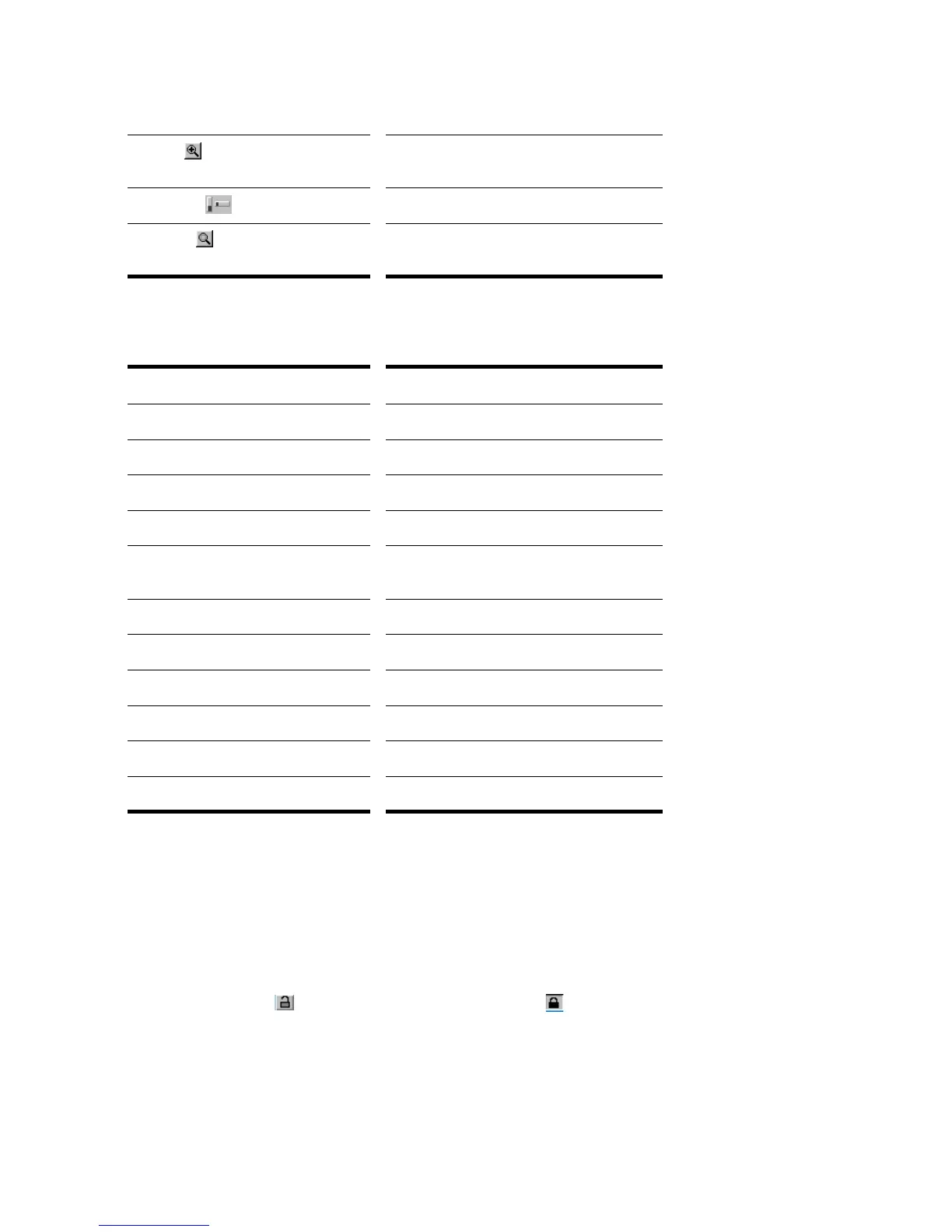
Zoom in Click to zoom in incrementally, or press
Shift and click to zoom all the way in
Zoom fader Click and drag to zoom continuously
Zoom tool Click to arm, then click and drag in the view
to select the zoom area
Key… What it does…
Ctrl+up arrow Zoom out vertically
Ctrl+down arrow Zoom in vertically
Ctrl+right arrow Zoom in horizontally
Ctrl+left arrow Zoom out horizontally
G Go to (center) the Now time, without
zooming
Z Arm the Zoom tool
U Undo the current zoom
F Fit tracks to window
A Show all tracks
Shift+F Fit project to window
Shift+Double Click a clip Maximize track height



 To Next Page