314
The Controllers pane looks like a graph; the horizontal axis represents time, and
the vertical axis represents the event values. Each event appears as a single
vertical line, and the height of this line shows the value of the event. The
Controllers pane shows events for all the clips in a track or multiple tracks. You
can only see one type of controller at a time, and you must select All Channels
from the Channel dropdown list to view more than a single MIDI channel. The
exception is velocity data, which are not channel specific. You can zoom in and out
on the Controllers pane using the zoom and unzoom buttons on the toolbar. To
zoom all the way in or out in a single step, hold the Shift key while you click on the
tool.
Selection methods in the Controllers pane are similar to those in other views. Here
is a summary:
• Click on a controller to select it
• Shift-click to add other controllers to the selection
• Ctrl-click to toggle the selection state of a controller
• Drag a rectangle around several controllers to select them
• Click and drag in the Time Ruler to select all controllers in a time range
• Click between two markers to select the controllers that lie between the
markers
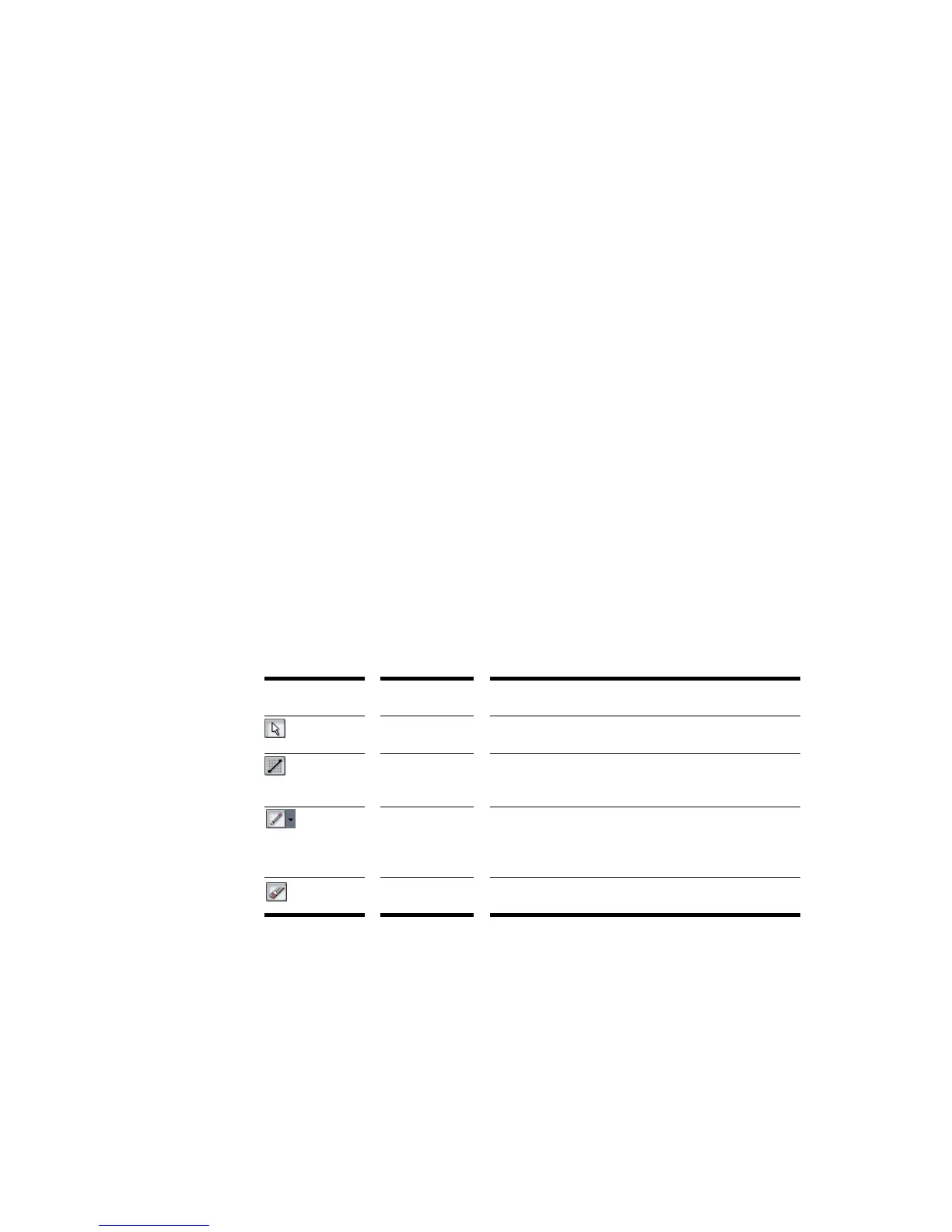
The Controllers pane has several tools you can use to add or modify events. The
following tools apply only to the track that is selected in the Track List pane:
Note that you can also add controllers using the Insert-Series of Controllers
command. If you make a mistake using any of these tools or commands, you can
use Undo to correct the error.
When you use the Draw tool, the speed with which you drag the mouse determines
the density of controller events. To insert a larger number of controller events with
relatively small changes in value, move the mouse slowly. To insert a smaller
Tool... Name... What it’s for...
Select Select controller events, so you can delete them
Draw Line Draw a straight line indicating a steady increase
or decrease in controller value
Draw Draw a custom curve indicating changes in
controller value. Draw a straight line by holding
down the Shift key while using the Draw tool.
Erase Erase controller changes already in place



 To Next Page