360
To Change the Audio Scale Display Option
1. Right-click on the Audio Scale Ruler in any track.
A menu appears. The current display option is checked.
2. Select an option from the menu.
To Scale All Audio Tracks Together
To scale all audio tracks together, follow the instructions in the table below:
To do this... Do this...
Increase the scale for all tracks Press Alt+Up Arrow.
Or
Hold down the Ctrl key and click the Vertical Zoom
In button. When you hold down the Ctrl key and
position your cursor over the Vertical Zoom In
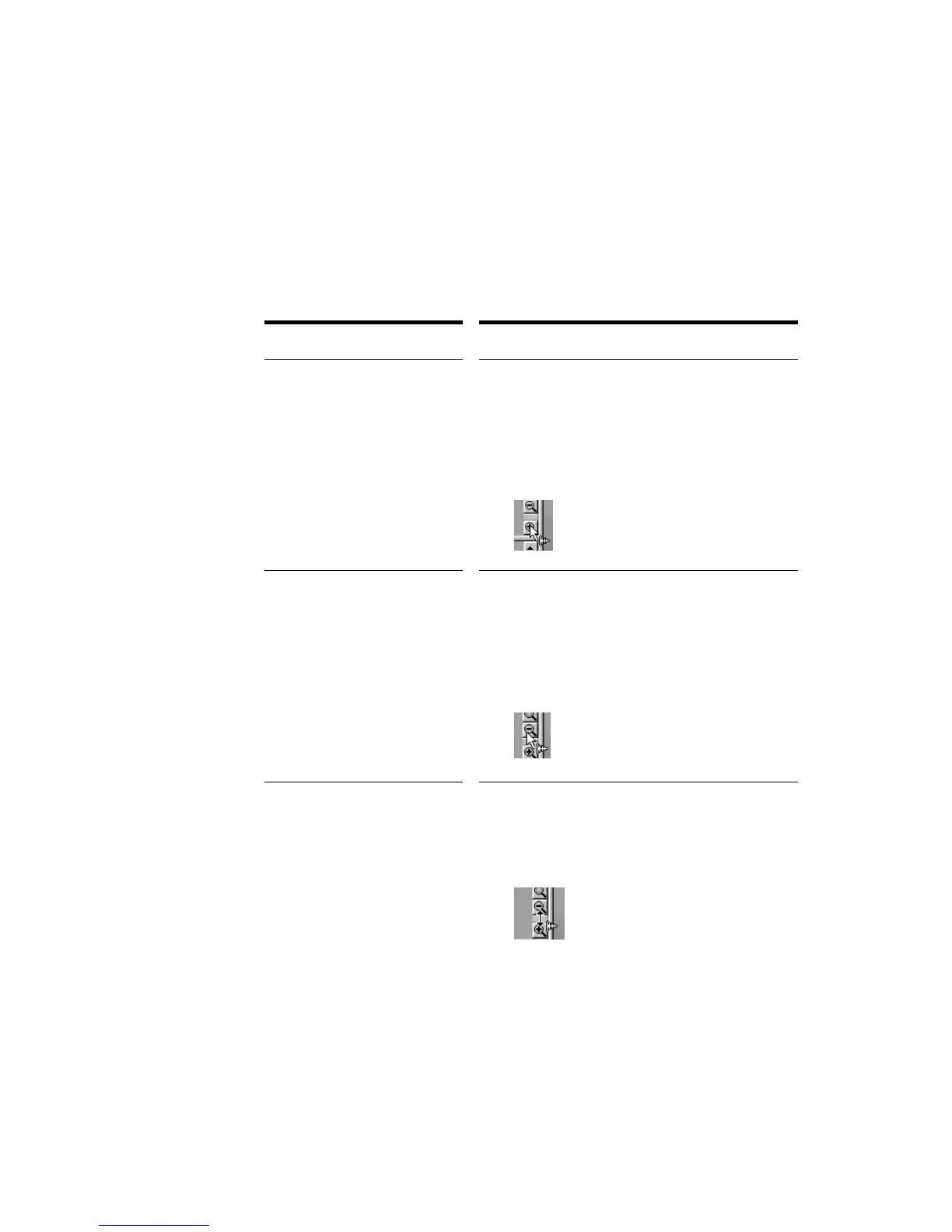
button, your cursor looks like this:
Decrease the scale for all
tracks
Press Alt+Down Arrow.
Or
Hold down the Ctrl key and click the Vertical Zoom
Out button. When you hold down the Ctrl key and
position your cursor over the Vertical Zoom Out
button, your cursor looks like this:
Increase/Decrease the scale
for all tracks using your mouse
Hold down the Ctrl key, click the Vertical Zoom
Fader and drag the fader up or down. When you
hold down the Ctrl key and position your cursor
over the Vertical Zoom fader, your cursor looks like
this:



 To Next Page