362
To Scale a Single Track
To scale a single audio track, follow the instructions in the table below:
To Undo Audio Scaling
• Press the U key.
To Scale a Single Track Using the Audio Scale Ruler
• In the track in which you want to change the audio scale, click in the Audio
Scale Ruler and drag. Drag up to increase the audio scaling. Drag down to
decrease the audio scaling.
To do this... Do this...
Increase/decrease the scale of
individual stereo or mono tracks
There are several ways to increase or decrease the size
of an individual audio track’s or clip’s waveform:
• Press Ctrl+Alt+Up/Down arrows
• Click and drag vertically in the track’s Audio Scale
Ruler.
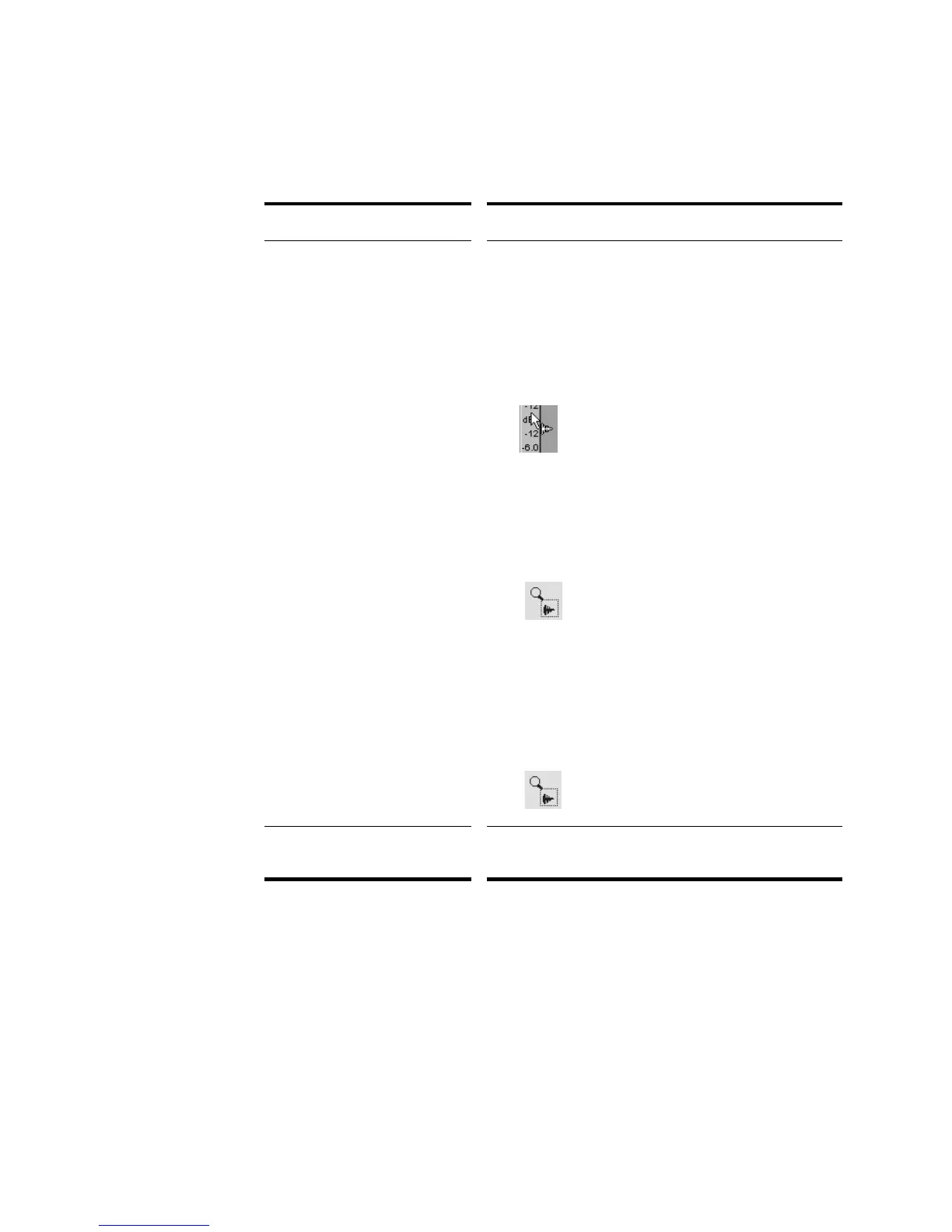
When you click and drag in the Audio Scale ruler of
a track, your cursor looks like this:
• Select the Zoom tool, hold the Shift key and drag
around the clip you want to zoom in on.
When you have the Zoom tool selected in the Track
view toolbar and you drag over a section of audio,
your cursor looks like this:
• Select the Select tool, hold down the Shift key and
z keys, and drag around the clip you want to zoom
in on.
When you have the Select tool selected and the
Shift and z keys held down, your cursor looks like
this:
Restore a track to minimum
scale
Double-click in the track’s Audio Scale Ruler.



 To Next Page