67
Let's try it. Suppose you want to replace several measures in the recording you
made earlier in this tutorial.
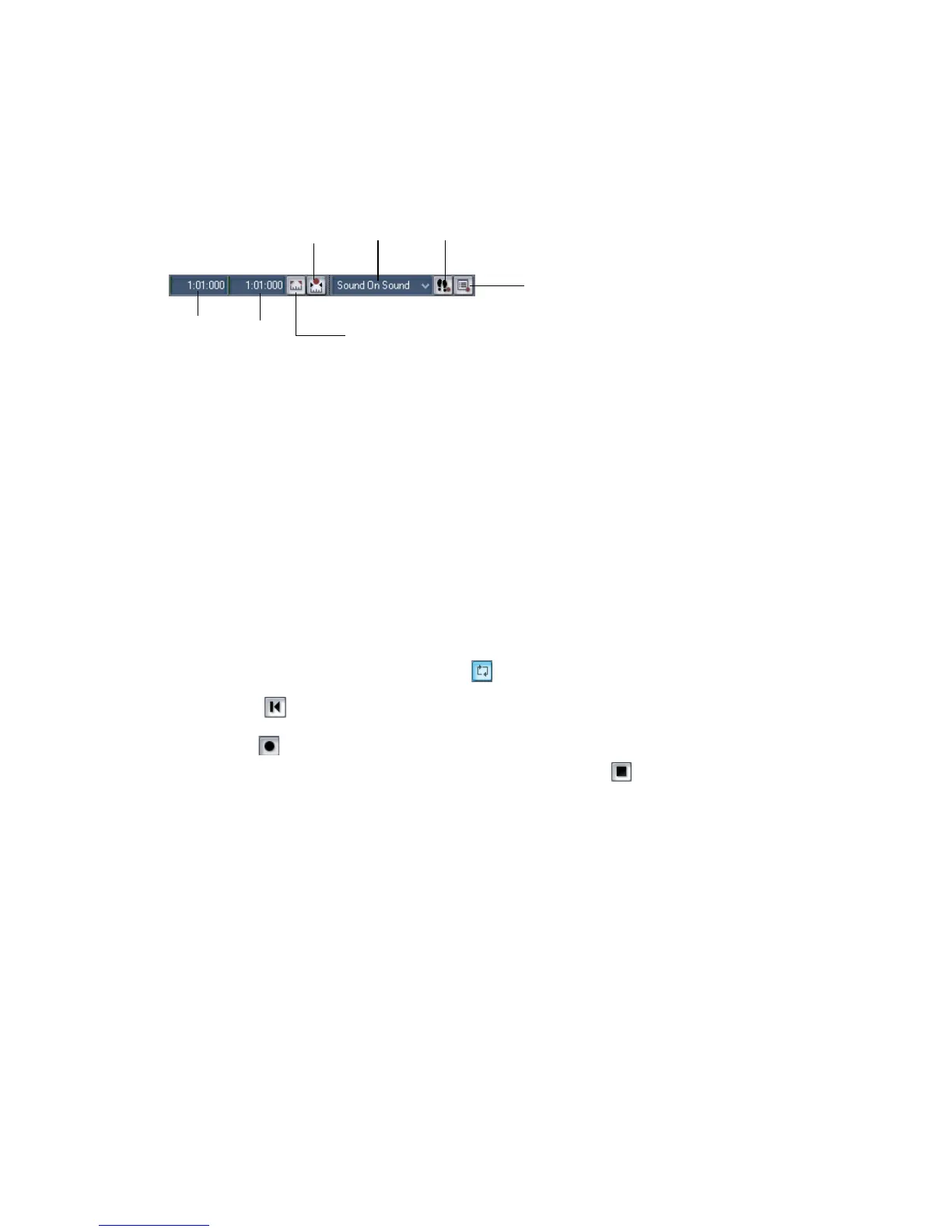
1. Display the Record toolbar by choosing View-Toolbars-Record.
2. In the Record toolbar, click the Punch In Time.
3. Type the number of the measure at which you want to begin punch recording
and press Enter.
4. Click the Punch Out Time.
5. Type the number of the measure at which you want to end punch recording
and press Enter.
6. Click the Auto-Punch On/Off button to enable punch recording.
7. Select Overwrite from the Record Mode dropdown menu.
8. Arm the track in which you want to punch record.
9. If looping is still on, click the Loop button to turn it off.
10. Click Rewind .
11. Click Record .
Play along until you are past the punch end time, then click Stop . Replay your
take to hear the difference. If it's still not right, try again!
An alternative method is to select measures by dragging in the Time Ruler. Then
right-click the Time Ruler and choose Set Punch Points. This automatically
enables punch recording.
You can combine loop recording with punch recording; see “Punch Recording” on
page 185 for details.
Click here to set punch times
to the selection start and end
times
Punch In
Time
Click to open the Record
Options dialog box
Step record
Record mode
Punch Out
Time
Auto-punch on/off



 To Next Page