Page | 91
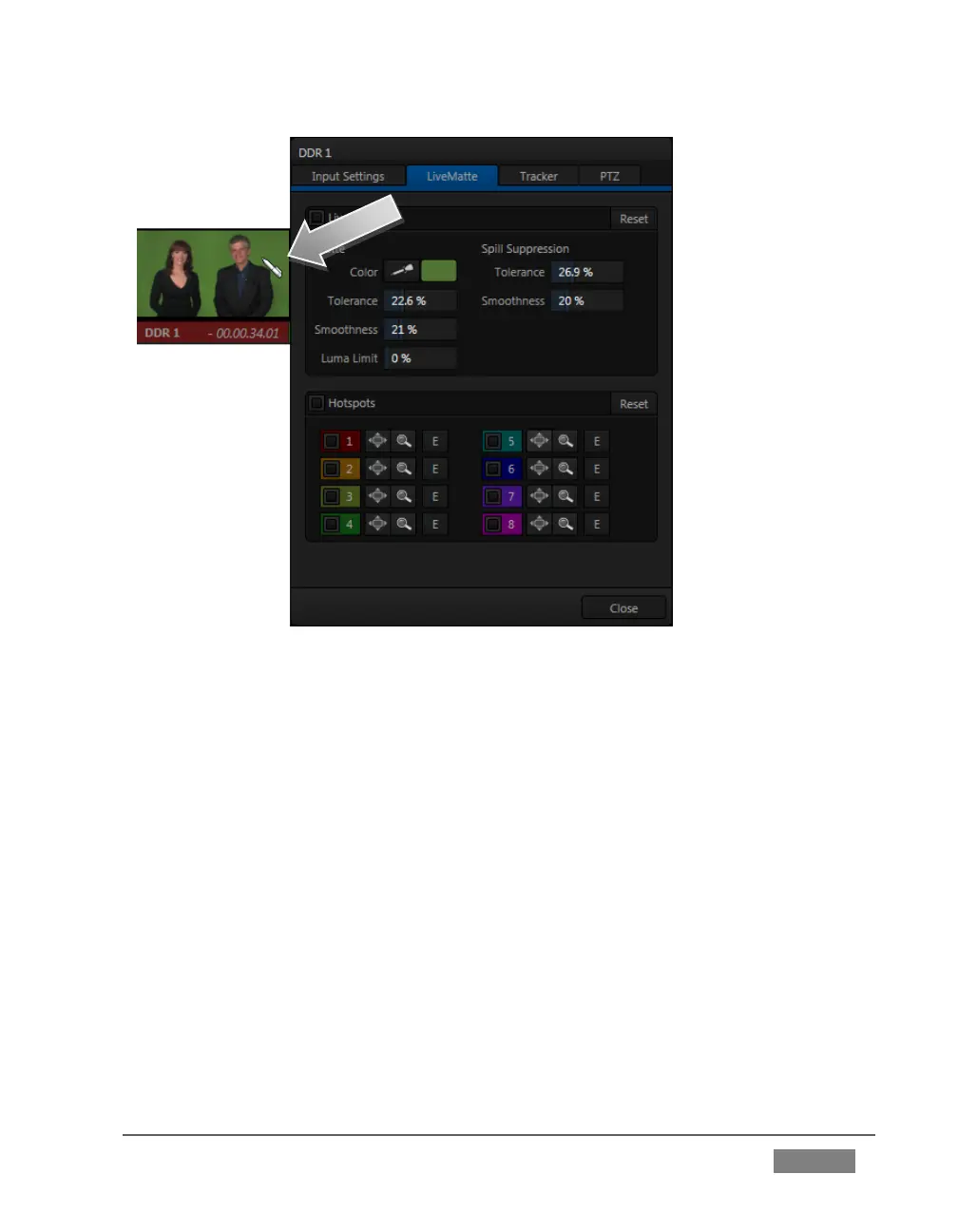
FIGURE 77
11. Click on the Color button in the Matte section of the panel, and keep the mouse
button depressed.
12. Drag the eye-dropper pointer over the green background in the monitor, and
then release it (Figure 77). This sets the primary ‘key color’ (LiveMatte is
automatically enabled when you select a color).
13. The default LiveMatte settings (Tolerance and Smoothness) are close enough
for this little demonstration, so you can close the Configuration panel now.
We’ll look at the details of LiveMatte in more depth in Part II (the Reference section),
but already your result (as viewed on Program output) should look very similar to
Figure 74. TriCaster doesn’t stop here, though. Let's look a little more closely at
TriCaster’s powerful M/Es.









 To Next Page