155
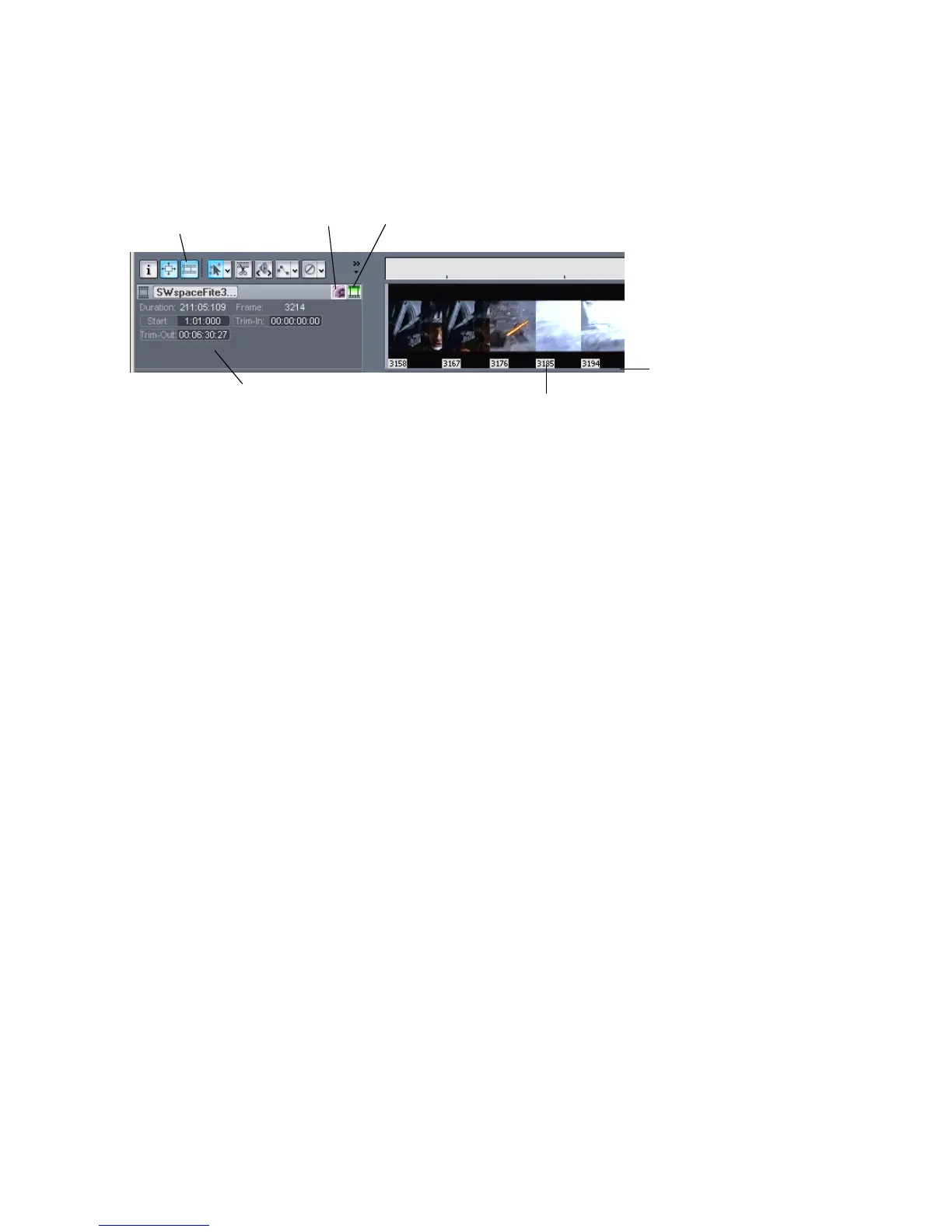
Here are the various commands and functions of the Video Thumbnails pane:
• You can show or hide the pane.
• You can show or hide the video thumbnails.
• You can display absolute frame numbers.
• You can resize the thumbnails while preserving the aspect ratio by dragging
the splitter bar.
• The video track strip at the top of the Track pane has display fields for Video
File Name, Start Time, Trim-In Time, Trim-Out Time, Duration, and Current
Frame, as well as a toggle buttons to show/hide the thumbnails (without
hiding the Video Thumbnails pane), and to show/hide frame numbers on
individual frames. You can edit the Start Time, Trim-in Time, and Trim-Out
time fields.
• SONAR saves the size and state of the Video Thumbnails pane on a per/
project basis.
• The Video Thumbnails pane zooms horizontally when you use the standard
Track view commands for horizontal zooming. You control the height of the
Video Thumbnails pane by dragging the splitter bar up or down that’s at the
bottom of the Video Thumbnails pane.
Show/hide frame numbers button
Show/hide thumbnails button
Frame number
Splitter bar
Video track strip
Show/hide video
pane button



 To Next Page