225
The time associated with a marker can be expressed in musical time or as a locked
SMPTE time. If a marker has a musical time (measures, beats, and ticks), the
marker stays at that musical time regardless of changes in tempo. If a marker has
a locked SMPTE time (hours, minutes, seconds, and frames), the marker stays at
the same time even when the tempo is changed. Locked markers are useful for
projects that require you to sync the music or sound with film scores or multimedia
presentations. See “To Add a Marker” on page 225.
SONAR takes the current Snap Grid settings into account when you move or copy
markers. For example, if the Snap Grid is set to even measure boundaries, any
time you move or copy a marker, the marker will be snapped to the beginning of
the nearest measure. You are allowed to have any number of markers at a single
time point.
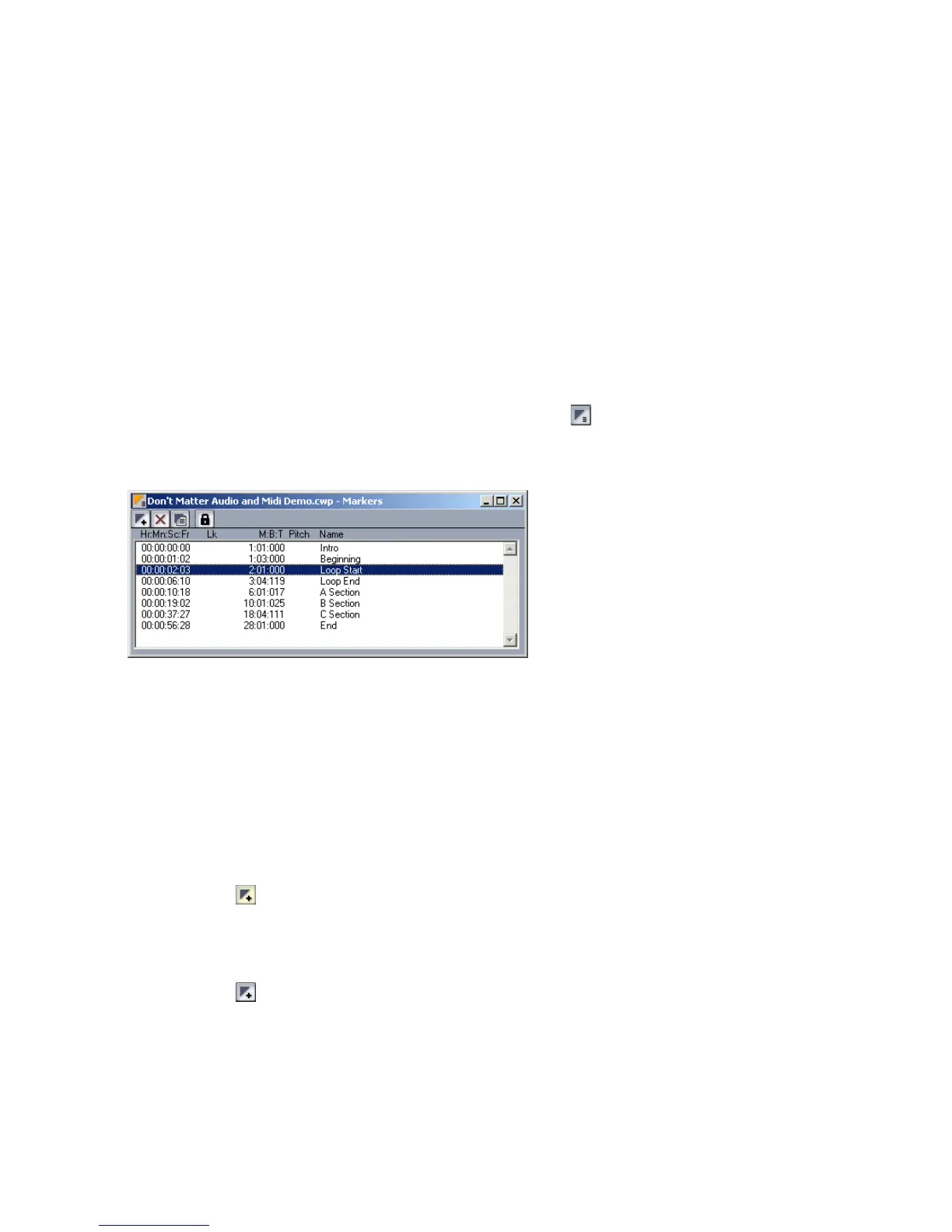
To display the Markers view, choose View-Markers or click on the Views
toolbar. From the Markers view, you can use the File-Print and File-Print
Preview commands to print a listing of markers.
You can add markers while playback is stopped or while playback is in progress
(on the fly). When you add a marker while playback is stopped, you can enter a
name for the marker and either use the Now time or enter a different time. When
you add a marker on the fly, the marker is named automatically and assigned the
Now time. Using the Markers view, you can edit the names and times whenever
you want.
To Add a Marker
1. Open the Markers dialog in one of the following ways:
• Click in the Markers toolbar.
• Press F11.
• Choose Insert-Marker.
• Click in the Markers view.
• Ctrl-click in the marker section of the Time Ruler.
• Right-click in the Time Ruler and select Insert Marker.



 To Next Page