425
Meters are helpful in determining the relative volumes of your audio tracks and in
detecting and preventing overload. By default, the Console view displays output
level meters in main out modules at all times, and displays record level meters in
individual tracks whenever they are armed and have an audio input. The display
of meters, however, can place a considerable load on your computer. Showing only
the peak indicators, or hiding the meters entirely, can reduce the load on your
computer. This may increase the number of audio tracks and real-time effects you
can play back at one time.
In the Track view there are several ways to configure which tracks are displayed.
To Display All the Tracks in a Project
• Click the View tool’s down arrow and select Show all tracks from the
View tool menu.
To Hide Selected Tracks
1. Select the tracks you want to hide.
2. Click the View tool’s down arrow and select Hide tracks from the View tool
menu.
To Display Only Selected Tracks
1. Select the tracks you want to display.
2. Click the View tool’s down arrow and select Show selected tracks from the
View tool menu.
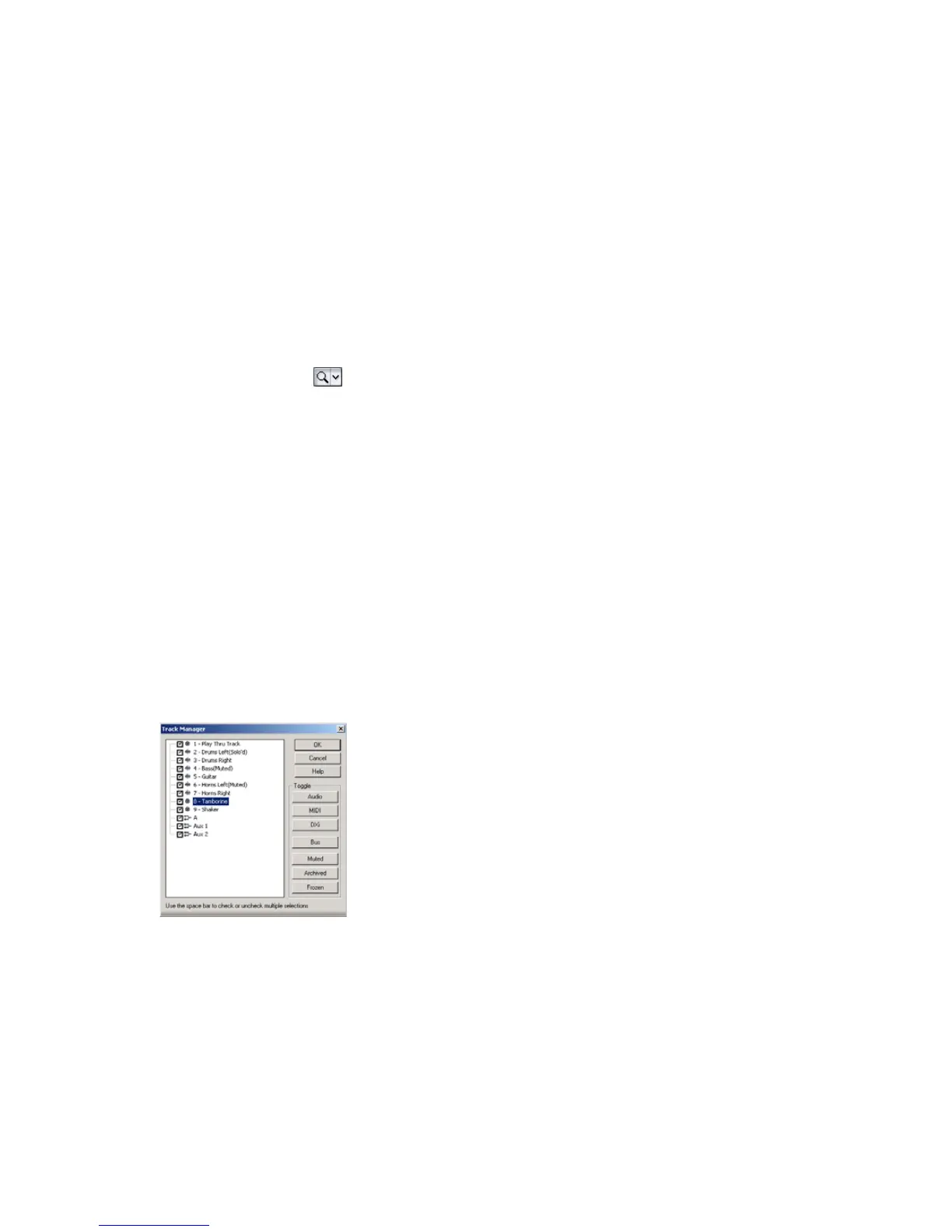
To Choose the Tracks that are Displayed Using the Track
Manager
1. Click the down arrow next to the View tool and select Track Manager to open
the Track Manager dialog box.
2. In the list, check those tracks you would like displayed in the view in which
you are working, and uncheck the rest. You can use Shift-click, Control-click,
or the quick select buttons to select multiple modules; press the Spacebar to
check or uncheck all the selected modules at once. Please note that the track
display selections you make in the Track view do not affect those in the
Console view and vice versa.
3. Click OK.



 To Next Page