0978-06J
1
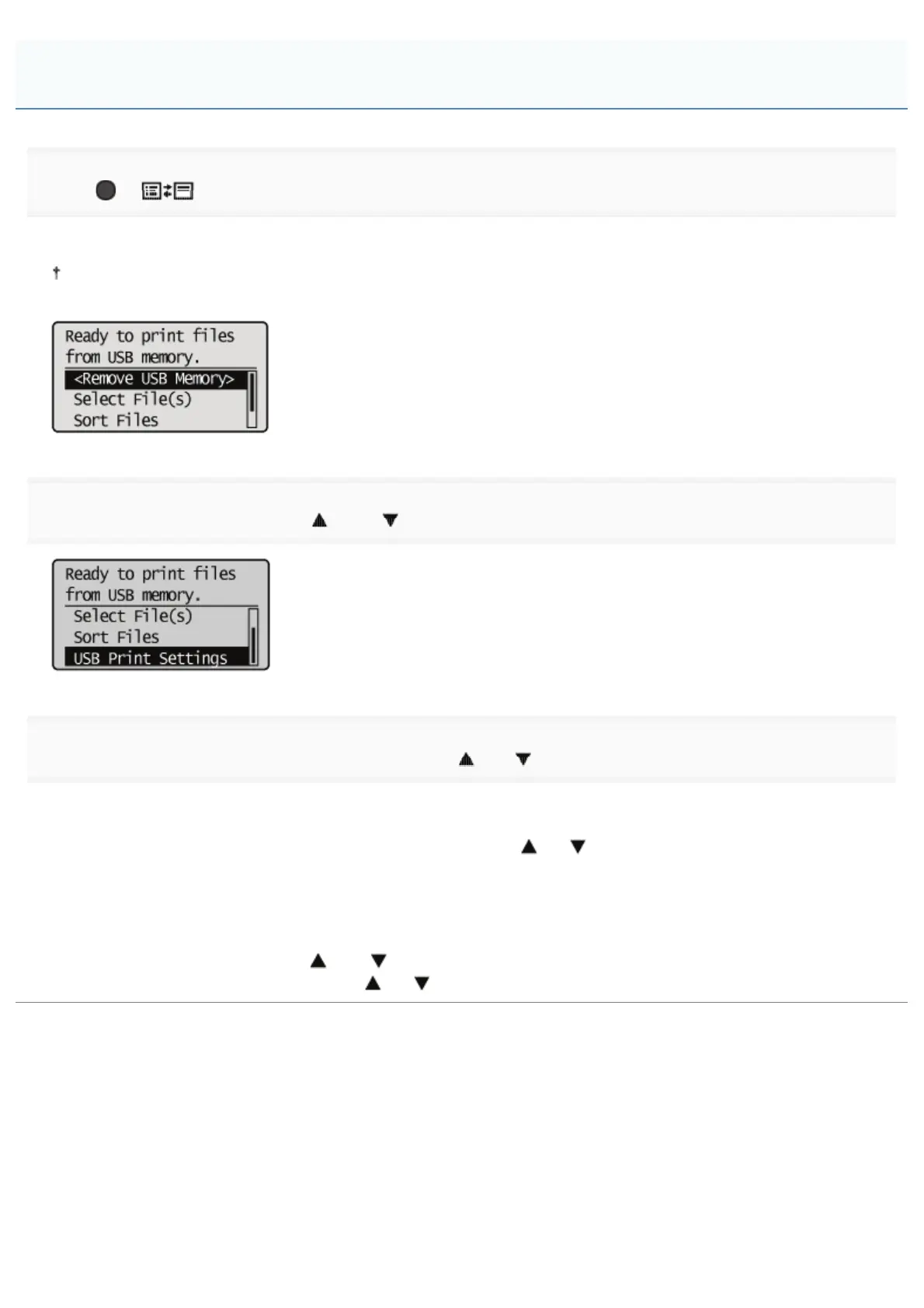
Press [ ] ( : Application).
The "USB Direct Print Mode Screen" is displayed.
When the department ID management function is enabled, the authentication screen appears. After you enter the
department ID and password, select [<Log In>], and then press [OK].
2
Select [USB Print Settings] with [ ] and [ ], and then press [OK].
3
Select items for which to set default values using [ ] or [ ], and then press [OK].
Set default print settings
(1) Select [PDF/XPS Default Set.] or [JPEG/TIFF Def. Set.] using [
] or [ ], and then press [OK].
(2) Set the default value of each item.
For details on the settings, see "Print Setting Menu List."
Setting default values for file display sorting criteria
(1) Select [File Sort Def. Set.] with [
] and [ ], and then press [OK].
(2) Select the default sorting criteria using [
] or [ ], and then press [OK].
Changing the Default Print Settings and File Sorting Criteria
㻟㻜㻞㻌㻛㻌㻥㻣㻜



 To Next Page