0978-0CL
Checking the Number of [Printed Pages] by Department and Registering/Changing the
Department ID Management Settings
You can manage the number of [Printed Pages]
*
on a departmental basis by specifying IDs for each department and
entering an ID when printing.
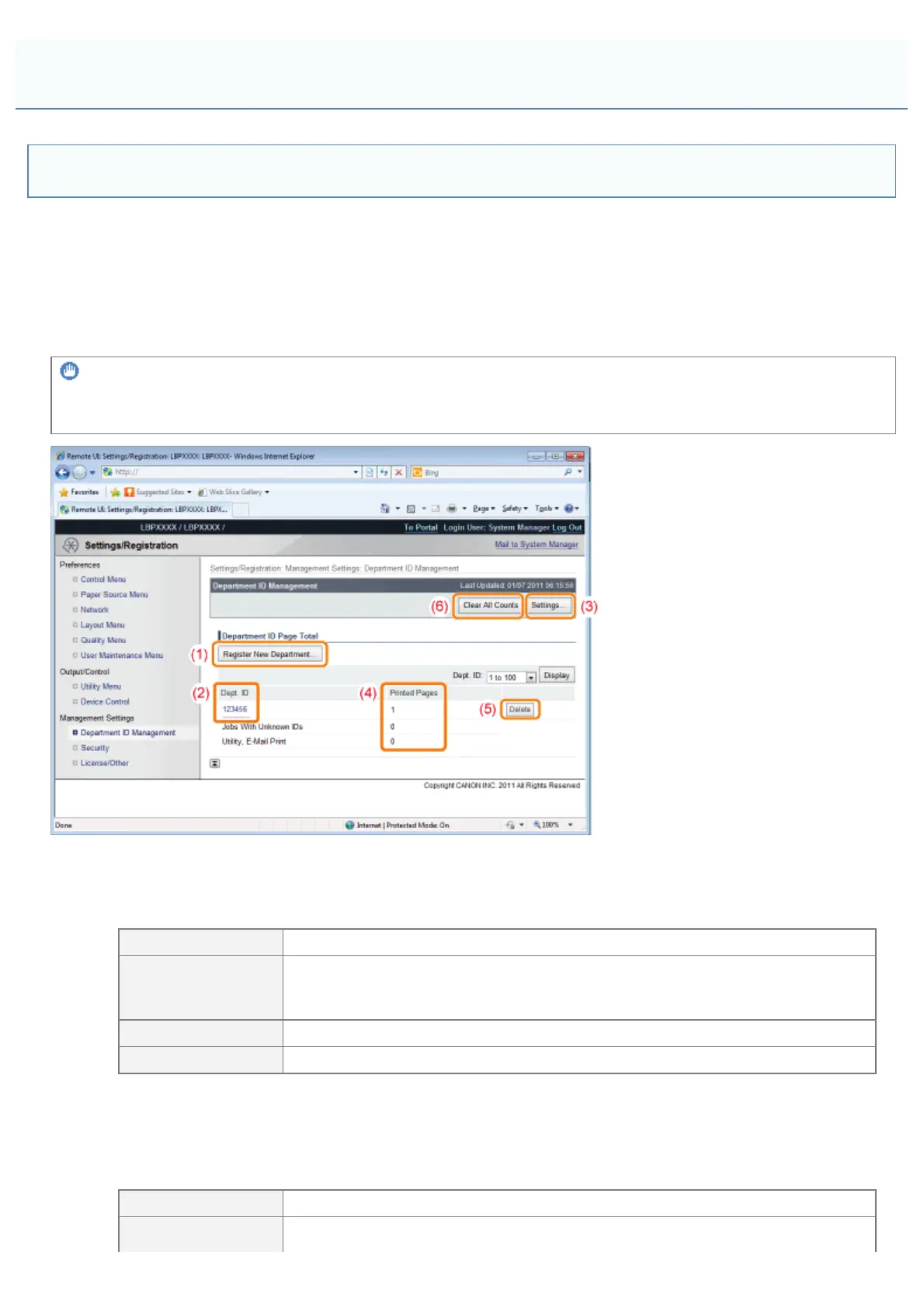
[Settings/Registration] - [Department ID Management] in the Remote UI allows you to check the number of printed pages
and make settings for department ID management.
*
[Printed Pages] indicates the number of printed surfaces. If you perform 2-sided printing on a sheet of paper, the
number of the printed surfaces is two.
IMPORTANT
Register more than one Department IDs before enabling Department ID Management, which will have no effect with no
Department ID registered.
(1) [Register New Department...]
(Displayed only if you have logged on in Administrator Mode.)
The [Register New Department] page allows you to register department IDs.
Set the following items and then click [OK].
[Department ID] Enter the department ID using a number with up to seven digits.
[Set PIN]
Select this check box when setting the password for [PIN].
If nothing is entered for [PIN] with this check box selected, the state is such that
no password is specified.
[PIN] Enter the password using a number with up to seven digits.
[Confirm] For confirmation, enter the same password that you entered for [PIN].
(2) [Dept. ID]
(Clickable only if you have logged on in Administrator Mode.)
Clicking the department ID allows you to use the [Edit Department] page to change the password and clear the
count by department.
Set the following items and then click [OK].
[Department ID] The selected department ID is displayed.
Select this check box when setting/changing the password for [PIN].
Specifying an ID for Each Department
㻢㻞㻣㻌㻛㻌㻥㻣㻜



 To Next Page