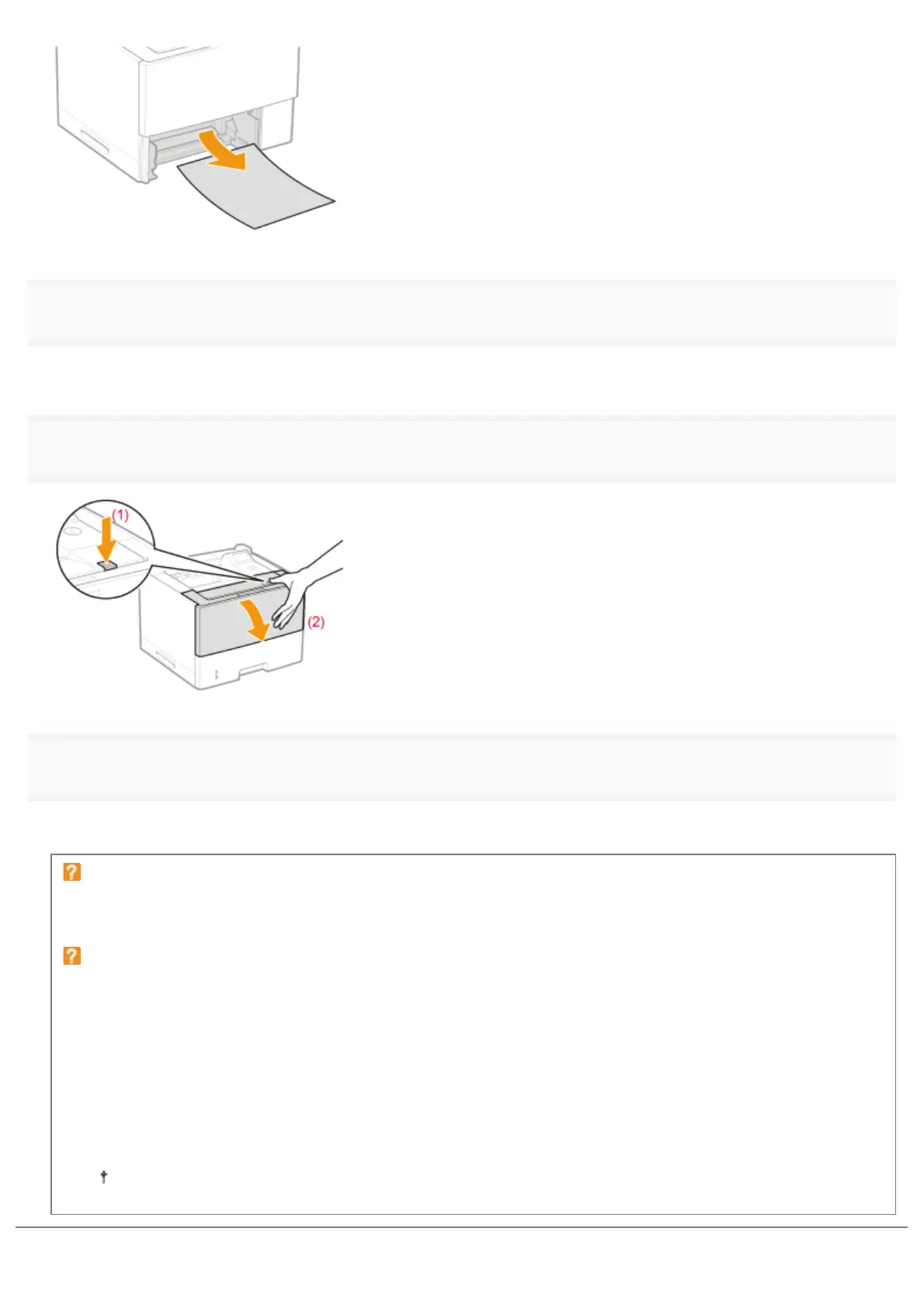
5
Set the paper drawer in the printer.
If the paper feeder is installed, insert the paper drawer of the paper feeder also.
6
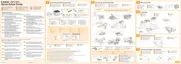
Open the front cover while pressing the open button.
7
Close the front cover.
ĺ The message disappears, and the printer is ready to print.
If you cannot close the front cover
Make sure that the toner cartridge is installed in the printer properly. Do not try to forcefully close the front cover, as
this may damage the printer.
If a message does not disappear
Paper may be jammed in another area. Check another area also and remove the paper.
(1) "Clearing Paper Jams (Multi-purpose Tray)"
(2) "Clearing Paper Jams (Paper Drawer)"
(3) "Clearing Paper Jams (Duplex Unit)"
(4) "Clearing Paper Jams (Inside the Output Area)"
(5) "Clearing Paper Jams (Inside the Front Cover)"
If the message does not disappear even after removing the paper, check that the front cover is closed firmly.
㻤㻣㻟㻌㻛㻌㻥㻣㻜



 To Next Page