<Cause 3> When you want to print a PDF file linked to a policy server, you cannot access the policy
server.
Solution Check the policy server's power supply and the status of this product, the policy server, and the network.
Cannot feed paper.
<Cause> Paper of the size or type that cannot be fed from the multi-purpose tray or paper drawer is
specified.
Solution 1
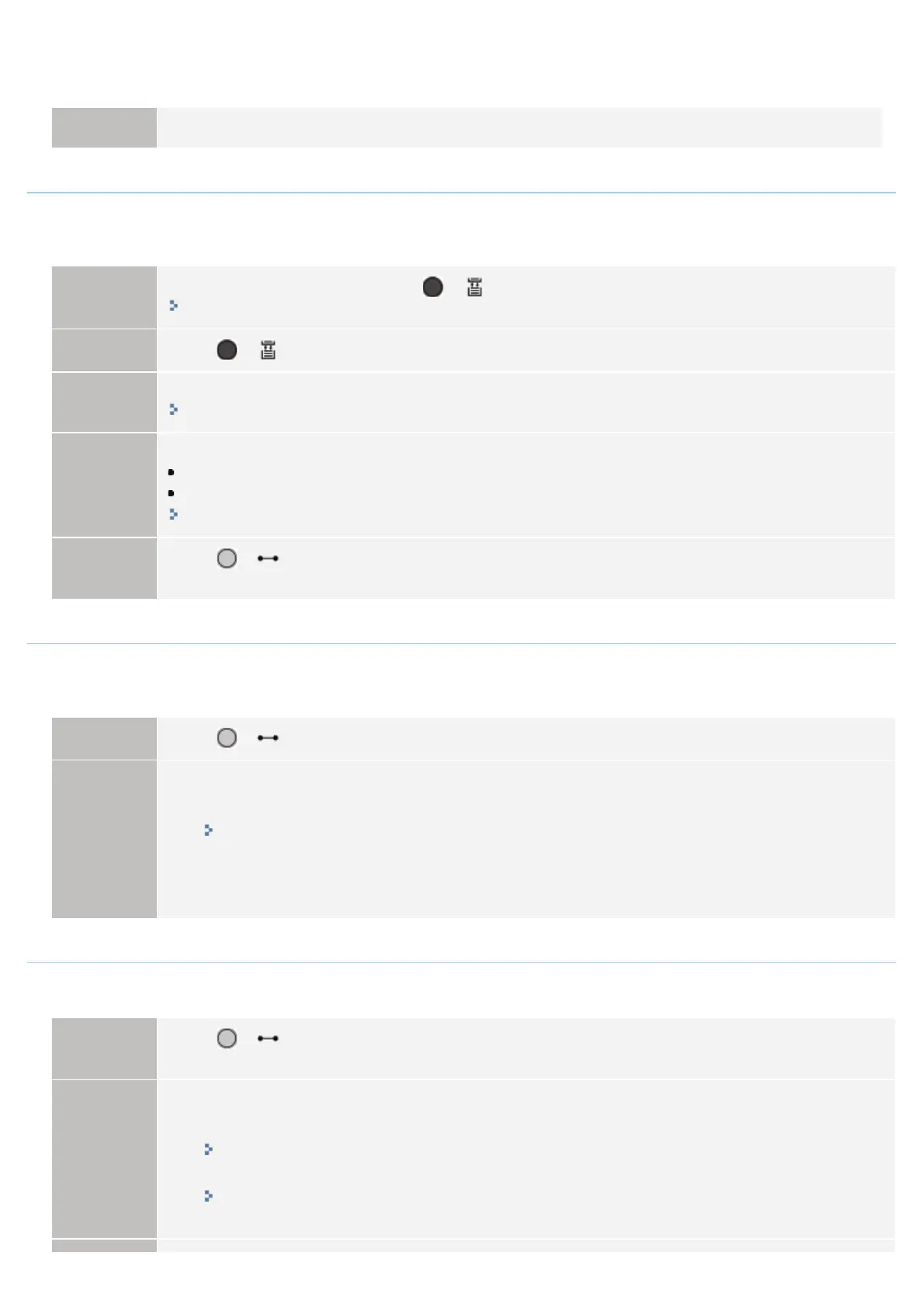
If a paper source is specified, press [
] ( : Feeder Selection), and then set [Paper Source] to [Auto].
"[Select Feeder] Menu"
Solution 2
Press [
] ( : Feeder Selection) to select another paper source.
Solution 3
Load paper appropriate for the paper source.
"Usable Paper"
Solution 4
Specify the following items.
[Standard Paper Size]
[Default Paper Type]
"[Setup] Menu ([Paper Source] Options)"
Solution 5
Press [
] ( : Online), and then print from the currently selected paper source. However, this may
result in deterioration in print quality.
Cannot perform 2-Sided Printing. <Auto Error Skip>
<Cause> The printer received 2-sided printing data of paper sizes (including the orientation) or paper
types unavailable for automatic 2-sided printing.
Solution 1
Press [
] ( : Online) to continue printing. However, the data on each side is printed on two pages.
Solution 2
Perform the following procedure.
1. Perform a soft reset.
"Canceling the Process Currently Being Performed (Soft Reset)"
2. Change the setting to a paper size or type available for automatic 2-sided printing, and then print
again.
Cannot print with the specified resolution. <Auto Error Skip>
<Cause> The printer cannot process the data because it is too complicated.
Solution 1
Press [
] ( : Online) to continue printing. In this case, the printer prints with the image quality level
being lowered.
Solution 2
Perform the following procedure.
1. Perform a soft reset.
"Canceling the Process Currently Being Performed (Soft Reset)"
2. Set [Resolution] to [600 dpi], and then print again.
"[Setup] Menu ([Quality] Options)"
㻤㻥㻡㻌㻛㻌㻥㻣㻜



 To Next Page