TOS93 Series User’s Manual 49
Basic Operation | Basic Panel Operations
Inputting numbers and characters
You can enter numbers and characters in input areas from the front panel or external keyboard. Number
input and character input switch automatically according to the input area.
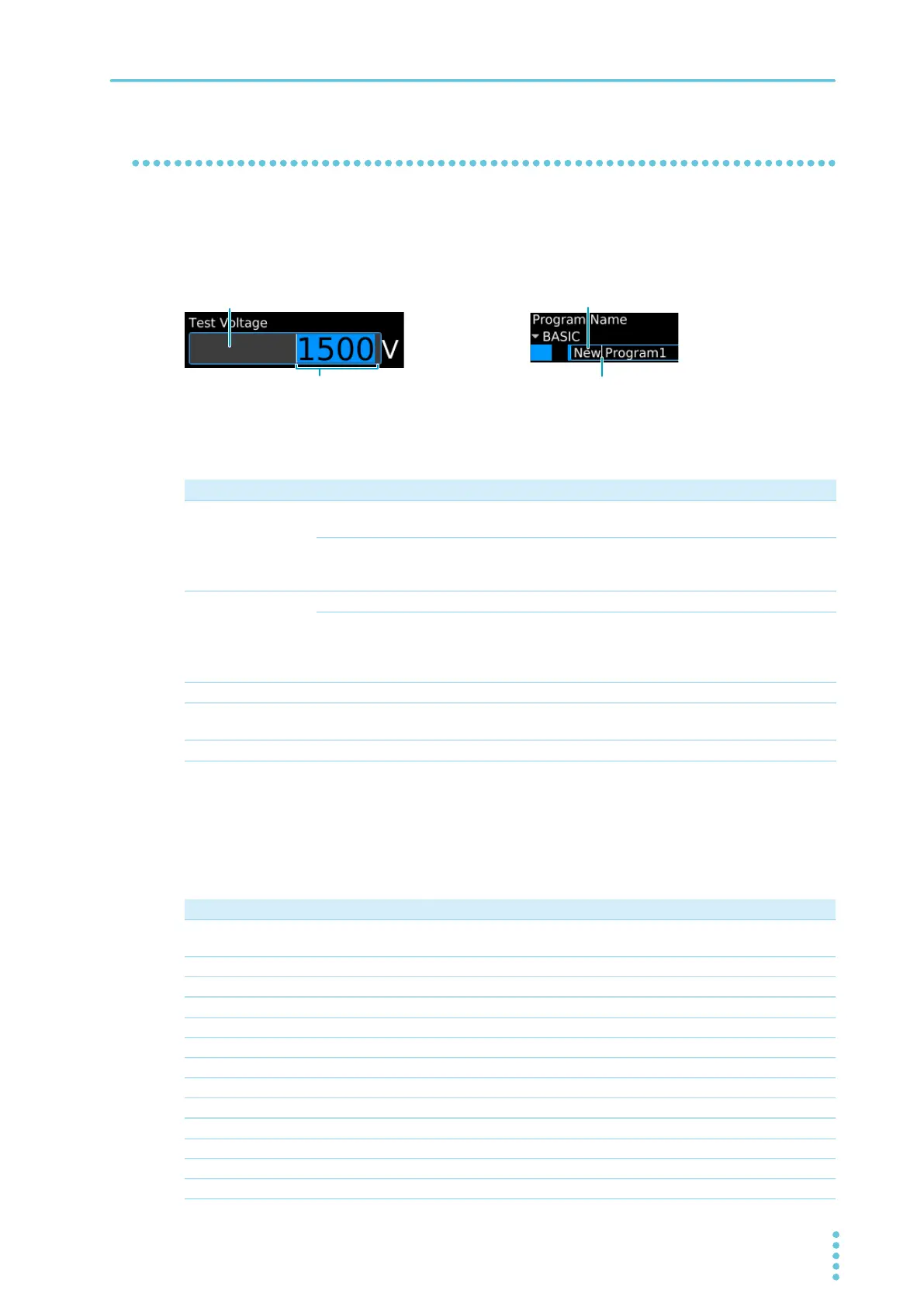
If numbers or characters are selected in an input area, they can be changed. If only a cursor is shown in
an input area, you can enter characters or numbers at the cursor position.
Entering from the front panel
Entering from an external keyboard
If you connect a keyboard to the USB port on the front panel, you will be able to control the product from
the keyboard.
Range selection
Cursor
Input area (value)
Input area (character)
Purpose Operation Description
Numeric input Numeric keypad You can enter numbers and a decimal point. To confirm a value
after input, press the ENTER key.
Rotary knob You can enter numbers. Turn clockwise to increase the value and
counterclockwise to decrease. The value is confirmed
immediately upon input.
Character input Numeric keypad You can enter numbers and dots.
Rotary knob Turn clockwise to enter characters in the following order: space,
uppercase letters, lowercase letters, numbers, and symbols. Turn
counterclockwise to enter character in reverse order. To enter the
next character, press the
arrow (← or →) key to move the cursor.
Cursor movement Arrow (←/→) keys Moves one digit to the right/left or between entry fields.
Delete CLEAR key Deletes the number or character on the left of the cursor or the
selected range.
Cancel ESCAPE key Cancels numeric/character input.
Controllable function Keyboard operation
Number and character input Keys corresponding to the numbers and characters. (US keyboards are
supported.)
Cursor movement Arrow keys
Number and character deletion [Backspace], [Delete]
Input canceling [Escape]
Confirmation [Enter]
Input item movement [Tab]
Function keys (from the left) [F6], [F7], [F8], [F9], [F10]
Sub-function keys (from the top) [F1], [F2], [F3], [F4], [F5]
START switch [Alt] + [Ctrl] + [s] (press simultaneously)
STOP switch [Alt] + [t]
Program Menu display [Alt] + [p]
Home Menu display [Alt] + [h]
System Menu display [Alt] + [y]



 To Next Page