131
Port forwarding
In most of the cases, you open the login page of your router by entering your standard
gateway address (gateway to the internet) in the web browser.
You get this gateway IP address in Windows Clients by clicking on Start and then entering
“CMD” in the “Execute” or “Search” text box (alternatively Windows key + R). A panel
opens, in which you enter “ipconfig“. The result is the overview of your network adapters,
the associated IP addresses, and the standard gateway.
Search for the configuration menu in the router, which is usually located in the network
settings, to create a port forwarding (NAT). For a port forwarding, the (local) IP of the
alarm panel, the external port (in our example: 8080 or 53080) and the internal port 443
of the alarm panel must be entered.
Please note: the XT2 (not Plus) can only be access via the unencrypted web port 80 and
not via the encrypted SSL/TLS port 443.
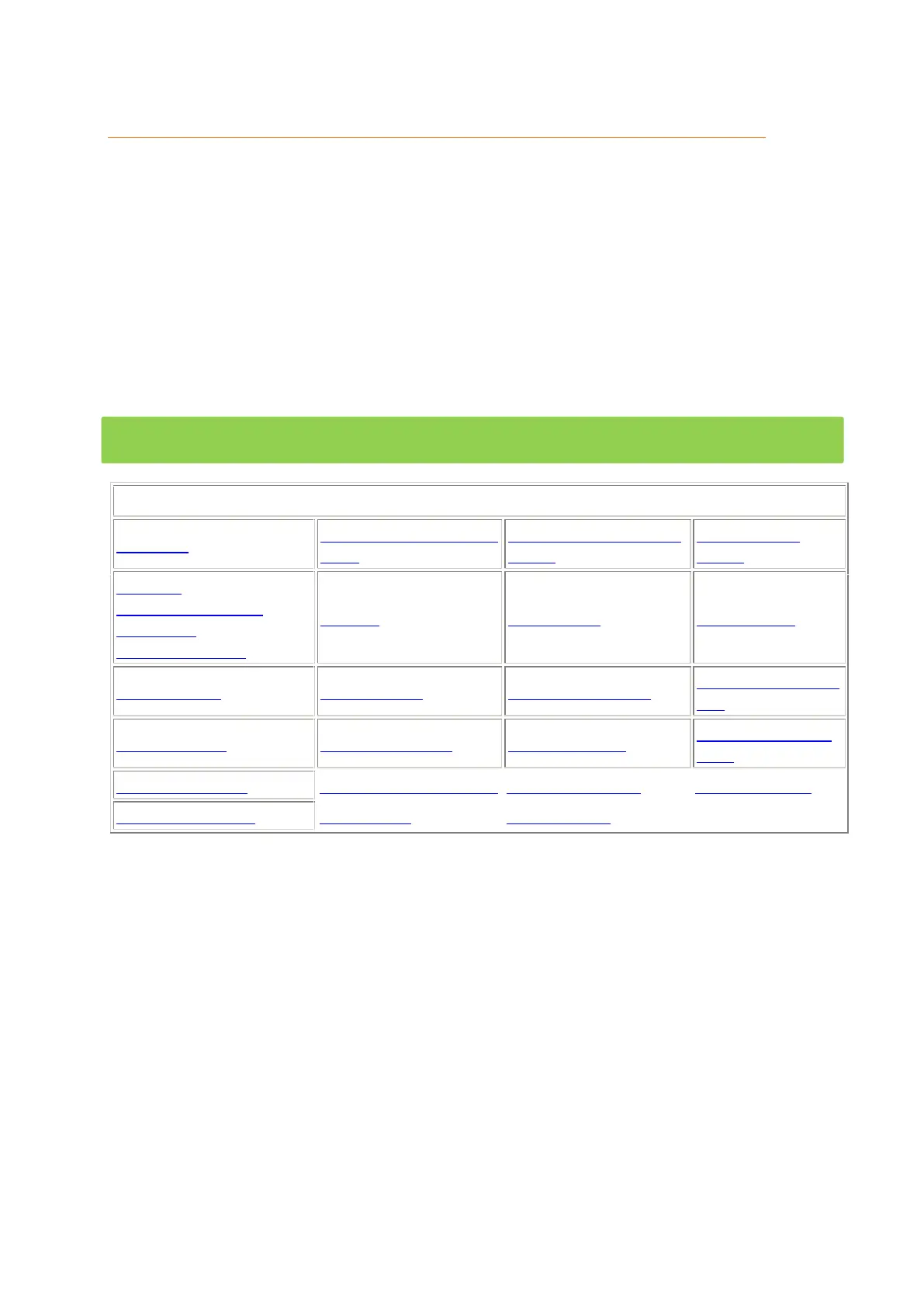
Port forwarding – brief instructions (currently only in German):
Fritz!Box (ab Firmware
8.63)
Speedport (W 502V, W
722V)
Telekom
Digitalisierungsbox
(offizielles
Anleitungsvideo)
Please note:
The public port number my only be used once.
You can use these manuals and examples also for other devices e.g. cameras,
recorders, etc..


 To Next Page