266
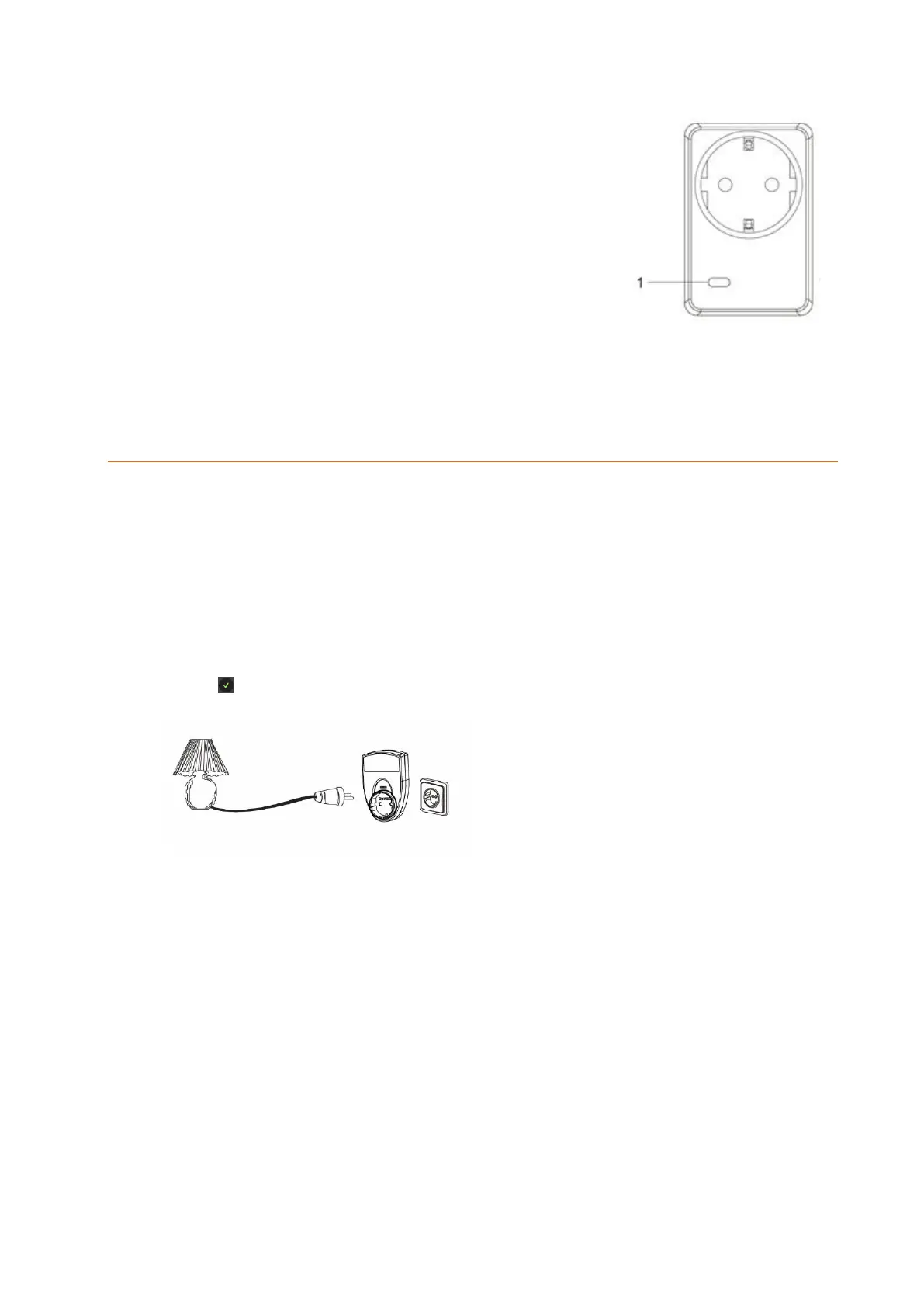
1. LED indicator / learn button:
The LED indicator is at the same time the Learn
button.
LED on: power on
LED off: power off
LED flashes fast twice: successfully added to the
alarm panel
The red LED flashes every twenty minutes, if the
PSS is not connected to the alarm panel anymore.
Pressing the LED indicator/Learn button:
Pressing once transmits a supervisor signal to the alarm panel.
Pressing the Learn button for more than ten seconds resets the wireless socket
and deletes it from the sensor list.
Connecting the wireless socket and putting it into operation
1. Plug the power device into a socket.
2. You can only add the wireless socket to the alarm panel within the first three
minutes after connecting it to the power supply.
3. Start the alarm panel’s web interface and open the menu “Sensors” “Add”. Press
“Start”.
4. Press and hold the Learn button (1) for approx. ten seconds; the LED illuminates
briefly. Then, release the Learn button. A connection request is transmitted to the
alarm panel, the LED flashes twice.
5. As soon as the alarm panel received the connection request, the sensor is listed.
Press next to the sensor to add it to the alarm panel.
6. Connect the end device.
Range test:
4. Open the alarm panel menu “Sensors” “Range” and press “Start.”
5. Press the learn button.
6. The sensor and the signal strength should be indicated. The higher the indicated
number the better the reception (1-9).
Please note:
If the signal strength at the place of installation is below 4, we advise to use a ZigBee
repeater, since it is normal that the signal strength may fluctuate for 2-3 points, thus,
a signal loss is possible.
Repeater function:
The remote controlled mains socket with ZigBee repeater features an integrated repeater
to enhance the signal of further ZigBee S devices, thus, expanding the ZigBee network
of the alarm panel. The remote controlled mains socket is cascadable, i.e. several devices


 To Next Page