56
Universal remote control
Via the menu “Sensors” “Universal remote control”, you can operate a connected
universal IR controller. The universal IR controller was developed to control infrared-
controllable appliances automatically and manually. The universal IR controller can learn
IR signals and repeat them. After the IR signals have been learned, you can control the
corresponding device them via the LUPUS alarm panel without using the related remote
control.
As long as you do not have a universal IR controller added to the alarm panel, this
menu displays no options.
For clarity reasons, you can name the controlled appliance yourself and assign an
LED of the universal IR controller to the appliance.
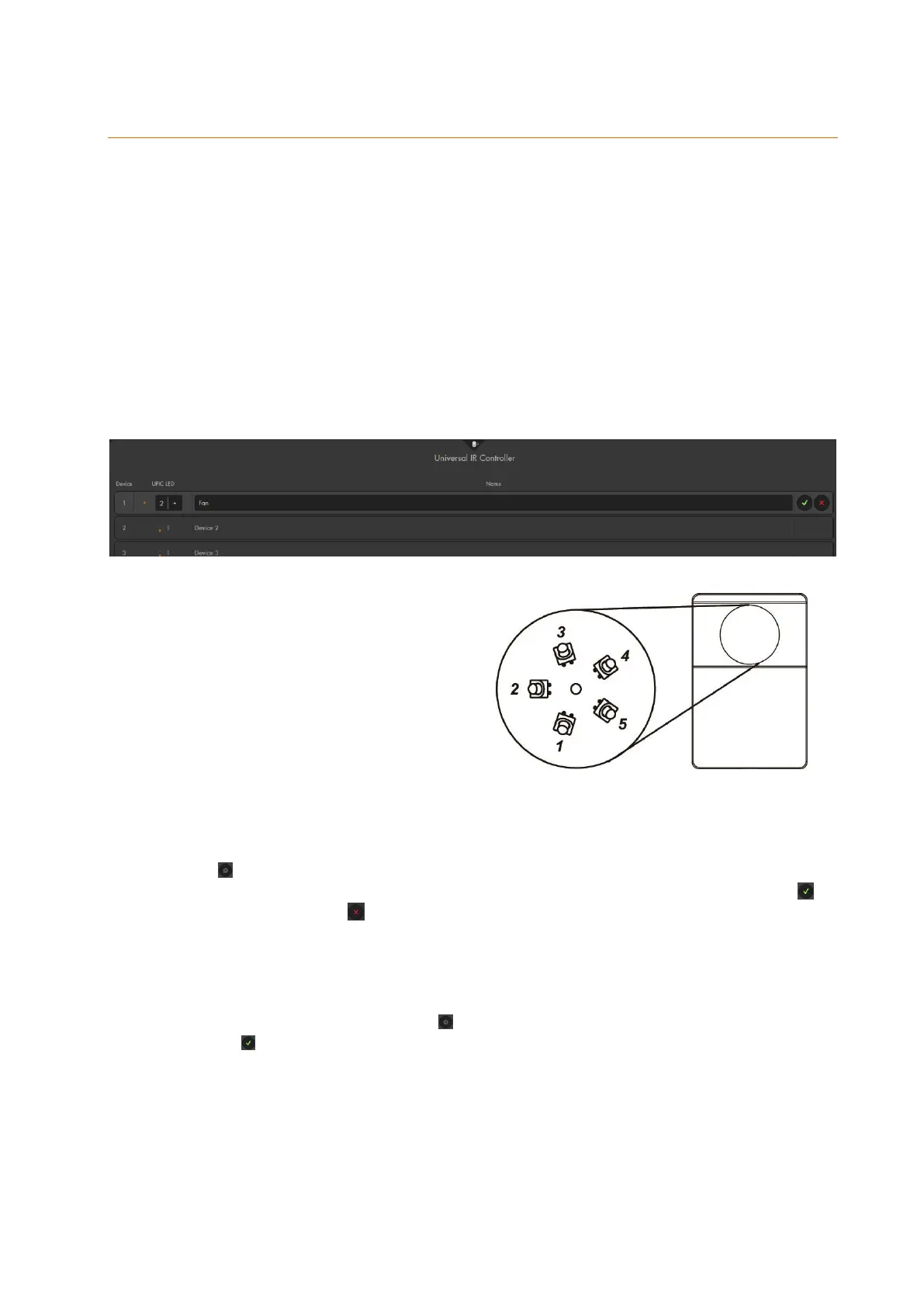
The IR transmitter is equipped with six
LEDs, sending the IR signal. One
LED is in the center, the other five are
arranged in a circle. The five outer
LEDs have a 45° offset.
Each LED transmits the signal in a
cone-shaped way emanated from the
position of the LED. The LED in the
middle always transmits the signal.
The surrounding LEDs transmit the signal depending on the selection in the
LUPUS menu. The LED facing the appliance should be selected for the
appliance when assigning them.
In the example, appliance 1 is a fan installed below the universal IR controller.
Press to open the labeling of the appliance, select LED 1 (located at the bottom
of the universal IR controller LEDs) and name the appliance 1 “Fan”. Press to
apply the input, press to neglect the input.
You can label the signals learned before by the appliances via “Learn and test IR
signals” (see manual of universal IR controller) for more clarity. To do so, click on
the appliance, in the example “Fan”. A selection of functions of the appliance
opens. Then press the button to assign a name and save the name by
pressing .


 To Next Page