276
Calibrating the sensor input (9 fold)
1. During calibration, all sensors connected to the wireless input are registered.
2. When you add the sensor input to the alarm panel, every connected contact
counts as an individual sensor / zone in the alarm panel. Hence, the alarm
panels displays the status of every connected sensor individually.
3. Make sure that all sensors and the ohmic resistance are connected correctly to
the sensor input. The power LED also needs to light up green.
4. Press the calibration button for at least two seconds. Both calibration LEDs will
light up.
5. If the calibration is successful, the calibration LED stays green.
6. If the red calibration LED flashes, the calibration was not successful. In this case,
check the wiring, as well as, the resistance. It is necessary that a sensor and a
resistance are connected to Z1. Repeat the calibration process.
Please note:
If the wiring is changed, you need to switch off the sensor input and restart the
calibration process.
Adding the sensor input (9 fold) to the alarm panel
1. Finish the calibration process.
2. Connect the sensor input to the power supply.
3. Open the menu “Sensors” “Add” and press “Start” in the web interface of the
alarm panel.
4. Press the learn button of the sensor input.
5. As soon as the alarm panel has received the connection request, the sensor list
shows the sensors. Press to add the connected sensors to the alarm panel.
6. End the sensors add mode be pressing “Stop”.
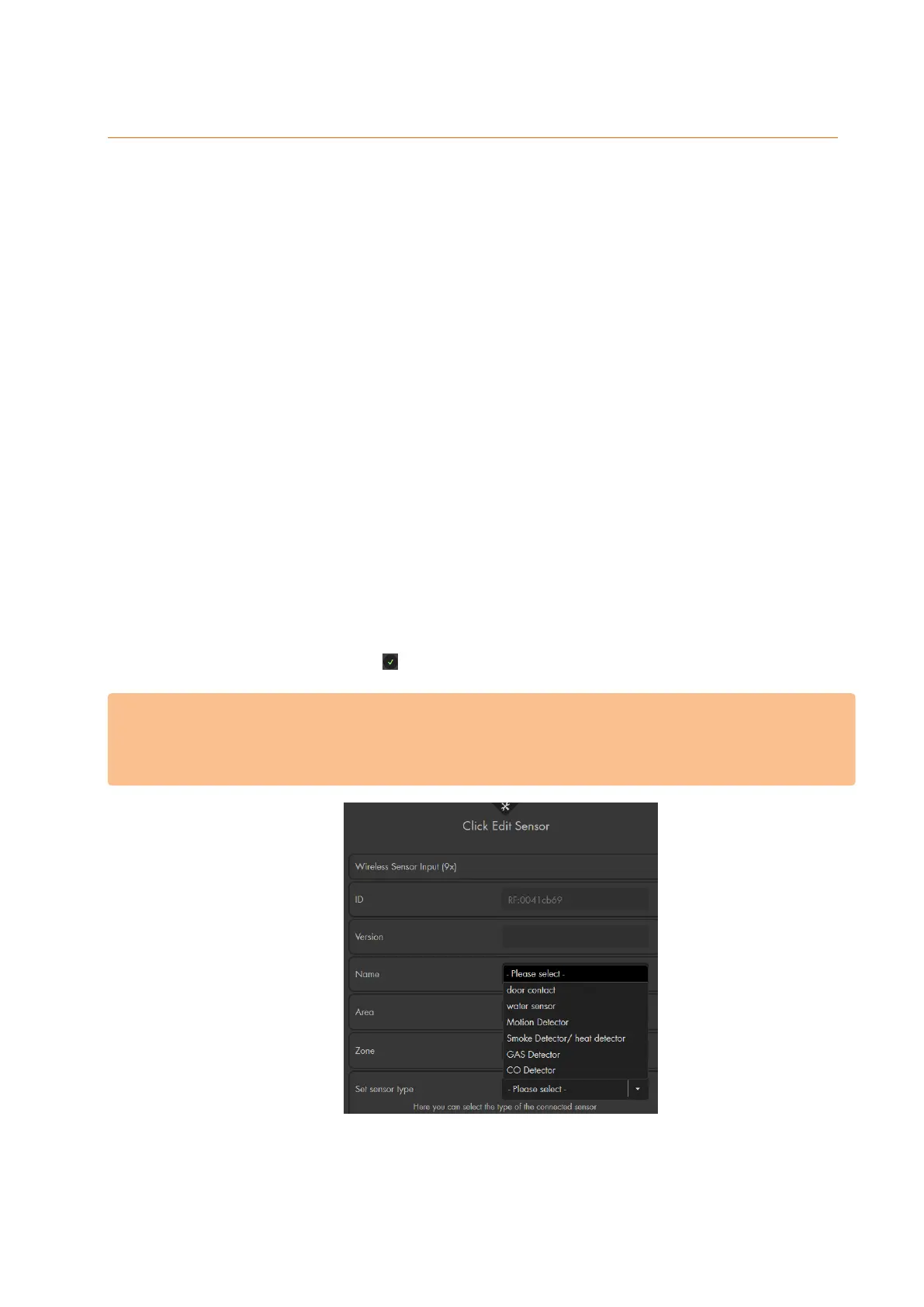
7. You need to setup the sensor input NOW! Press XXX and select the type of sensor
that is connected. This can only be done when you add a sensor. If you want to
change the type of sensor, you need to delete this sensor an add it again to the
alarm panel.
Range test:
1. Open the alarm panel menu “Sensors” “Range” and press “Start”.
2. Press the learn button.


 To Next Page