5-6
5-10. Welding data log
< A function available only with the built-in welding power source controller.>
This is a function that receives and records actual welding condition data from the welding power source. Such data is
useful to control welding quality.
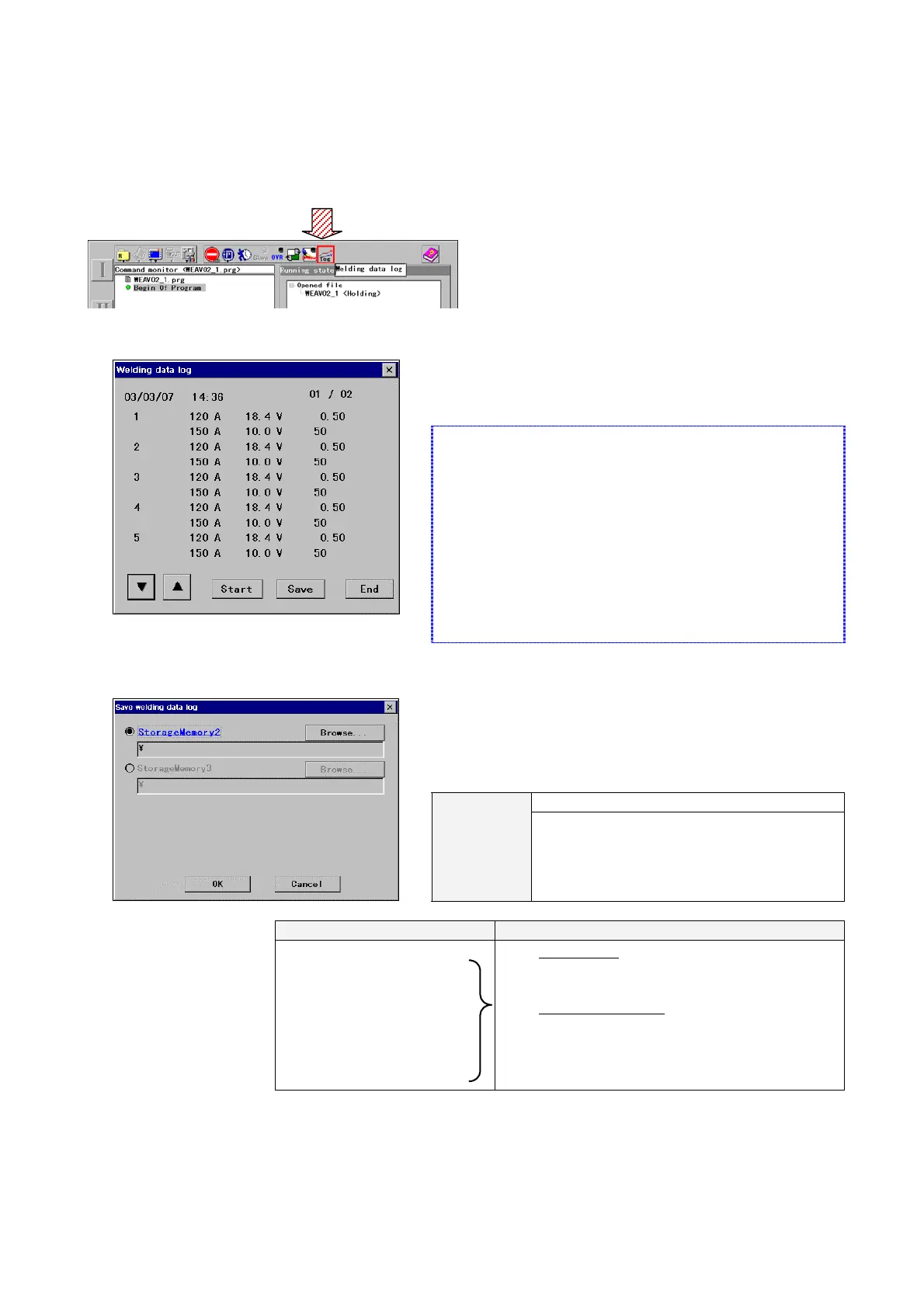
The “Welding data log” box displays the actual welding condition
data, such as welding current, welding voltage and number of
wire shorted, of up to 50 sections received from the welding
power source.
<Supplimentaly explanation>
· A section represents a period from the arc start to the
arc end within 10 minutes long. If such period
exceeds 10 minutes, it will be divided into sections by
10 minutes.
· If the robot makes a stop and restarts welding
operation within a period, the period is divided into
sections before and after the stop.
· Data after the 50
th
section overwrite an existing data
from the top (the lowest-numbered data).
Click Save to save the data on the “StorageMemory” card.
Data will be stored in the CSV format as follows using the start
date of recording as the file name.
It is easy to make a graph of the data using a spreadsheet
software.
Format: WL
YYMMDDhhmm.txt
File name
YY: Year (the last 2-digit of calender year),
MM: Month, DD: Date, hh: hour, mm: minute
Example) WL0303071436.txt
Example Format
03,03,07,14,36,
120,18.4,0.50,121,18.6,50
120,18.4,0.50,123,18.5,51
120,18.4,0.50,118,18.0,50
120,18.4,0.50,120,18.6,50
120,18.4,0.50,124,18.1,49
120,18.4,0.50,121,18.6,50
:
Í
Í
The first line:
The date of recording (the last 2-digit of
calender year, month, date, hour, minute)
The remaining lines:
Sectional data from section 1
(Command current(A), command voltage(V),
speed(m/min), average current(A), average
voltage(V), short-circuit count(times))
<Note>
• If the “StorageMemory” does not appear in the “Save welding data log” dialog box, click the View menu, and then click
File list to display the list of files, and then retry the above procedure.
• Prior to making a backup copy, make sure that the PC card is in “write possible” condition



 To Next Page