3-1
3. Get assistance while you work (Help)
When you are in the middle of a task and need help, such as you want to know certain operation procedure or you want to
know what to do with the alarm or error that occurred, click the Help icon to get the information you need. The Help
menu simply rephrases the contents of the manual.
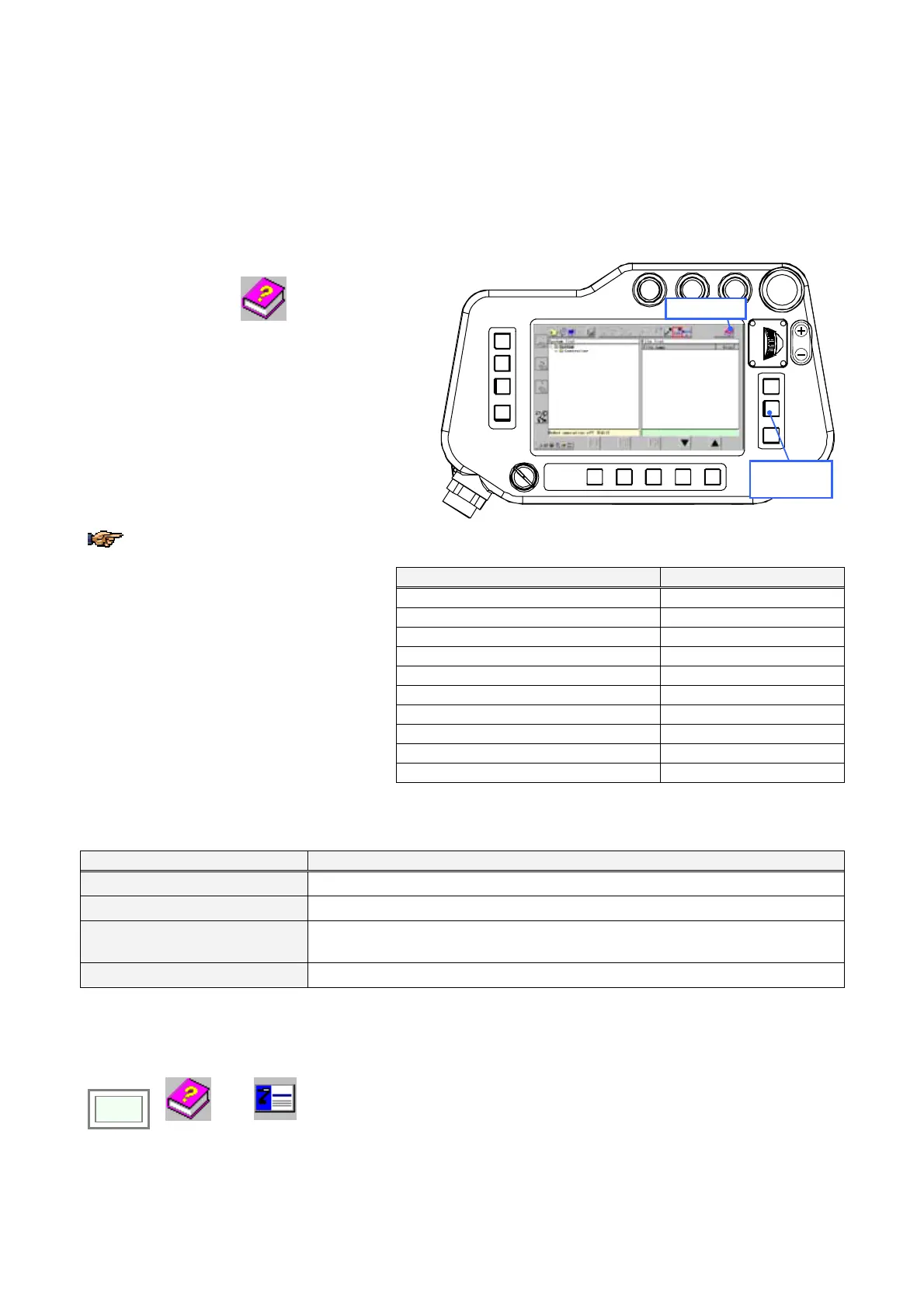
3-1. How to get online Help
Auto
Teach
HELP icon
Window
change key
Function of the keys on the teach pendant in Help window
Operation in Help window Key
Travel over highlight texts (downward) Jog dial (down)
Travel over highlight texts (upward) Jog dial (up)
Jump to the linked item.
Jog click and IV key
Back to previous screen
R-Shift key, L-Shift key
Scroll up
I key
Scroll down
II key
Back to robot operation window
Window change key
Page forward
F4 key
Page backward
F5 key
1. Move the cursor over the Help menu,
and then click the
Help
icon to
display Help window.
Move the cursor to the topic you want,
and then click the jog dial to get
information.
2. Press the Window change key to
return to the robot operation window
you were working on.
When the Window change key is
pressed, the Help window is closed retaining
the current screen.
Exit
Cancel key
3-2. What’s in the Help menu
Menu Description
Operation procedures Explains teaching, operation and file editing procedures.
Sequence command Explains function, format and arguments of each sequence command.
Controller settings Explains I/O settings, soft limit setting, pitch, speed limit, tool, welding conditions and
other settings on the display.
Errors and alarms Explains each error and alarm and shows check items to solve the cause of it.
3-3. How to get the version information
To check the software version of your TP,
Click
>>
Help
>>
Version



 To Next Page