4-31
4-19. File transfer
It stores files of program etc. in another folder or memory card.
• When you make a backup data on a PC card, insert the PC card (with memory card embedded) into the
PC card slot at the near side of the TP. (Please refer to the operating instructions of the controller
(OM0105037E))
• If “Storage Memory” items in the ‘Backup’ dialog box do not appear, click the View menu, and then click
File list to display file list, and then retry the above procedure.
• If you make a backup copy, make sure that the PC card is in “ write possible” condition.
•
Close any active program file(s) first.
Click
>>
File
>>
Transfer
Î
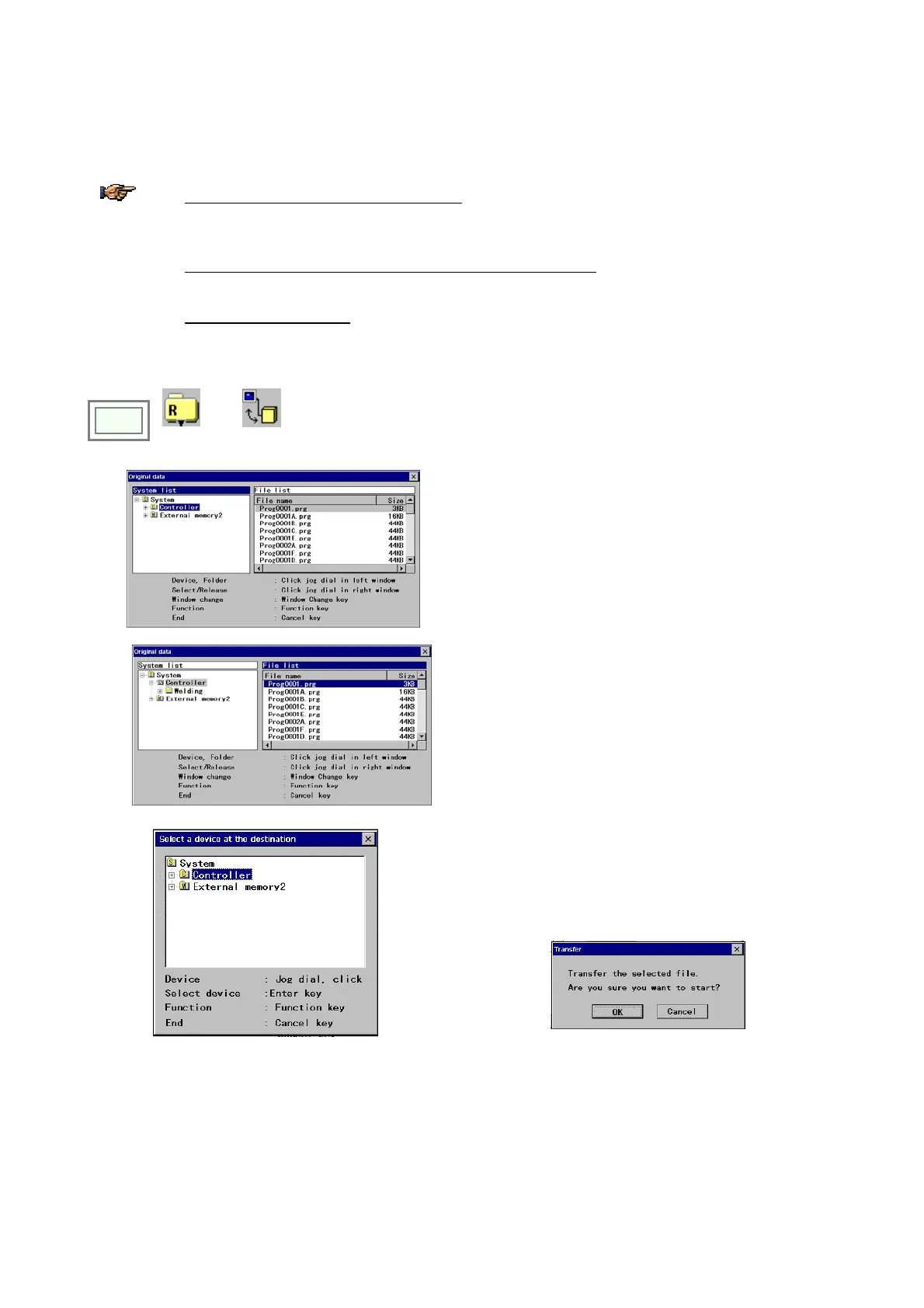
Select and click the folder where the file you would like to
transfer is stored. Then a list of files in the specified folder
appears in the right window pane.
Press the Window change key to bring the right window to
an active state.
Click the file(s) to transfer from the list. (You can select
more than one file.)
The selected files are marked with “
*” to the left of the file
name.
Once selected all files you would like to transfer, press the F3
(Next) key to display the “Select a device at the destination”
dialog box.
Use the jog dial to select the destination (folder) and press
the Enter key. Then the dialog box to confirm the action
appears.
Click the OK button to transfer the file(s).



 To Next Page