D-52 The MassLynx Tune window
To add parameter controls to the peak display toolbar
1. In the Customise Toolbars dialog box Categories box, click Parameters.
2. In the Customise Toolbars dialog box Parameters page Items list, click
and drag the required parameter box(es) to the peak display toolbar.
The available parameters are:
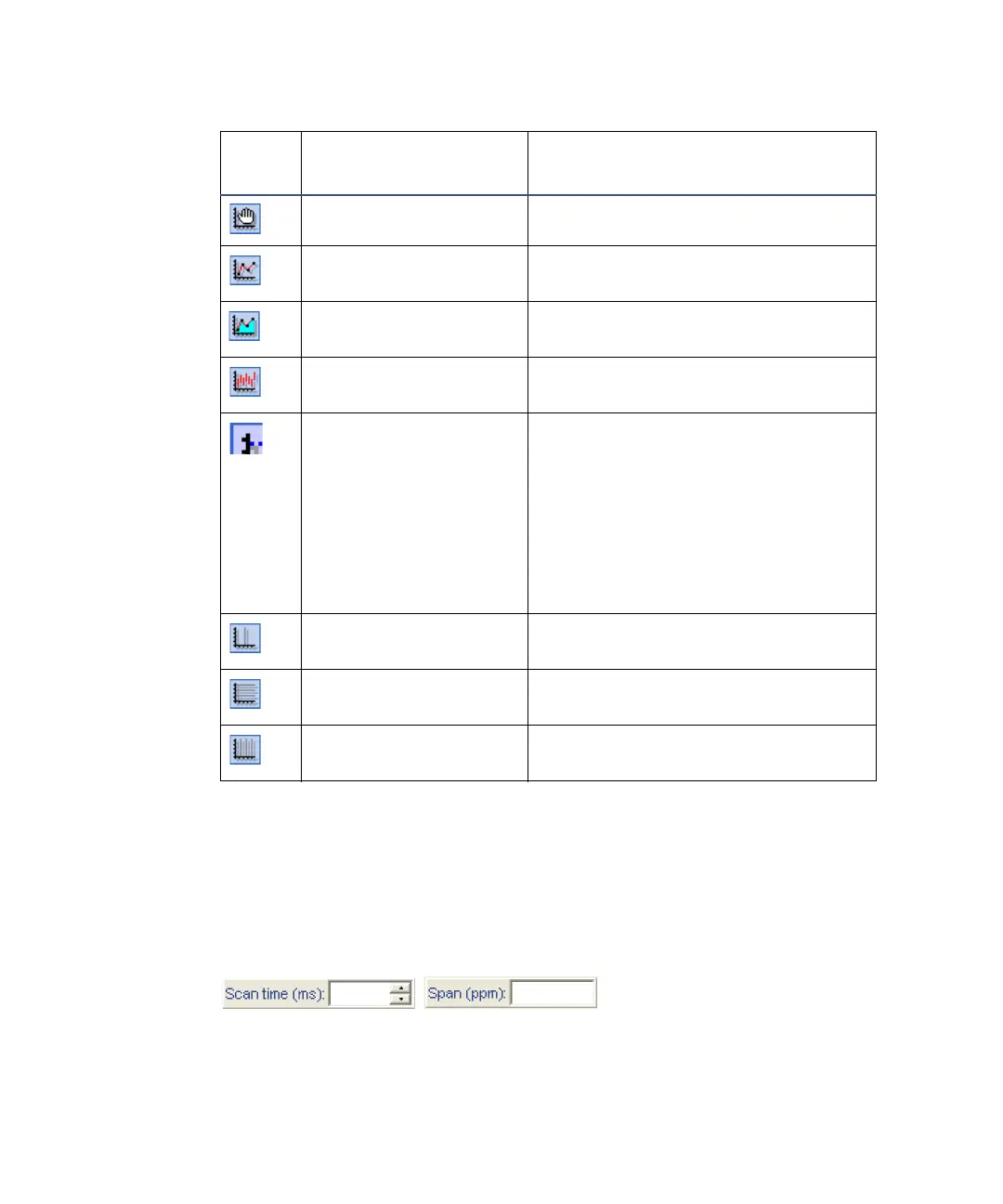
Peak display toolbar tools
Tool
Equivalent Peak
Display menu item
Function
Trace > Freeze Pauses the peak display update.
Trace > Outline Displays the trace as an outline
only.
Trace > Fill Displays the trace with the area
beneath the line filled.
Trace > Min/Max Displays maximum and minimum
points only.
Intensity > Normalise
Data
When enabled, the display scales to
the value of the intensity of the
highest peak, i.e., the peak is
normalized. When disabled, the
scale remains at the last set value.
The scale can be adjusted using the
slider control to the right of the
peak display.
Displays the centerline of each
peak.
Toggles on/off the horizontal grid
lines in the peak display.
Toggles on/off the vertical grid
lines in the peak display.



 To Next Page