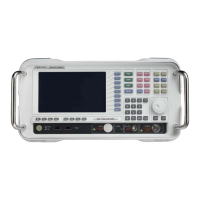
Chapter 6 Signal Generator Operation
Changing the frequency
112 9102 Handheld Spectrum Analyzer Software version 5.31
Setting start and stop
frequency
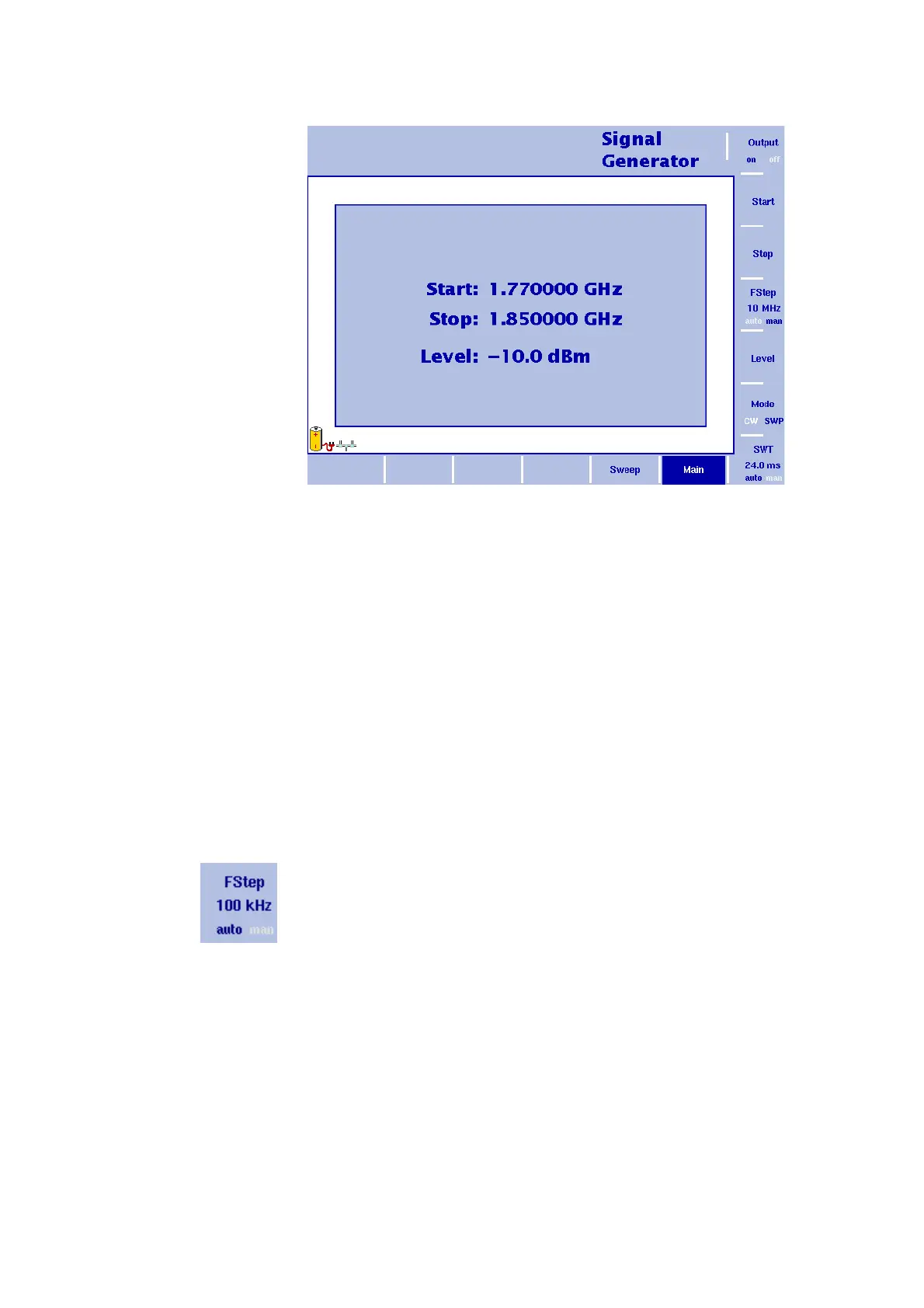
1 In the main menu select the SWP mode by pressing the Mode
softkey until SWP is highlighted. The SWP main menu as shown
above appears.
2 In the main menu, push the
Start softkey.
An entry field appears, indicating the start frequency currently set
and the step size for the U
P/DOWN cursor keys.
3 Enter a new frequency using the numeric keys, the cursor keys and
the B
ACKSPACE key.
4 Push the
Stop softkey and enter the frequency.
Selecting the step size
for the frequency input
The center, start and stop frequencies can either be set by entering a
new value with the numeric keys, or by using the arrow keys (U
P,
D
OWN) to increase or decrease the current setting. The step size for an
arrow keypress can be either automatically selected by the 9102, or
manually adjusted.
Manually setting the frequency step size
1 In the Signal Generator main menu select the frequency mode (CW
or SWP) for which you want to set the frequency step size as
described in
“Selecting the frequency mode” on page 110.
2 Push the
FStep key.
The Freq Step entry field opens.
3 Enter a new frequency step value and close the entry field by
pressing
Enter.
The auto/manual selection switches to manual and the selected
frequency step size is displayed on the softkey.
Figure 30 Signal Generator main menu in SWP mode


 To Next Page