Chapter 3 Spectrum Analysis Operation
Setting up the trace
9102 Handheld Spectrum Analyzer Software version 5.31
69
Turning the second trace
on and off
You can define two different trace views, e.g. one with the actual values
and one with the maximum values. While the first view (Trace A) is
always active, the second can be switched off. The functions of turning
Trace B on or off and selecting the trace mode are combined as
follows:
1 From the main menu, select
Trace > Trace B.
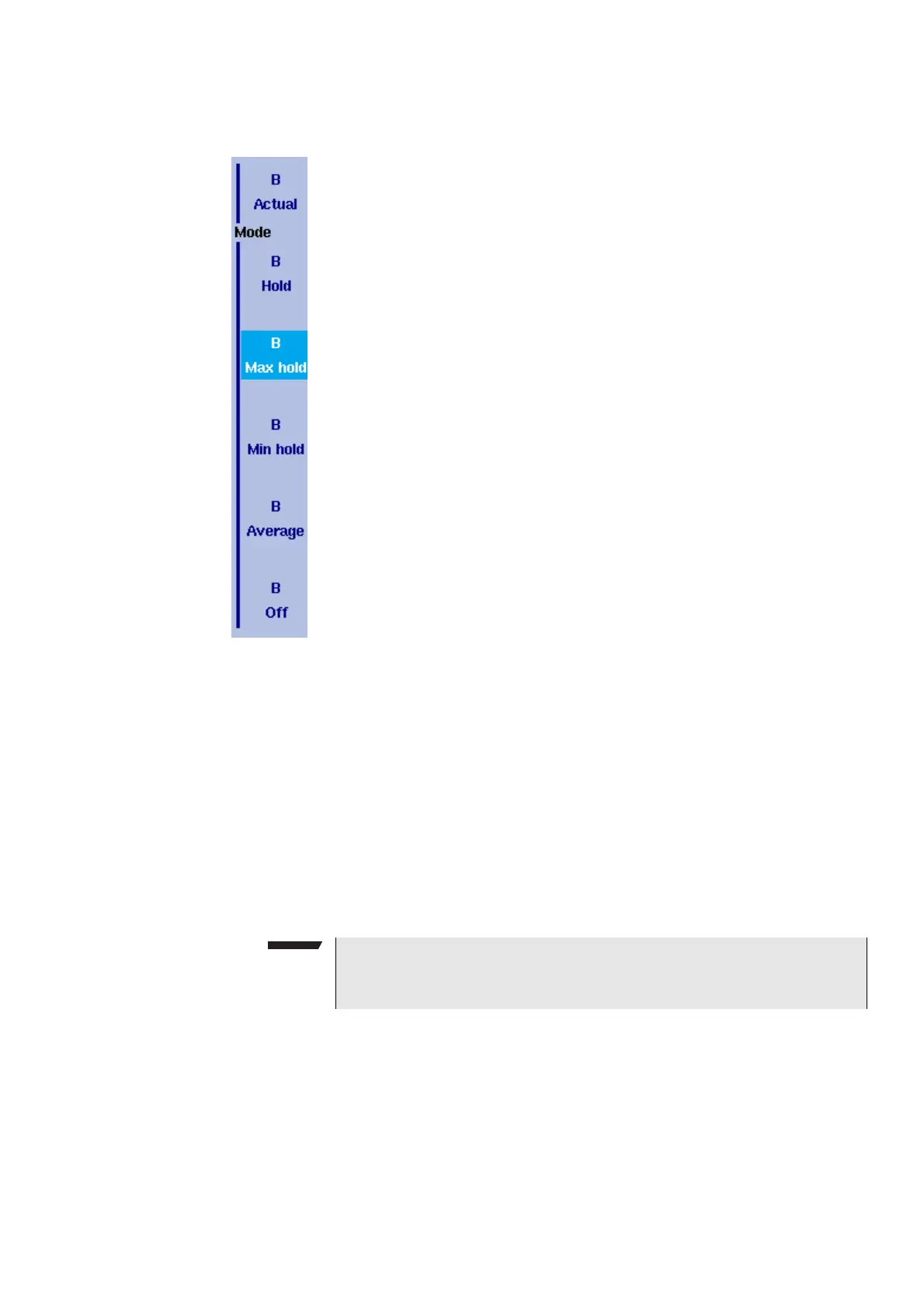
2 To turn trace B on, select the trace mode (
Actual, Hold, Max hold,
Min hold, or Average). To turn trace B off, select Off.
If activated, the trace mode is displayed left to the vertical axis, e.g.
B (MAX).
Subtracting trace B from
trace A
If you have used two different trace views as described above, you can
show the difference between trace A and trace B by subtracting trace
B from trace A as follows:
1 In the Trace menu select the softkey
Trace Function followed by the
softkey
Subtract A – B A.
2 Select
on to subtract trace B from trace A. On the left-hand side of
the result area the term “Subtract“ will now be displayed to indicate
that a mathematical function is being performed.
3 The result is displayed in trace A.
NOTE
If trace A is on Hold, this function is not available and thus the
Subtract A – B A softkey is greyed out.



 To Next Page