Chapter 2 General Operation
Checking general settings
48 9102 Handheld Spectrum Analyzer Software version 5.31
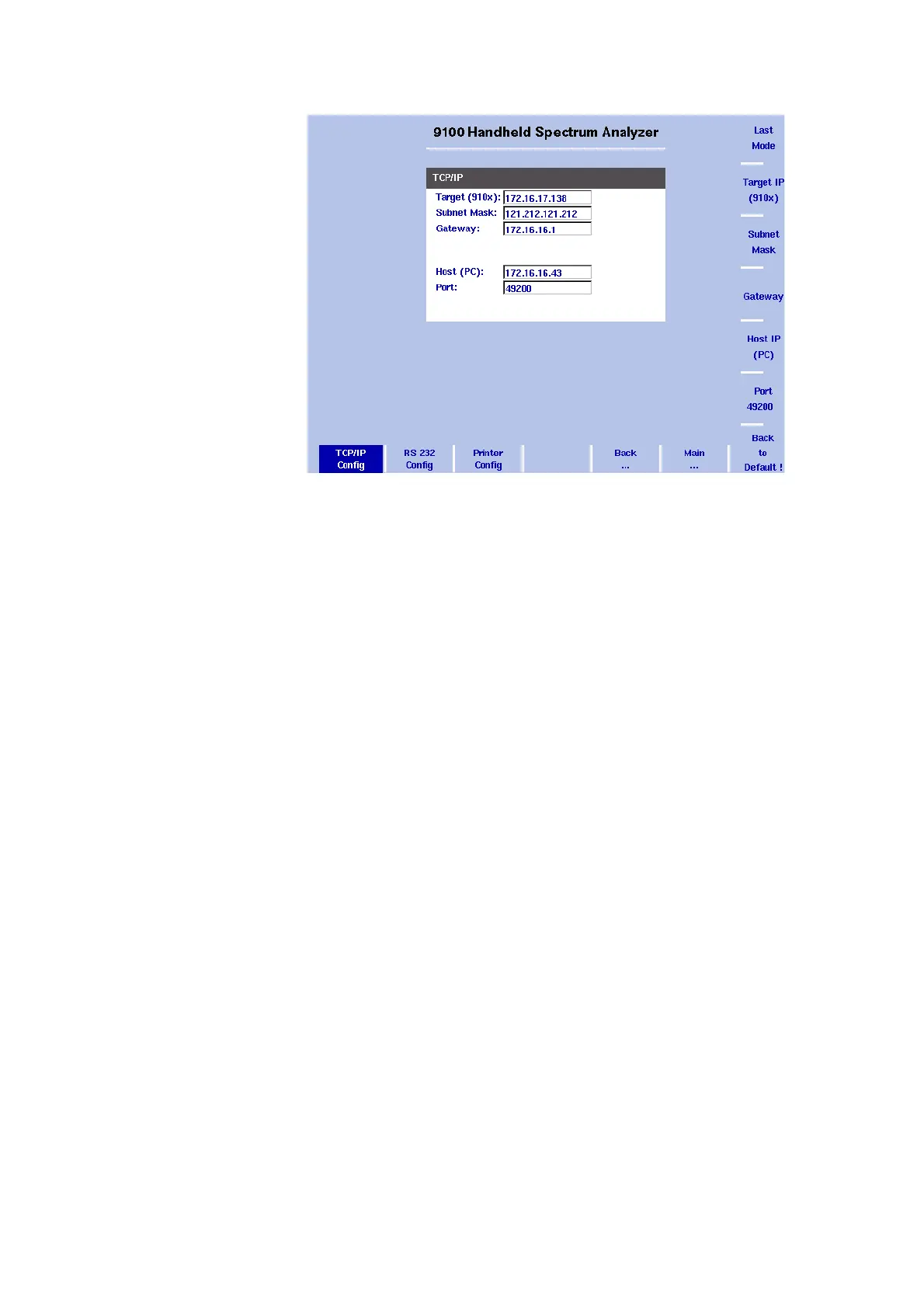
3 Select System > I/O Config.
The port configuration display appears, showing the current TCP/IP
settings.
4 To change the IP address of the 9102, press the
Target IP softkey.
The address field is highlighted.
5 Overwrite the entire IP address or select a field with the L
EFT/
R
IGHT cursor keys, enter a new IP address and press ENTER.
6 To change the subnet mask press the
Subnet Mask softkey. The
Subnet Mask field is highlighted.
7 Overwrite the entire subnet mask or select a field with the L
EFT/
R
IGHT cursor keys, enter a new one and press ENTER.
8 To change the gateway press the Gateway softkey. The Gateway
field is highlighted.
9 Overwrite the entire gateway or select a field with the L
EFT/RIGHT
cursor keys, enter a new one and press E
NTER.
10 For the change to take effect, switch the 9102 off and then on
again.
11 Ensure that your application on the PC addresses the 9102 using
this IP address so that the two units can communicate with each
other.
Changing the IP address
of the PC
For remote control of the 9102 Handheld Spectrum Analyzer from a
PC, the IP address of that PC can be entered on the instrument.
Figure 13 TCP/IP Configuration



 To Next Page