Chapter 3 Spectrum Analysis Operation
Storing and loading traces
9102 Handheld Spectrum Analyzer Software version 5.31
73
Storing and loading traces
The 9102 provides the capability to store up to 99 traces in the 9102
and load them again at random. The stored trace can then be exam-
ined or compared to a recent measurement. In addition, stored traces
can also be transferred to a PC using the 9100 Data Exchange Soft-
ware which is delivered with the 9102. For details on the software refer
to Chapter 15 “9100 Data Exchange Software”.
Storing a trace You can store either trace A and trace B. Any trace can be stored under
a name with up to 11 characters. The procedure to enter text in alpha-
numerical input fields is explained in section “Entering numbers and
text” on page 27. Note that along with the trace, the instrument settings
such as frequency range, level range and markers are stored.
1 From the main menu, select
Trace > Trace Memory.
2 Push either
Store Trace.
An input field opens, allowing you to enter a name for the trace.
Below the input field, a list of existing traces is indicated.
3 Enter a name for the trace. To use a modified trace name, you can
move the cursor to a suitable trace name with the U
P/DOWN cursor
keys. The selected trace name also appears in the input field; use
the L
EFT/RIGHT cursor keys to move the cursor to the appropriate
position within the trace name to enter additional characters or
delete existing ones.
4 Confirm your choice by pressing E
NTER.
The input field closes and the trace is stored under the selected
name.
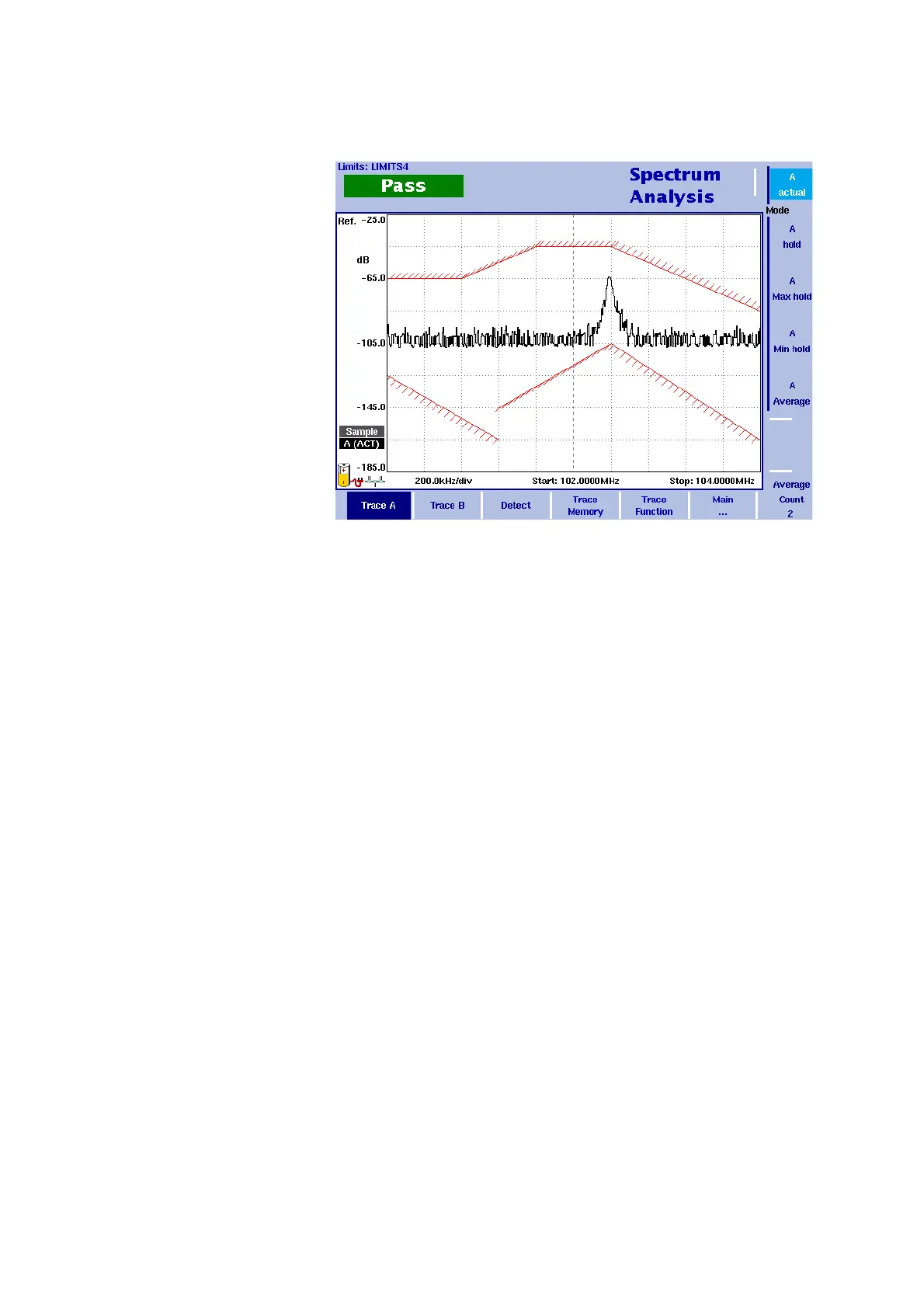
Figure 22 Trace A menu



 To Next Page