Chapter 15 9100 Data Exchange Software
Including the GPS position in the trace
9102 Handheld Spectrum Analyzer Software version 5.31
255
Copying configuration
files from the 9102 to
the PC
Files can be copied in both directions.
1 Select a PC directory where the file shall be stored or from which it
shall be copied.
2 Select one or several files for copying, either on the PC or on the
9102.
3Press
< copy to transfer the files from the PC to the 9102.
or
Press
copy > to transfer files to the PC.
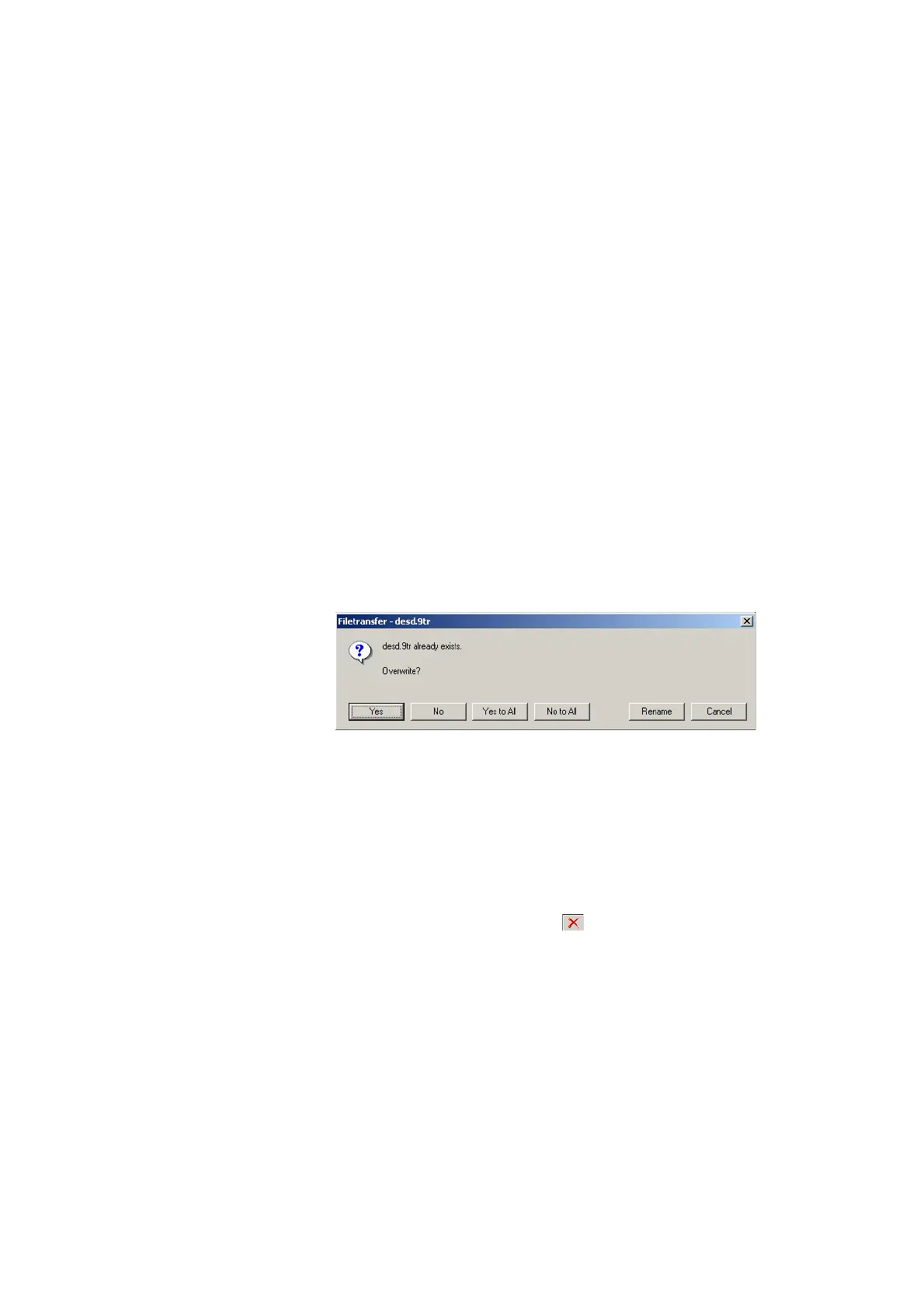
If a file on one side has been selected for transfer and a file with
the same name already exists on the other, the 9100 Data
Exchange Software will display a pop-up box with the file name in
question in the header bar, and offer several possibilities:
– Click on
Yes if you want to overwrite the file in question.
– Click on
No to cancel transmission of the file in question.
– Click on
Yes to All to copy all files, irrespective of duplicate file
names.
– Click on
No to All to prevent overwriting of all files with duplicate
file names.
– Click on
Rename to enter a new file name applying to that file
when transferred.
4 Click on
Cancel to cancel transmission of all files, no matter
whether file names already exist on the receiving side or not.
Deleting files 1 To delete a file either on the 9102 or on the PC, select (highlight)
the file name first. Several files may be selected concurrently by
holding the
Shift or Ctrl key pressed while selecting individual files.
2 Click on the Delete button above the files marked for deletion.
A box appears asking, “Are you sure to delete the selected items?”
3 Click on
Yes to confirm deletion.
The selected files are removed.
Including the GPS position in the trace
The location at the time of the measurement can be recorded and
viewed using the 9168 GPS Receiver Option. This requires the option
to be installed; see also “Connecting the GPS receiver” on page 39.


 To Next Page